
This step-by-step checklist covers everything you need to install and configure Secure Privacy v1 [CMP v1] on your website — from script installation and cookie blocking setup through to banner text, consent buttons, privacy policy integration, and compliance score verification. Follow each step in order to ensure a complete and GDPR-compliant Secure Privacy implementation.
Who Is This For?
Website administrators managing privacy compliance and cookie consent configuration
Web developers integrating the Secure Privacy script and blocking setup
Privacy officers and marketers verifying GDPR, CCPA, and LGPD compliance on their websites
Secure Privacy Setup Checklist
1. Verify the Secure Privacy script is installed correctly
Go to the Installation page in your Secure Privacy dashboard and copy the installation script. Paste the code at the top of the <head> tag in your website or CMS code view — ensure it loads before any other third-party scripts to guarantee blocking takes effect from the first page load.
2. Set up your tag blocking configuration
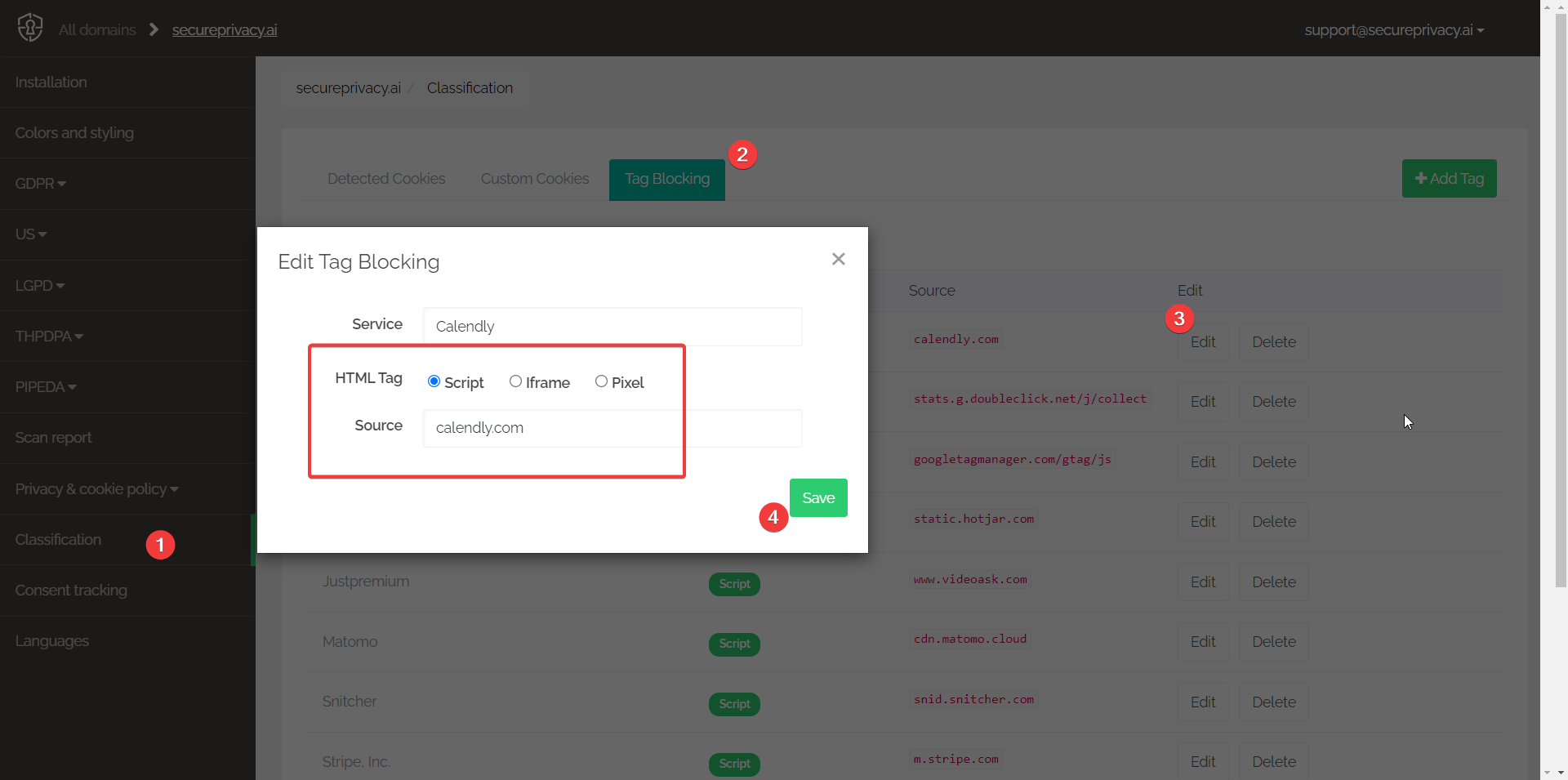
If your implementation team has identified specific script, iframe, or pixel sources that require blocking, add them in the Tag Blocking tab under Classification. This ensures those sources are held until visitor consent is given.
3. Review and configure target audience settings
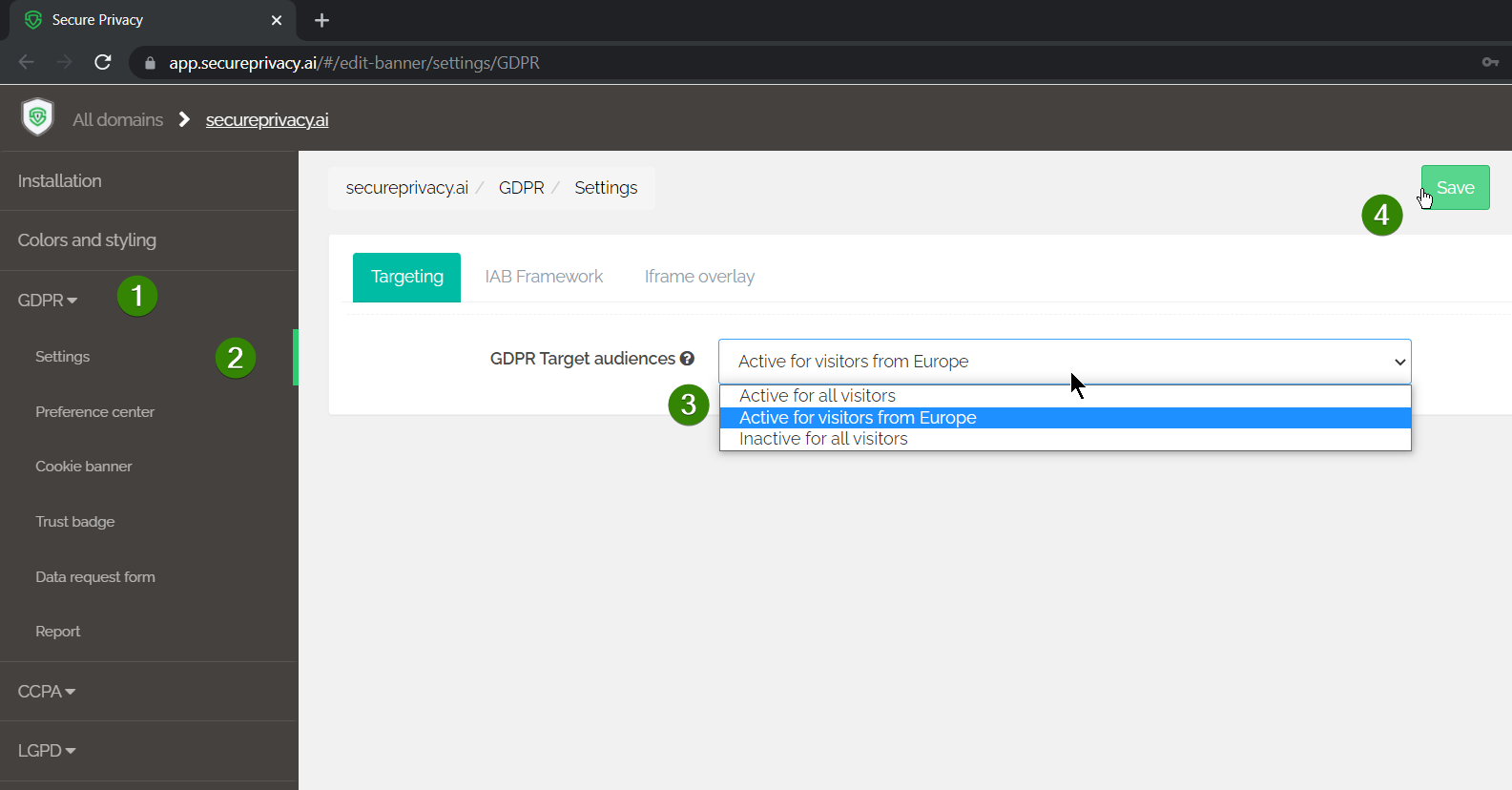
Select the appropriate target audience for each active compliance module. This determines which visitors see your consent banner based on their geographic location:
GDPR: Active for visitors from Europe
CCPA: Active for visitors from California
LGPD: Active for visitors from Brazil
4. Check your overall compliance rating and follow recommended actions
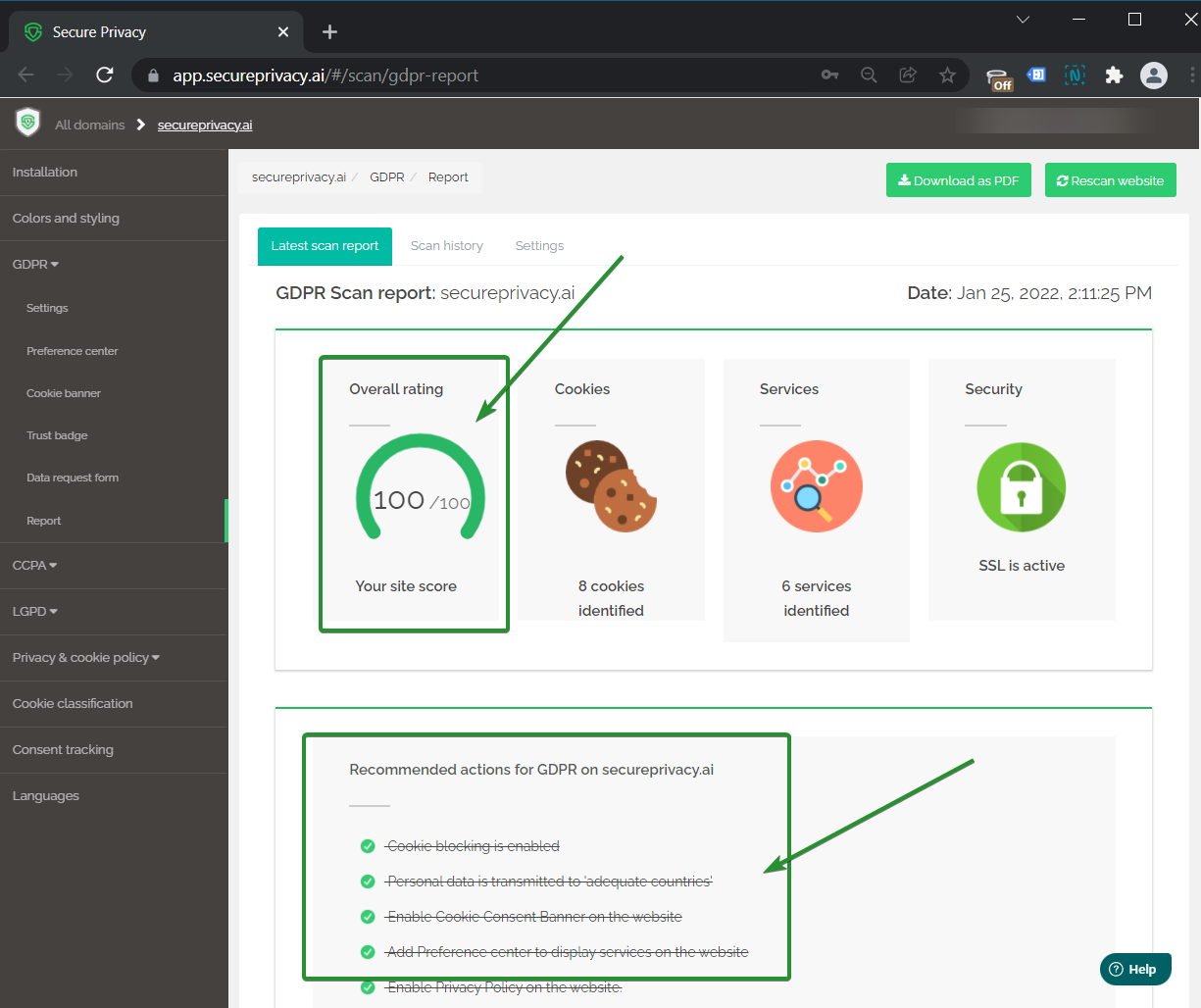
Review your latest scan report in the Report tab. Aim for a 100% compliance rating — items marked with a red X represent the highest-priority gaps. Work through the recommended actions to improve your score.
5. Review and categorize detected cookies
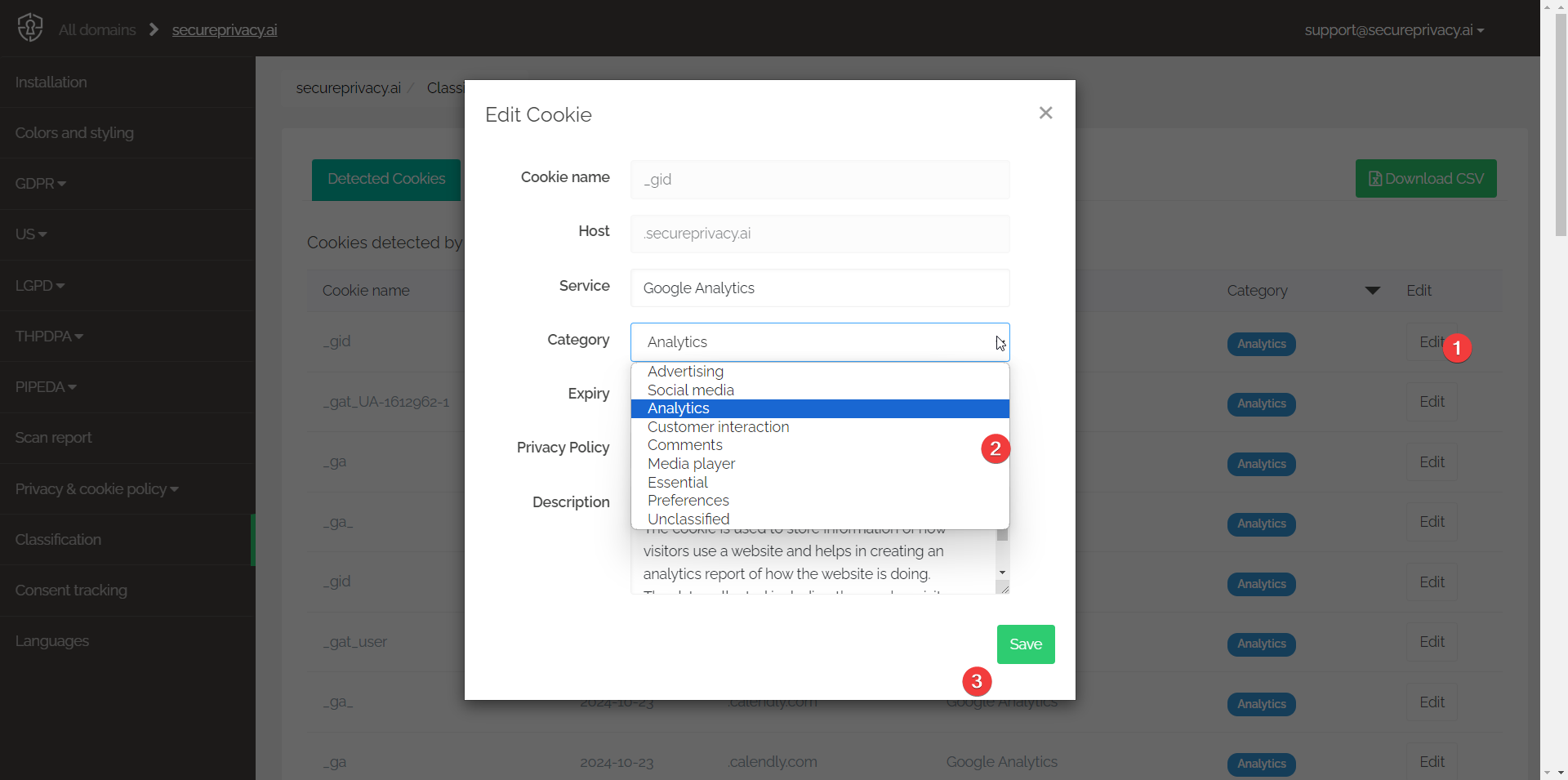
Navigate to the Classification tab and verify that every detected cookie and service is assigned to the correct category — Essential, Functional, Analytics, or Marketing. Miscategorized cookies can affect both your compliance score and your blocking behavior.
For more information on cookie categories, see the cookie categories support article.
6. Review and update cookie banner text
Ensure your cookie banner clearly communicates the purpose of each cookie category to visitors. Use plain, accessible language — for example:
Essential cookies: "We place essential cookies to enable our website to function correctly."
Analytical cookies: "We place analytical cookies to gather aggregated statistical information about visitors."
Advertising cookies: "We place advertisement cookies to optimize our marketing campaigns towards visitors."
7. [GDPR] Confirm both Accept and Decline buttons are present on the banner
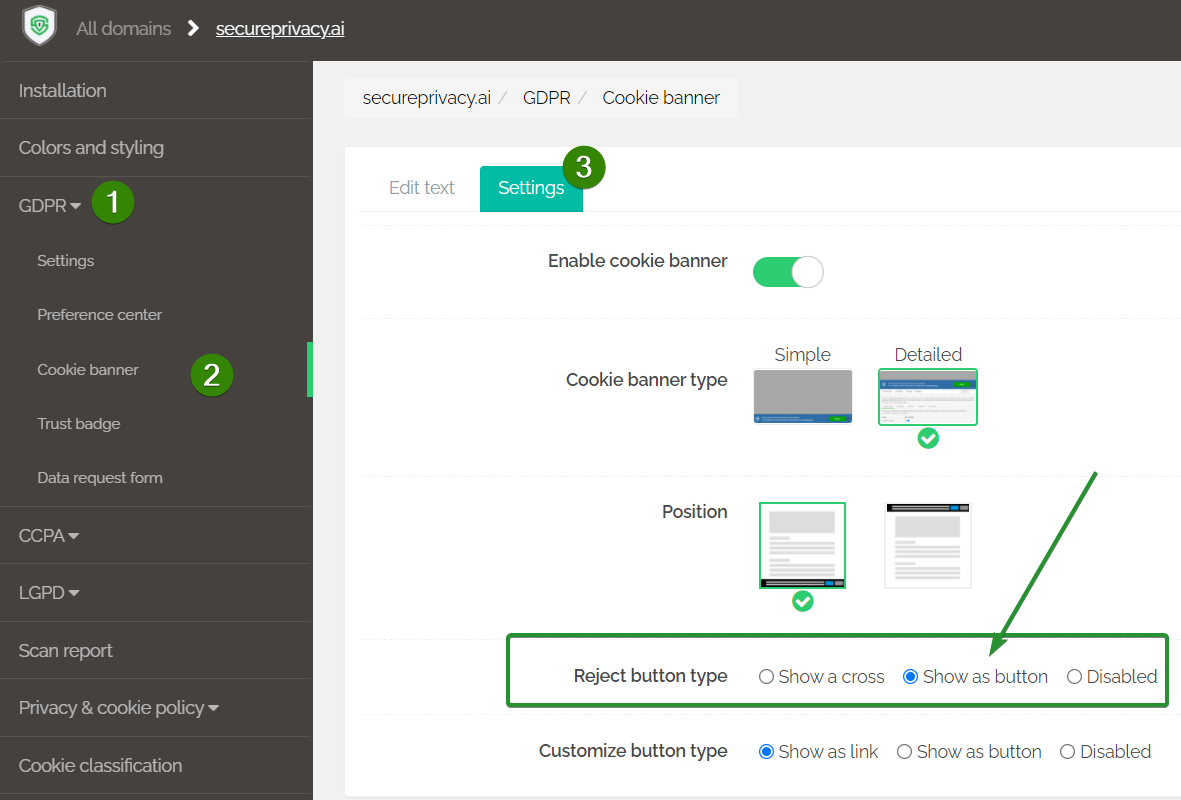
GDPR requires that visitors have an equally prominent option to decline non-essential cookies as they do to accept them. If the Decline button is not visible on your banner, enable it by navigating to GDPR > Cookie Banner > Settings and setting Reject button type to Show as button.
8. Verify only essential cookies are placed before consent is given
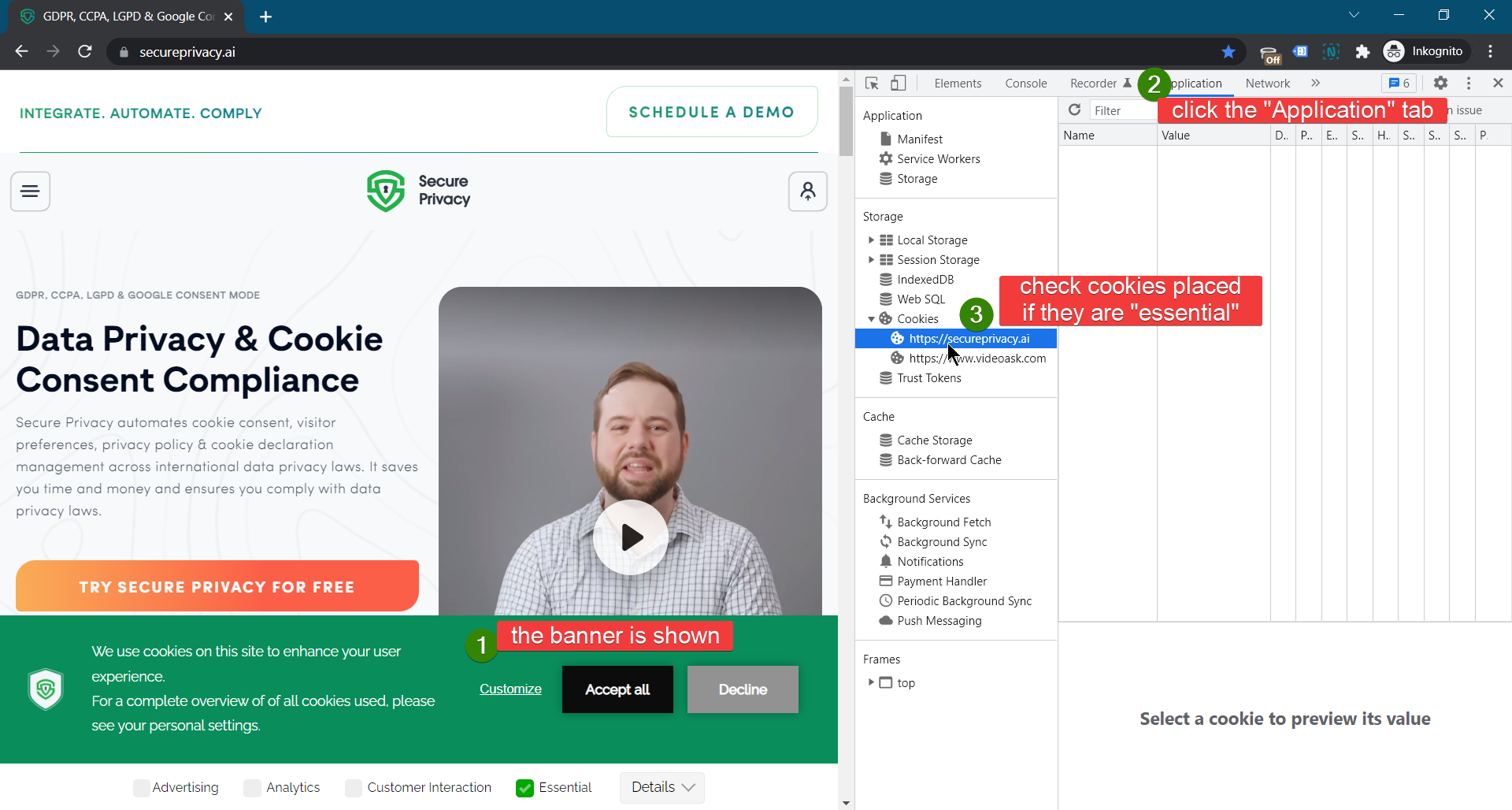
Open your browser's developer tools and check the Application tab to inspect cookies placed before any consent interaction. Only essential cookies should be present at this stage. If non-essential cookies are loading before consent, revisit Steps 2, 3, and 4 to identify and resolve the blocking gap.
9. Enable privacy policy and cookie declaration on your website
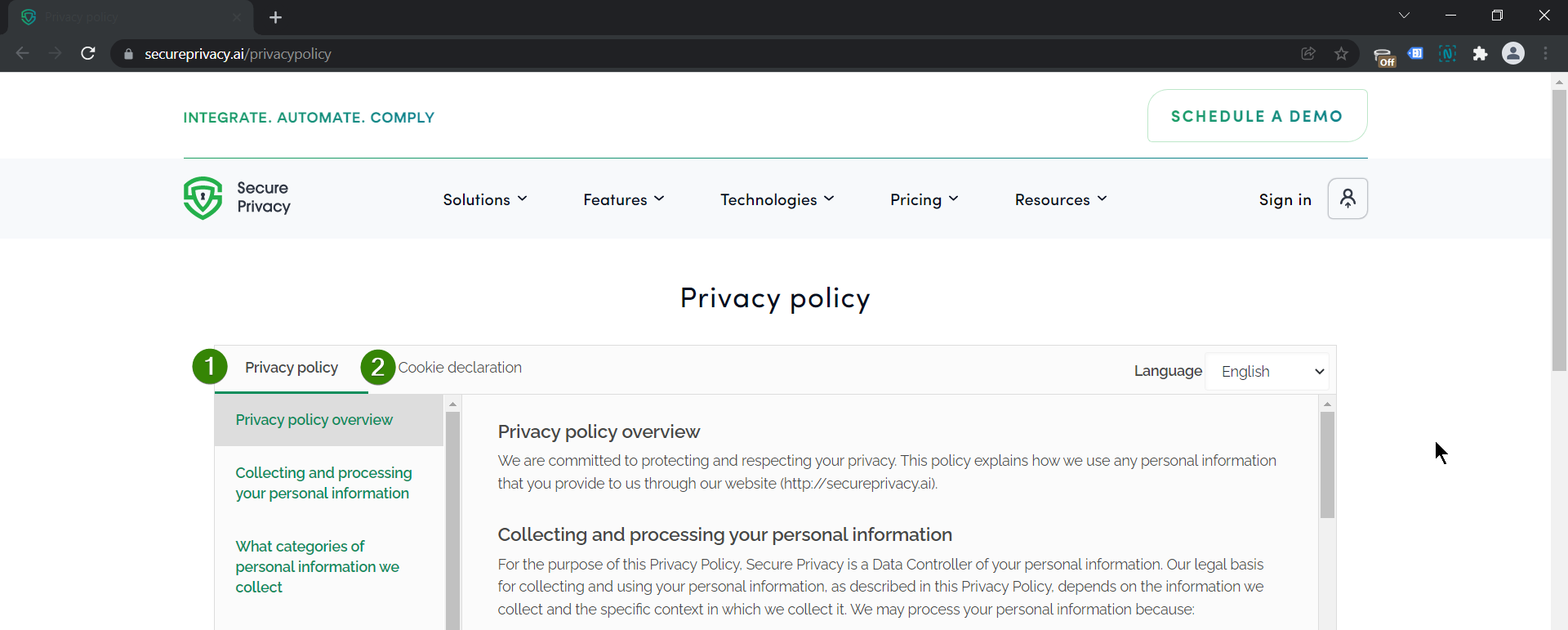
A privacy policy and cookie declaration are required under GDPR to provide visitors with transparent information about your data practices. Enable both using the following guides:
10. [Optional — Enterprise] Configure the Scan Behind Login feature
For Enterprise accounts, the Scan Behind Login feature allows Secure Privacy to scan pages behind user authentication — such as logged-in dashboards or members-only areas — ensuring cookies in restricted areas are also detected and managed.
See the Authenticated Scans via Scan Behind Login setup guide for configuration instructions.
Common Issues and Fixes
Script not running on the website
Ensure the Secure Privacy script is inserted at the very top of the <head> tag — before any other scripts — and clear all server and browser caches after installation. A script loaded too late in the page may allow non-essential cookies to set before the blocking engine initializes.
Tag blocking not working for specific services
Verify that all required sources are correctly listed and saved in the Tag Blocking tab under Classification. Double-check that the source URL or domain entered exactly matches the one identified in your scan report.
Accept and Decline buttons missing from the banner
Navigate to GDPR > Cookie Banner > Settings and confirm the Reject button type is set to Show as button. If the setting is already correct but the button is still not appearing, check for custom CSS overrides that may be hiding the element.
Frequently Asked Questions
Where exactly should the Secure Privacy script be placed on my website?
The script must be placed at the top of the <head> tag on every page of your website — before any other third-party scripts, tags, or analytics code. This ensures the blocking engine initializes before any cookies can be set. If you are using a CMS, paste the script in the header code injection area or through your tag manager as the first tag to fire.
How do I know if non-essential cookies are loading before consent?
Open your browser's developer tools, clear all cookies, reload the page without interacting with the consent banner, and check the Application > Cookies section. Only cookies classified as Essential should appear. If you see Analytics, Marketing, or Functional cookies loading before consent, revisit your tag blocking configuration and re-run the scan.
Do I need to complete all steps to pass GDPR compliance?
For full GDPR compliance, steps 1 through 9 are all required — script installation, blocking, audience targeting, cookie categorization, banner text, Accept/Decline buttons, pre-consent cookie verification, and privacy policy/cookie declaration. Step 10 is optional and applies only to Enterprise accounts with authenticated page areas.
See Also
Have more questions? Contact us at [email protected].