
Secure Privacy supports Google Consent Mode v2 — an API that connects Google tag behavior with visitor consent choices. When integrated with Secure Privacy, every consent decision a visitor makes is automatically signaled to Google, adjusting how tags such as Google Analytics and Google Ads behave based on whether consent was granted or declined.
Google Consent Mode v2 (GCM v2) introduces two additional parameters alongside ad_storage and analytics_storage: ad_user_data and ad_personalization — giving you granular control over how personal data is used for advertising and personalization purposes.
Who Is This For?
Privacy managers and compliance officers implementing GDPR-compliant consent management with Google tags
Developers integrating Secure Privacy with Google Consent Mode via the installation script or GTM
Marketing teams balancing analytics accuracy with visitor privacy compliance
How Google Consent Mode v2 Works with Secure Privacy
Google Consent Mode manages five consent categories: advertisement, analytics, functional, personalization, and security — using the global site tag or Google Tag Manager (GTM).
When a visitor declines analytics cookies, Google tags do not use cookies to collect personally identifiable information. Instead, aggregated, cookieless data is used — bridging privacy compliance with accurate conversion measurement. When integrated with Secure Privacy, consent signals are passed to Google automatically every time a visitor updates their preferences.
Integration Methods
There are two ways to integrate Google Consent Mode with Secure Privacy:
Implementation using the installation script (without Google Tag Manager Template) — covered in this guide below.
Implementation using Google Tag Manager Template — covered in the dedicated GTM integration guide.
Method 1: Implementation Using the Installation Script (Without GTM Template)
Step 1: Enable Google Consent Mode in Secure Privacy
Log in to your Secure Privacy dashboard, select the target domain.
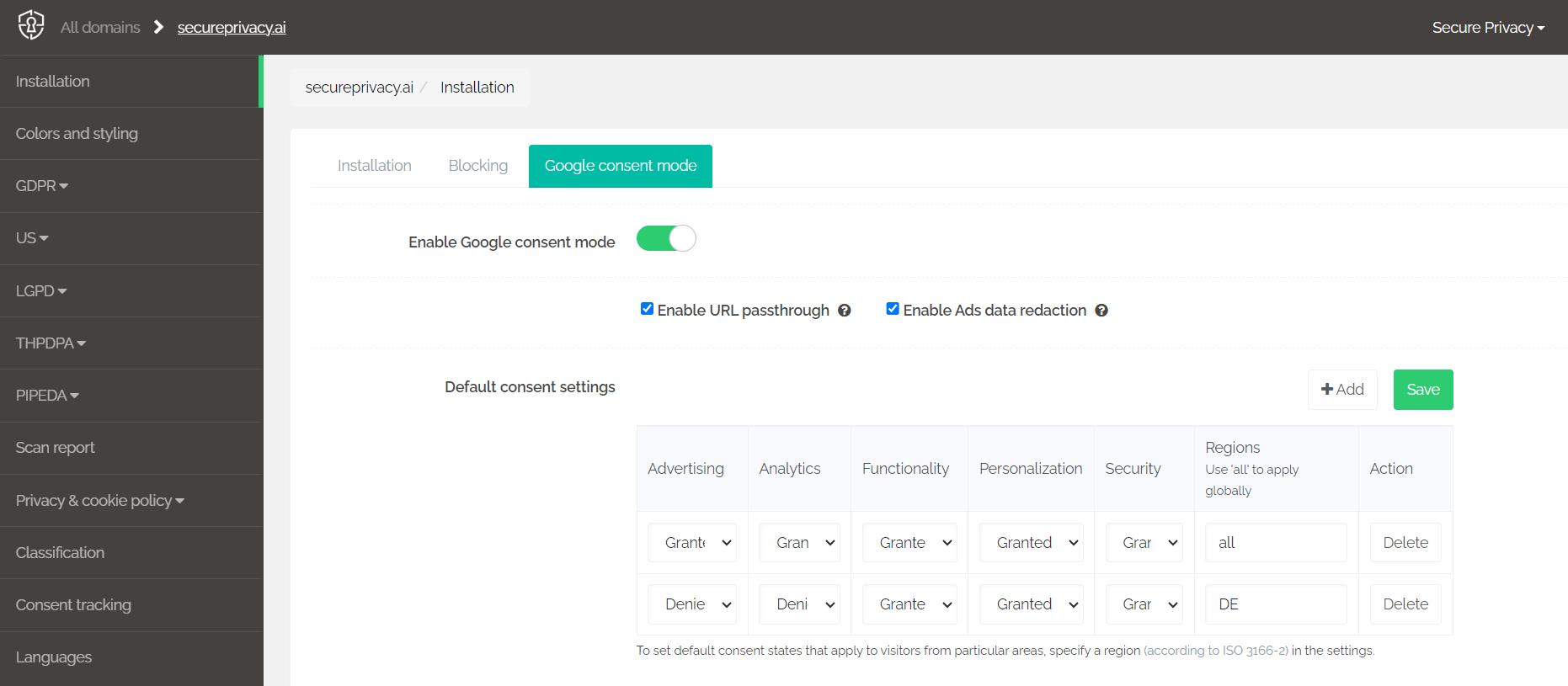
Navigate to Installation > Google Consent Mode tab.
Toggle the Enable Google Consent Mode switch to activate it.
Step 2: Add Default Consent Settings
In the Google Consent Mode settings, locate the Default Consent Settings section.
To set region-specific defaults, use the Add Setting option and enter the relevant ISO 3166-2 region code (for example,
DEfor Germany orUS-CAfor California).Configure the default consent state for each parameter —
ad_storage,analytics_storage,ad_user_data, andad_personalization— for the specified region.Click Add to save the setting. Repeat for each region you need to configure.
Press Save button to apply the changes.
Method 2: Implementation Using Google Tag Manager Template
For detailed instructions on integrating Google Consent Mode v2 with Secure Privacy using the Google Tag Manager Community Template, refer to the dedicated guide: Secure Privacy: Integrate Google Consent Mode Using GTM Template.
Frequently Asked Questions
How do I enable Google Consent Mode in Secure Privacy?
Log in to the Secure Privacy dashboard, navigate to Installation > Google Consent Mode, and toggle Enable Google Consent Mode on. The integration will begin passing consent signals to Google automatically once activated.
How do I configure consent defaults for different regions?
Use the Add Setting feature in the Default Consent Settings section. Enter the ISO 3166-2 region code for the target region and configure the default consent state for each parameter. This allows you to apply different default behaviors — for example, setting analytics_storage to denied by default for EU visitors — based on geolocation.
What is the difference between Google Consent Mode v1 and v2?
Google Consent Mode v1 used two parameters: ad_storage and analytics_storage. v2 adds ad_user_data and ad_personalization — providing finer control over how user data is used for advertising and personalization. Google requires v2 compliance for continued access to certain features in Google Ads and Analytics as of March 2024.
Where can I find the GTM Template integration guide?
The full Google Tag Manager Template implementation guide is available here: Secure Privacy: Integrate Google Consent Mode Using GTM Template.