
Secure Privacy makes it easy to edit your cookie banner text without any developer skills. Using the built-in text editor, you can update banner copy, adjust formatting, change the language, and add hyperlinks — all from your dashboard.
Who Is This For?
Website owners and administrators updating the text displayed in their Secure Privacy cookie consent banner
Compliance teams customizing banner wording to align with legal requirements or organizational tone
Marketing teams editing cookie banner text without needing developer access
How to Edit Your Cookie Banner Text
Step 1: Log in to Secure Privacy
Log in to your Secure Privacy account with your credentials.
Step 2: Navigate to the Cookie Banner
In the left sidebar, select your compliance module — for example, GDPR or CCPA — then click Cookie Banner.
Step 3: Edit Your Banner Text
You will land on the Cookie Banner Edit Text screen. Click on the text section you want to edit to open it in the editor.
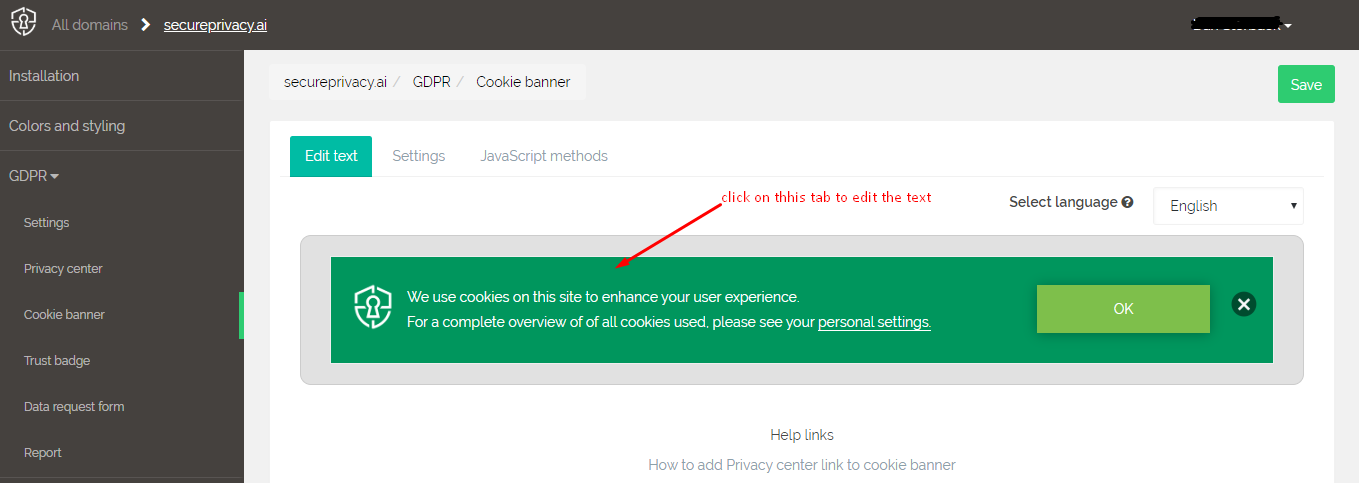
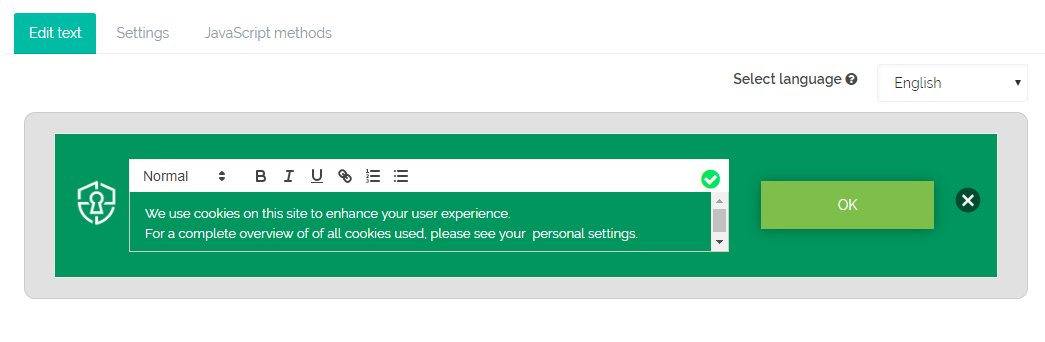
Use the language selector in the right-side menu to choose which language version you are editing. The editor provides the following formatting options:
Font size: Small, Normal, or Large
Font formatting: Bold, Italic, or Underline
Hyperlinks: Link text to any relevant page on your website
Step 4: Save Your Changes
When you have finished editing, click the green tick in the upper-right corner of the text field to confirm and save your changes. Your banner text will update automatically.
Frequently Asked Questions
Can I edit banner text for multiple languages?
Yes. Use the language selector in the right-side menu of the Edit Text screen to switch between installed languages and edit the banner text for each one separately. Make sure to save each language version using the green tick before switching.
Will my text edits affect all pages of my website?
Yes. Banner text changes apply globally across all pages where the Secure Privacy script is installed. Once saved, the updated text appears on your cookie banner on every page.
Can I revert to the default banner text after editing?
Default banner text is pre-aligned with applicable privacy legislation. If you have made changes you want to undo, you will need to manually re-enter the original text. It is recommended to note the default wording before making significant edits.