
Secure Privacy supports full custom CSS for your cookie consent banner — allowing you to override default styles or apply a completely new stylesheet to match your website's branding. This guide explains how to add, replace, and manage custom CSS for your banner in a few steps.
Who Is This For?
Web developers customizing the appearance of the Secure Privacy cookie consent banner with CSS
Website administrators applying custom fonts or styles to the cookie banner to match their brand
Designers replacing the default banner CSS with a fully custom stylesheet
How to Add Custom CSS to Your Cookie Consent Banner
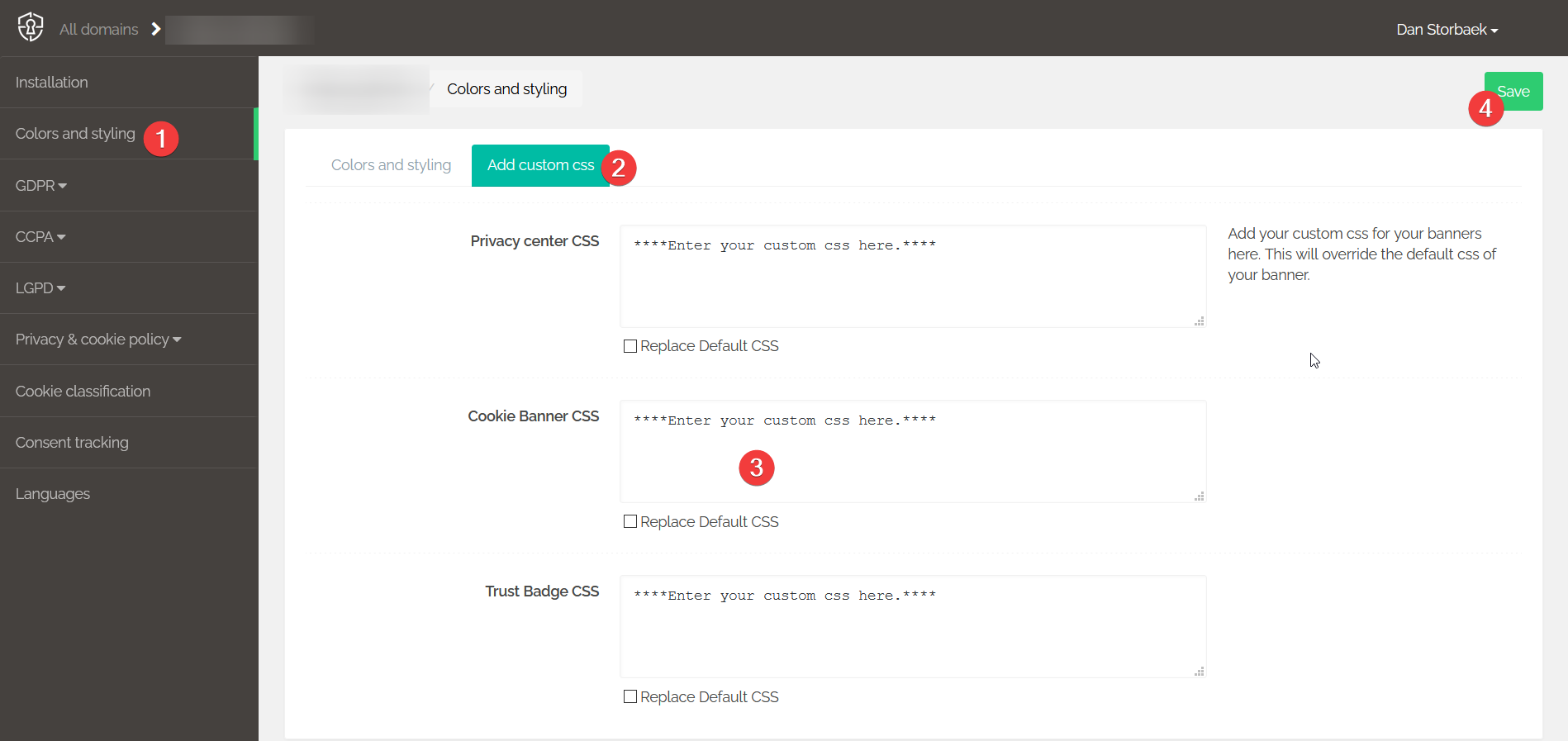
In your Secure Privacy dashboard, navigate to Banners > Cookie Banner > Add Custom CSS.
Paste your CSS into the CSS text box provided.
If you want to completely replace the default banner CSS with your own stylesheet, check the Replace Default CSS option. Leave this unchecked if you only want to override specific properties.
Click Save.
Your CSS will be applied to the cookie banner immediately.
Important Notes
Overriding specific properties: If you only want to change a few styles — such as colors, font size, or button radius — leave Replace Default CSS unchecked. Your custom CSS will be added on top of the existing default styles, applying only the properties you have specified.
Replacing all CSS: Check Replace Default CSS only when you are supplying a completely new stylesheet for the banner. This removes the default styles entirely and applies only your custom CSS.
Importing external stylesheets and fonts: You can use
@importinside the CSS text box to load external stylesheets or web fonts — for example, importing a custom font from Google Fonts or your own CDN.
Frequently Asked Questions
What is the difference between adding custom CSS and replacing the default CSS?
Adding custom CSS without checking Replace Default CSS applies your styles on top of Secure Privacy's default banner styles — useful for changing specific properties like colors or padding. Checking Replace Default CSS removes all default styles and applies only your custom stylesheet — use this when you want complete control over the banner's appearance from scratch.
Can I use @import to load custom fonts in the cookie banner?
Yes. Add your @import statement at the top of the CSS text box to load an external font or stylesheet. For example, you can import a Google Font to use in the banner — just ensure the font URL is allowed by your website's Content Security Policy.
Will custom CSS affect the cookie banner across all pages of my website?
Yes. Custom CSS applied in the Banner Settings is loaded as part of the Secure Privacy script and applies to the cookie banner on every page where the script is active.