
Secure Privacy's automatic cookie blocking engine scans your website, identifies all cookies and third-party services, and generates a domain-specific blocking configuration that prevents non-essential cookies from loading until visitor consent is given. This article explains how the blocking mechanism works, the available blocking modes, and how to manually add scripts, pixels, or iframes to your blocking configuration.
Who Is This For?
Website administrators setting up or reviewing automatic cookie blocking in Secure Privacy
Developers understanding the technical mechanism behind script, pixel, and iframe blocking
Compliance teams verifying that non-essential cookies are correctly blocked before visitor consent
How the Secure Privacy Cookie Blocking Engine Works
The Secure Privacy scanner crawls your website and identifies all cookies and third-party services. You can view the full results in the Scan Report inside your dashboard.
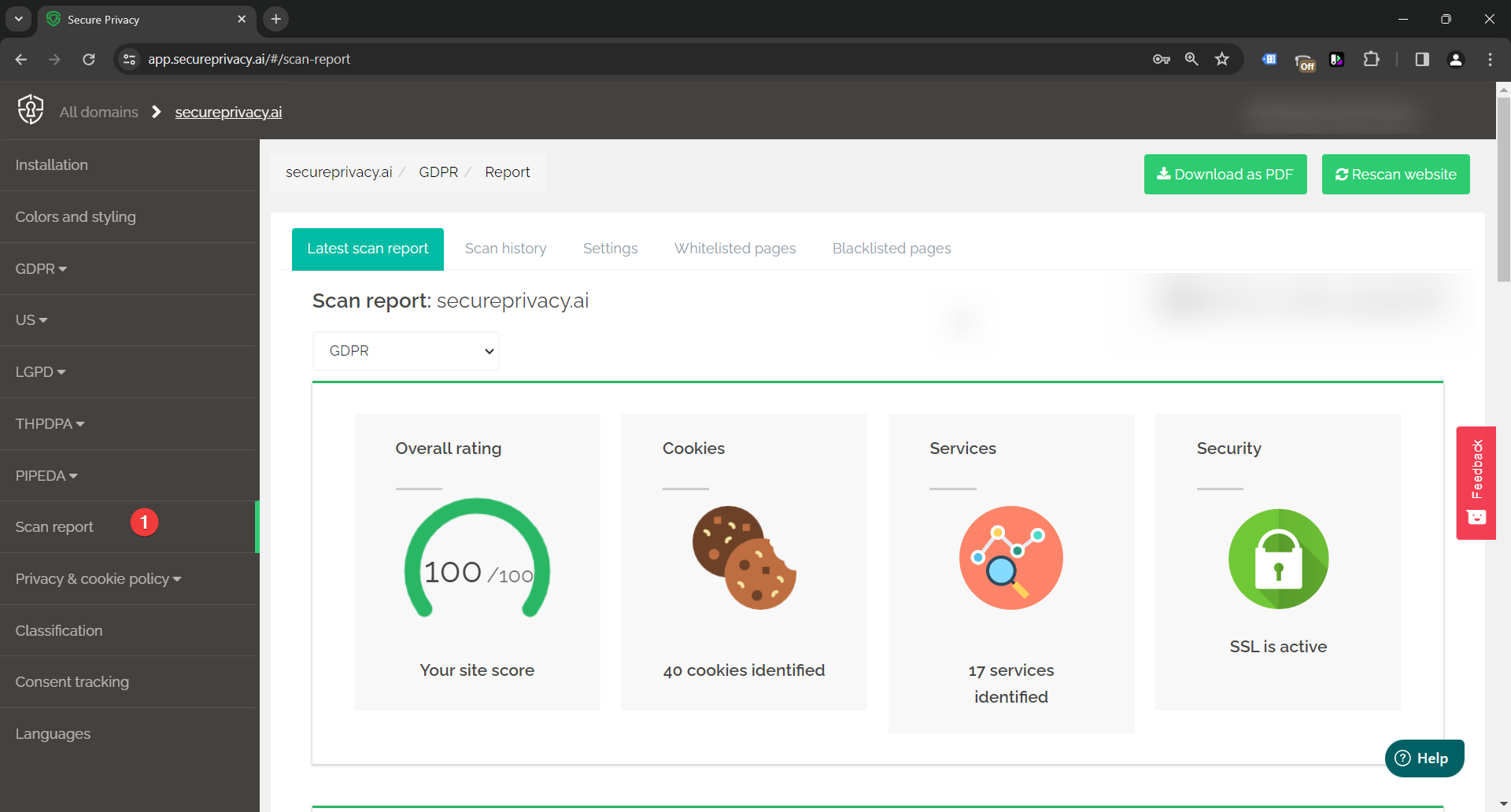
Based on the scan results, Secure Privacy generates a unique JavaScript file for each domain. This file contains the full list of scripts, pixels, and iframes to block — and is editable through the Classification screen in your dashboard:
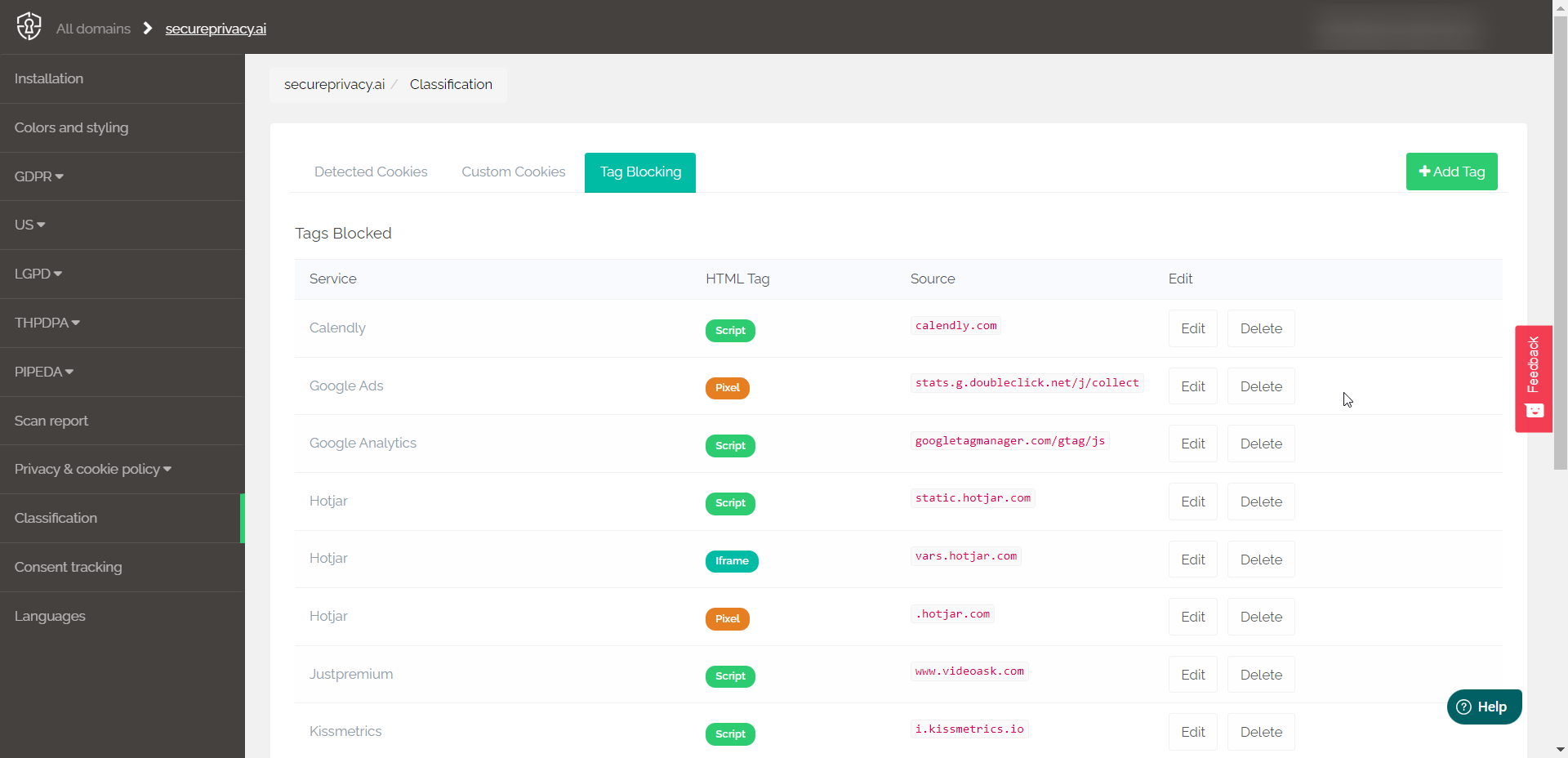
Use the Classification screen to add or remove custom scripts from your blocking configuration. Each time you save, the JavaScript blocking file is updated with the latest list.
Automatic Cookie Blocking
When auto-blocking is enabled, Secure Privacy blocks all non-essential cookies from being set on a visitor's device until explicit consent is received. Essential cookies — those required for basic website functionality — are always permitted.
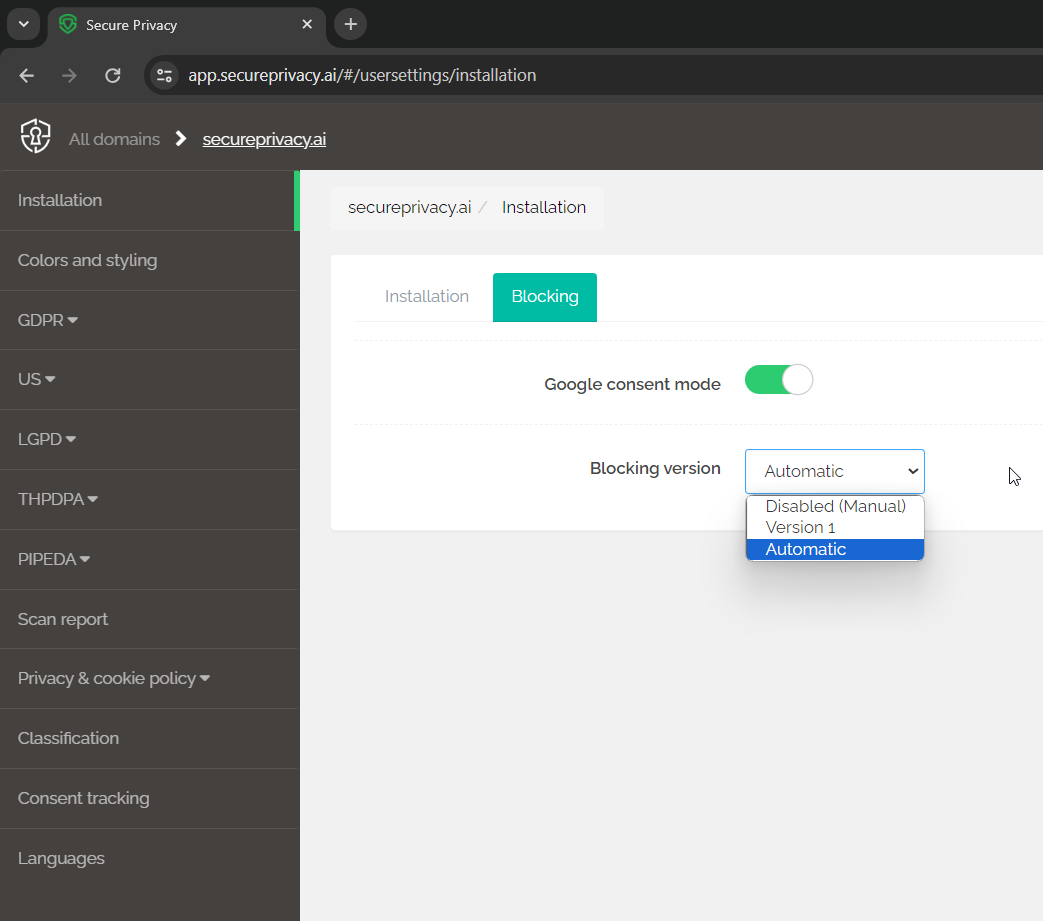
Blocking Modes Explained
Secure Privacy offers three blocking modes. Choose the mode that matches your website's compliance requirements:
Blocking Mode |
Description |
Recommended For |
|---|---|---|
v2 Blocking (Current) |
Secure Privacy's current automatic blocking method. Prevents all non-essential cookies from being set until explicit user consent is given. Only cookies classified as essential — required for basic website functionality — are permitted without consent. |
All new users — recommended for maximum GDPR compliance |
v1 Blocking (Legacy) |
An older blocking mechanism maintained for backward compatibility with existing systems. Less robust and feature-rich than v2. Not recommended for new implementations. |
Existing installations using v1 only — migrate to v2 when possible |
Disabled Blocking |
No automatic blocking is applied. All cookies and services may load freely until the user actively intervenes. Used in manual blocking scenarios where the website owner manages blocking directly. |
Manual blocking configurations only |
Prerequisites for Automatic Cookie Blocking
Auto-blocking relies on your scan results and cookie categorizations. If a cookie is undetected or uncategorized in your scan report, it will not be blocked automatically. Always trigger a fresh rescan of your website before enabling auto-blocking to ensure all cookies are detected and correctly categorized.
Technical Blocking Mechanism
Each cookie-setting script is tracked in your domain's unique JavaScript blocking file using the MutationObserver API — compatible with all major browsers including IE11. This observer monitors script loading patterns in real time and intercepts them before they execute, holding them until the visitor provides consent.
How Blocking Works for Scripts, Pixels, and Iframes
Pixels: When automatic blocking is enabled, all pixel trackers are blocked by default and only added to the HTML DOM after the visitor has given explicit consent for the relevant category. For example, a Facebook Pixel remains inactive until the user approves marketing cookies.
Scripts: Scripts are prevented from being injected into the HTML DOM until the user grants consent. For example, Google Analytics scripts will not load before approval — which may result in reduced analytics data until consent is given.
Iframes: Blocked iframes are managed via the Iframe tab in the blocking configuration settings. Secure Privacy automatically blocks these iframes and displays an overlay informing the visitor that the content is blocked, along with a consent button allowing them to enable it.
How to Manually Block a New Script, Pixel, or Iframe
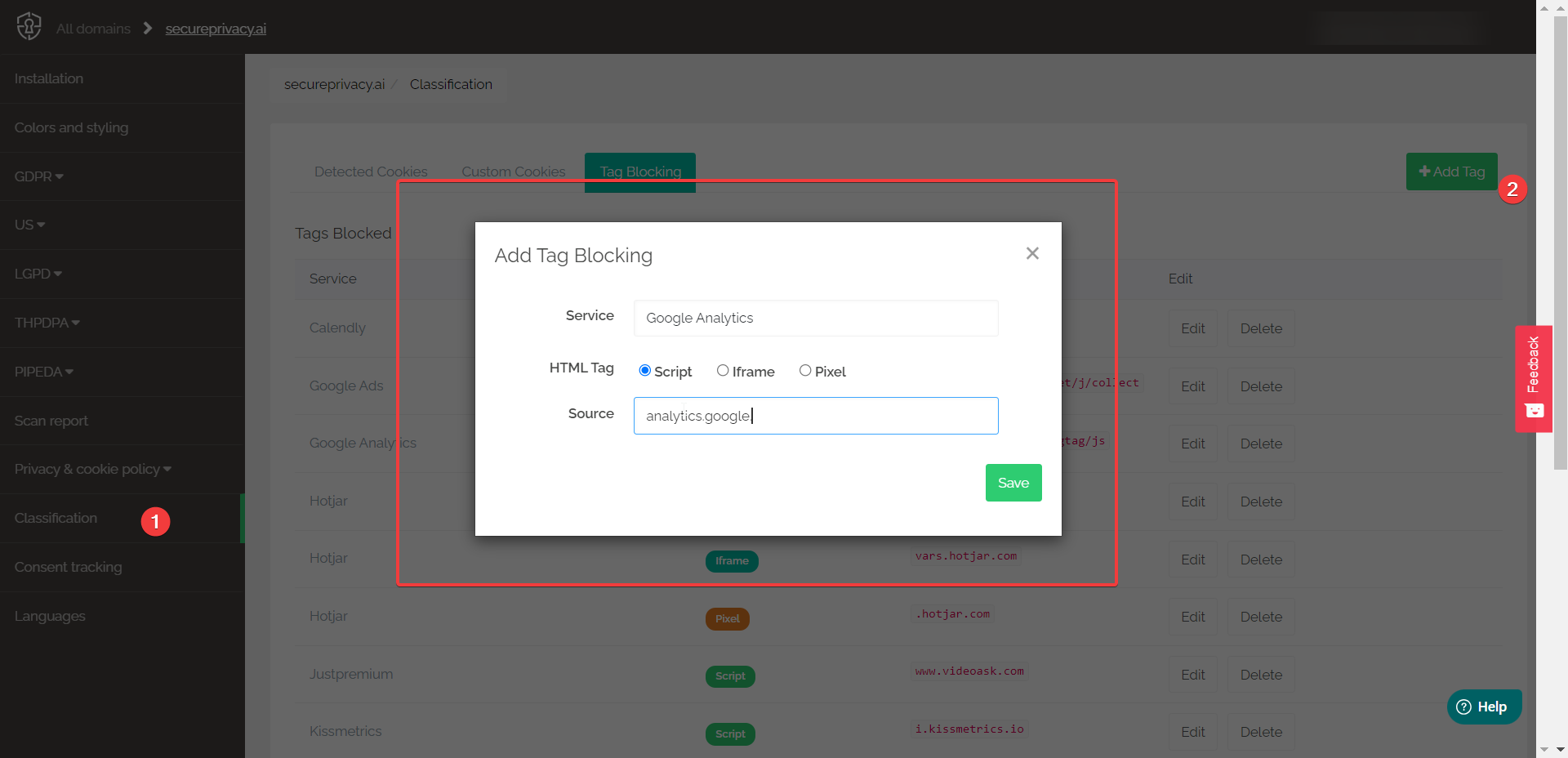
If a specific script, pixel, or iframe is not covered by automatic blocking, use the Add Tag Blocking form in the Classification screen. Specify the type — Script, Iframe, or Pixel — and enter the source URL or domain to add it to your blocking configuration.
Frequently Asked Questions
What is the difference between v1 and v2 blocking in Secure Privacy?
v2 blocking is Secure Privacy's current, recommended blocking method. It uses a more advanced detection and interception mechanism that blocks all non-essential cookies before consent — including dynamically injected scripts. v1 blocking is a legacy method maintained for backward compatibility but lacks the robustness of v2. New users should always use v2 blocking.
Why are some cookies not being blocked automatically?
Auto-blocking only applies to cookies and services that have been detected and categorized in your scan report. If a cookie is not in your scan results — because it was added after your last scan or uses a non-standard implementation — it will not be blocked automatically. Trigger a rescan and check the Classification screen to ensure all active cookies are categorized. Use the Add Tag Blocking form to manually add any that are still missing.
Does disabling blocking mean cookies will load without consent?
Yes. When blocking is set to Disabled, Secure Privacy does not automatically restrict any cookies or services — all may load freely unless you have configured manual blocking for specific tags. This mode is only appropriate for websites using a fully manual blocking approach where the operator controls all cookie loading directly.