
Secure Privacy's user management feature lets account owners add team members, assign role-based access levels, manage domain administrator assignments, and remove users — all from the Users page in your dashboard.
Note: User management is available on the Enterprise plan only. See current plans and billing options on the Secure Privacy pricing page.
Who Is This For?
Account owners managing team member access across multiple domains in Secure Privacy
IT administrators assigning and updating user roles for compliance teams
Enterprise organizations managing granular domain-level access for different team members
User Roles and Access Levels
Secure Privacy provides three user roles, each with a different level of access:
Role |
Access Level |
Restrictions |
|---|---|---|
Account Owner |
Full access to all domain configuration, account details, and billing data |
None |
Account Admin |
Full access to all features across all domains |
Cannot change billing or account details |
Domain Admin |
Full access to assigned domains only |
Billing and account details restricted; access limited to specified domains |
How to Add a Team Member
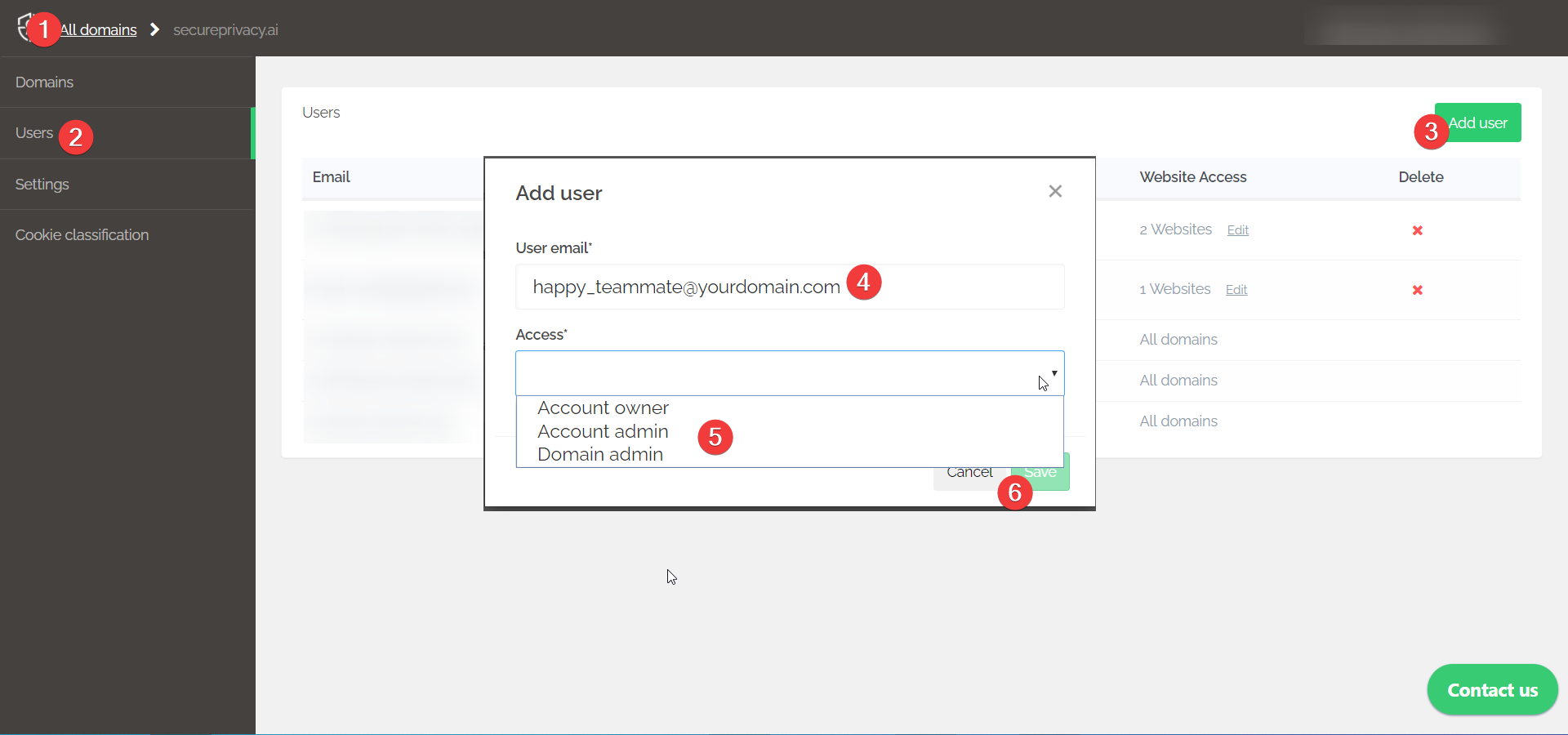
Log in to your Secure Privacy account and click All Domains in the top bar.
Select Users in the left sidebar to view the list of active users on your account.
Click the green Add User button to open the add user modal.
Enter the User Email for the team member. A new Secure Privacy account will be created for this email and associated with your main account — a password reset link will be sent automatically.
Select the Access level (user role) for this team member.
Click Save to confirm.
How to Change a Team Member's User Role
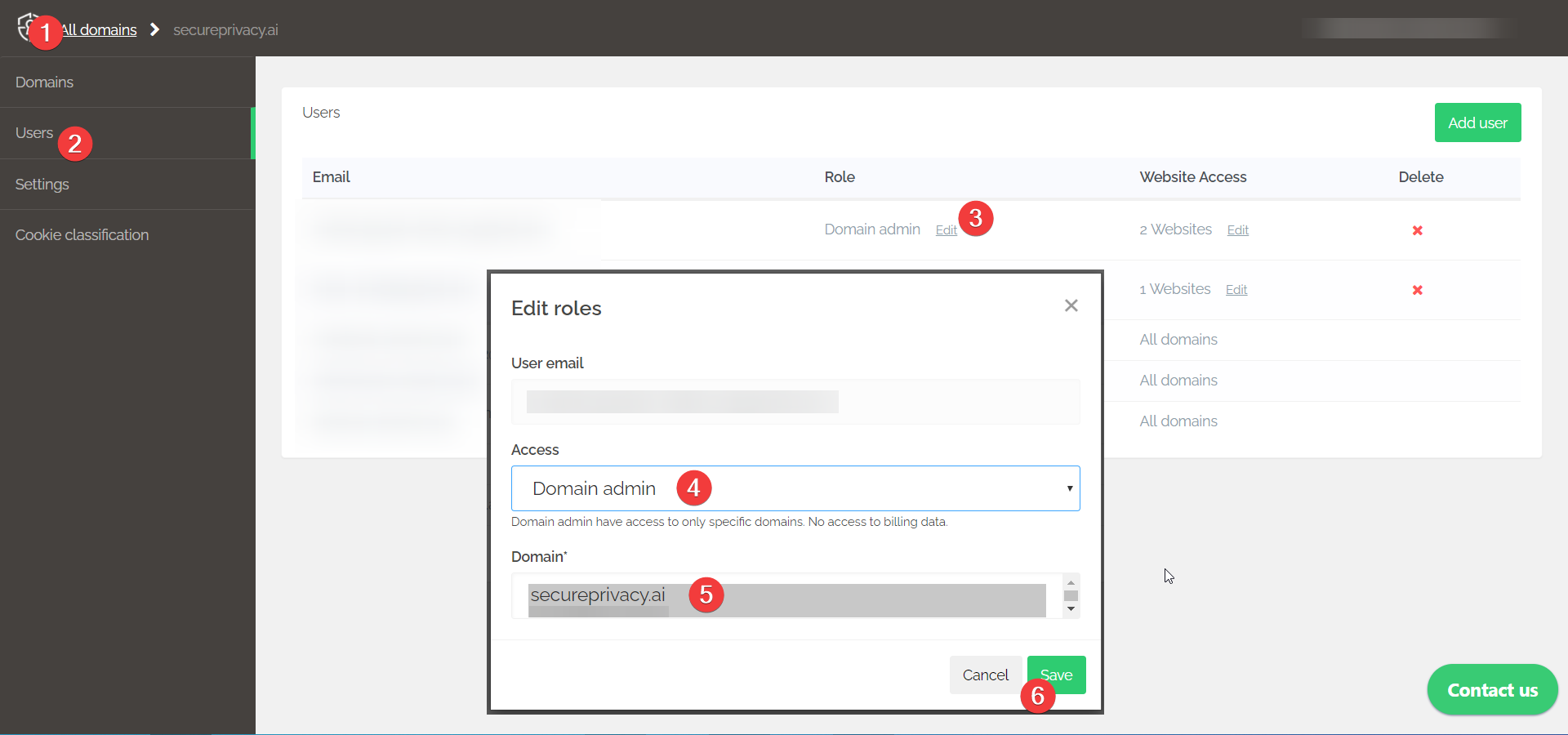
Log in to your Secure Privacy account and click All Domains in the top bar.
Select Users in the left sidebar.
Click the Edit link in the Role column next to the relevant user's email to open the edit modal.
Use the Access dropdown to select the new role for this user.
For Domain Admin users, you may also select which specific domains they should have access to.
Click Save to confirm the changes.
How to Change the Administrator of a Domain
Note: Account Owner and Account Admin roles have access to all domains by default — the steps below apply only to Domain Admin users, where domain access must be explicitly assigned.
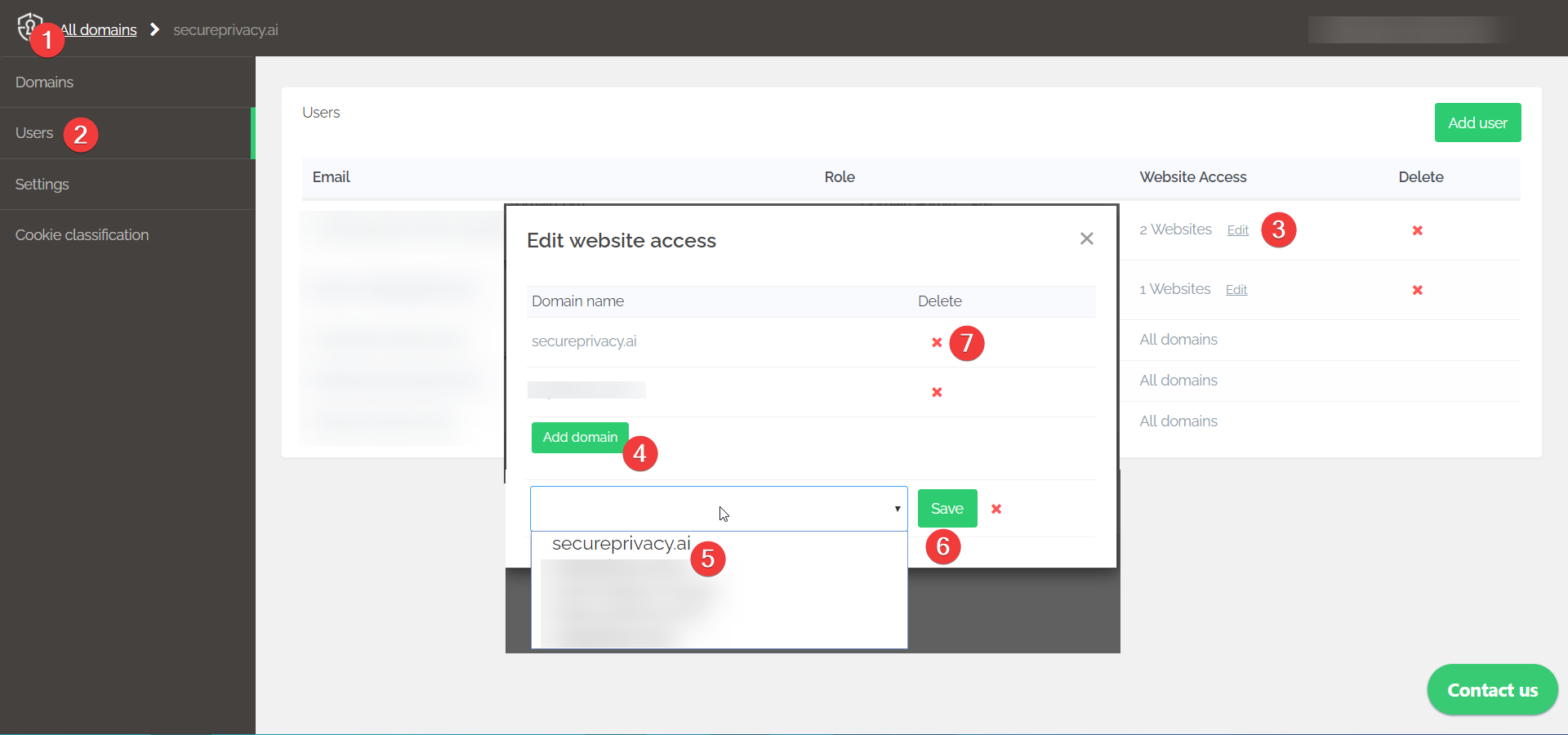
Log in to your Secure Privacy account and click All Domains in the top bar.
Select Users in the left sidebar.
Click the Edit link in the Website Access column for the relevant Domain Admin user.
Click Add Domain to assign a domain to this user.
Select the domain from the dropdown menu.
Click Save to confirm.
To remove a domain from this user's access, click the red cross next to the domain name.
How to Delete a User
Note: Users with the Account Owner or Account Admin role cannot be deleted directly. Downgrade their access level to Domain Admin first, then follow the steps below to remove them.
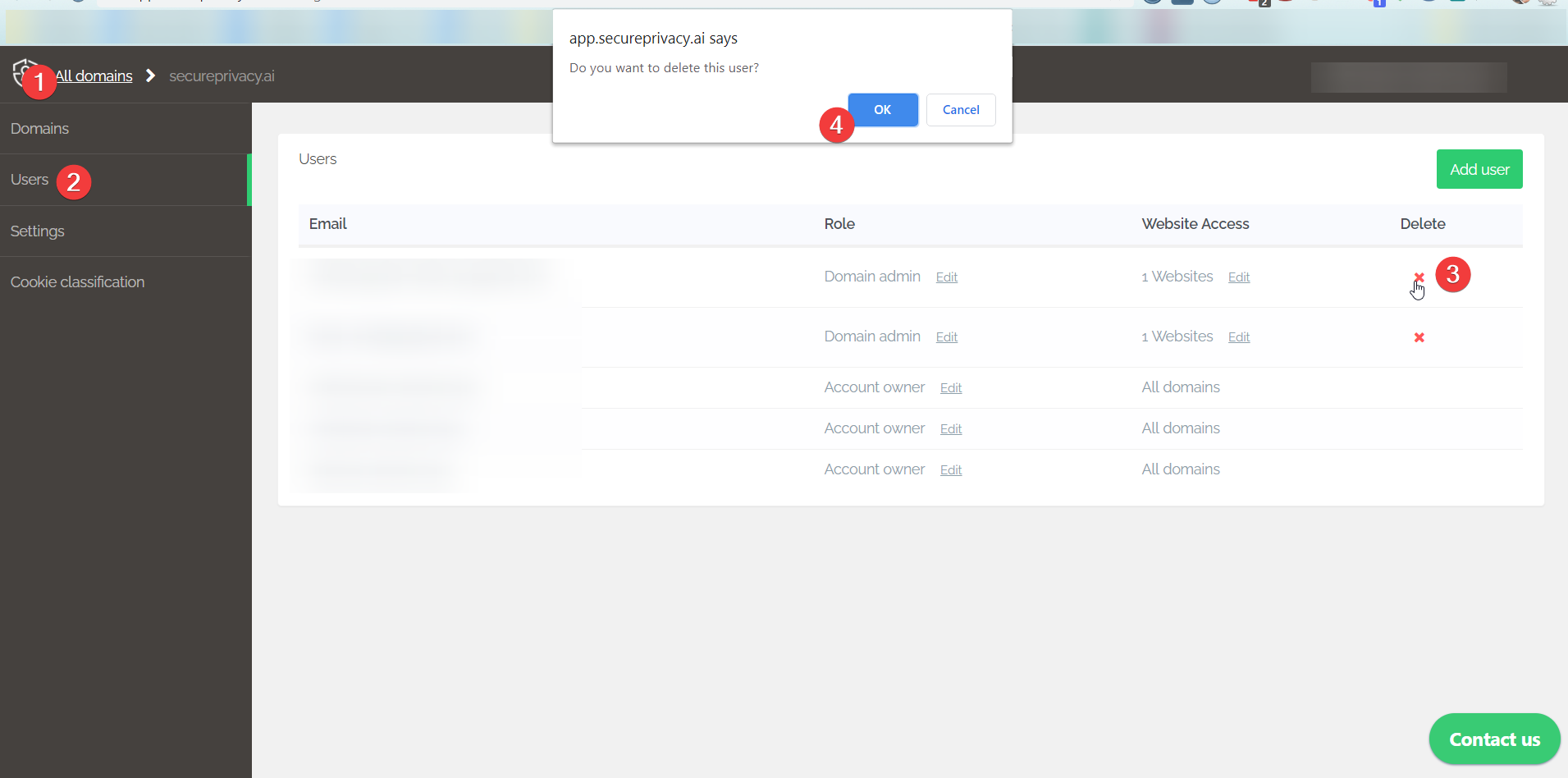
Log in to your Secure Privacy account and click All Domains in the top bar.
Select Users in the left sidebar.
Click the red cross icon next to the user's email address to initiate deletion.
Click OK in the confirmation popup to complete the deletion.
Frequently Asked Questions
Can I delete an Account Owner or Account Admin directly?
No. Account Owner and Account Admin roles are protected from direct deletion. To remove one of these users, first downgrade their role to Domain Admin using the Edit Role process, then delete them using the red cross icon on the Users page.
Can a Domain Admin manage multiple domains?
Yes. When editing a Domain Admin user's Website Access, you can assign multiple domains to them using the Add Domain button — repeating the selection for each domain they should administer.
What happens when I add a new team member — do they receive a notification?
Yes. When you add a new team member by email, Secure Privacy creates a new account for that email address and automatically sends a password reset link to allow them to set their credentials and log in.