
The Privacy Policy generator in Secure Privacy lets you create, customize, and embed a GDPR-compliant privacy policy on your website — populated automatically with cookie and plugin data from your latest scan results. This guide covers every available configuration option: generating, editing, resetting, translating, and embedding your privacy policy.
Note: The Privacy Policy feature is available on Plus, Business, and Enterprise plans. See all available features on the Secure Privacy pricing page.
Who Is This For?
Website owners and administrators setting up a GDPR-compliant privacy policy with Secure Privacy
Privacy officers customizing policy text, sections, and languages for their organization
Developers embedding the privacy policy on website pages using button, hyperlink, or full-page embed options
How to Generate a Privacy Policy
Log in to your Secure Privacy account.
Click Privacy & Cookie Policy in the left sidebar.
Click Generate new privacy policy and then Next.
Answer the questions by completing the required fields — these responses are used to personalize your policy.
Click Save all to generate your personalized privacy policy.
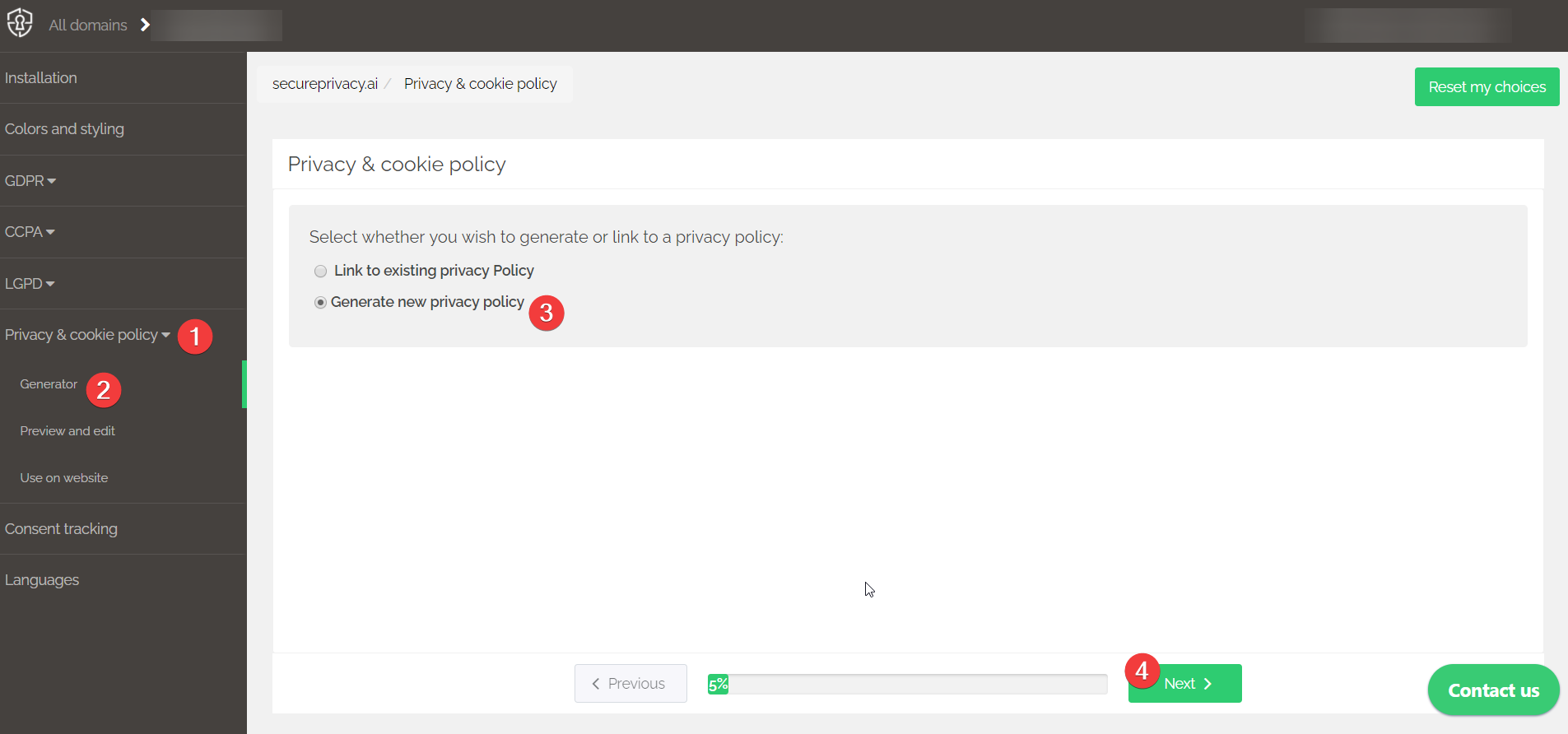
Note: Cookie and plugin data inside the privacy policy — such as content under "With whom we share the collected personal information" — is generated automatically based on your latest scan results. This section updates whenever you rescan your domain.
How to Reset Your Privacy Policy
Log in to your Secure Privacy account.
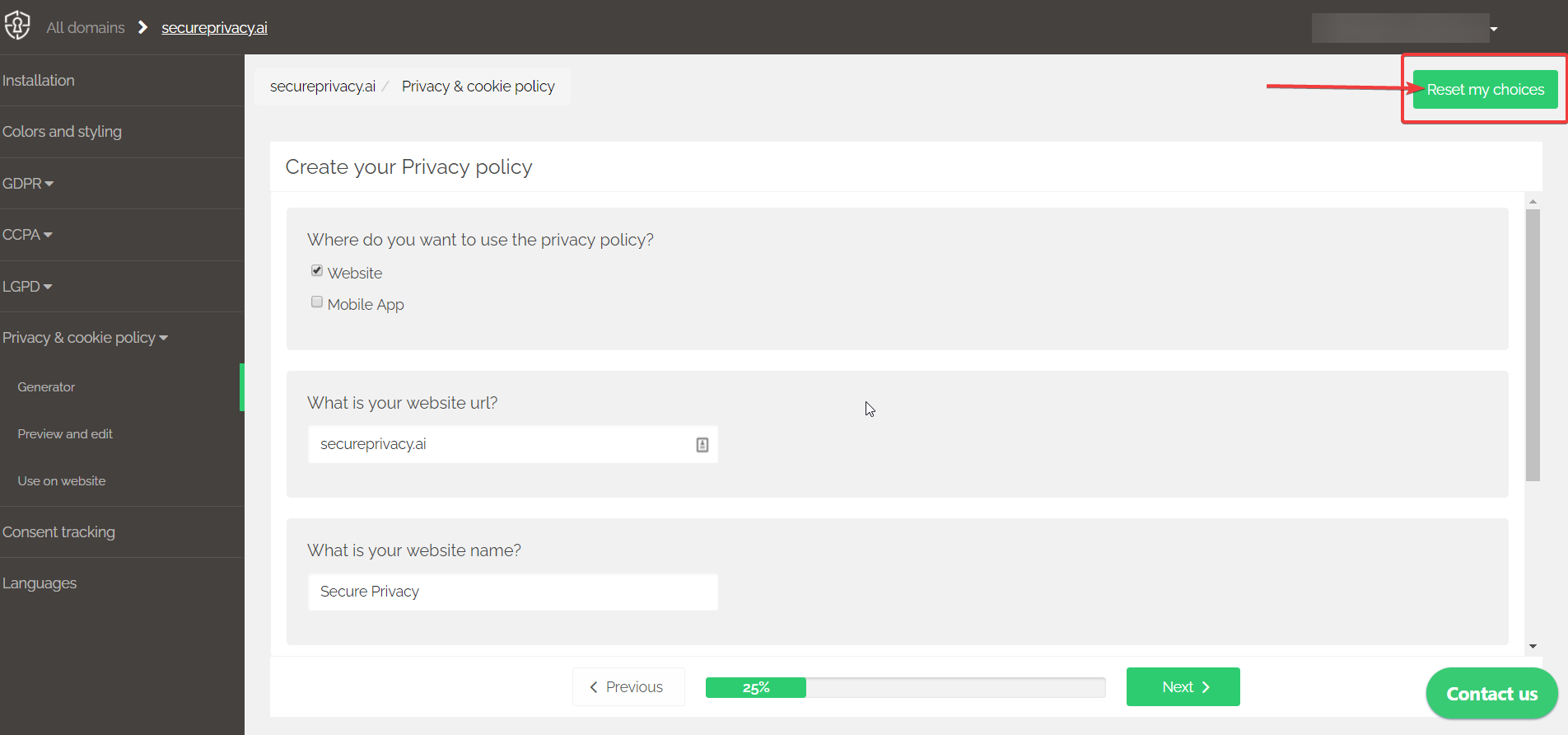
Click Privacy & Cookie Policy in the left sidebar, then click Generator.
Click Reset my choices to revert all policy settings back to defaults.
Generate a new policy by answering the questions, completing the required fields, and clicking Next.
How to Edit Text Inside Your Privacy Policy
Log in to your Secure Privacy account.
Click Privacy & Cookie Policy in the left sidebar, then click Preview and edit.
Select the Language you want to edit before making any changes.
Click the section you want to edit.
Click anywhere inside the text field to begin editing. The default text has been pre-aligned with applicable privacy legislation — only make changes where legally necessary.
Click the small green tick in the upper corner of the text field to save and confirm your changes.
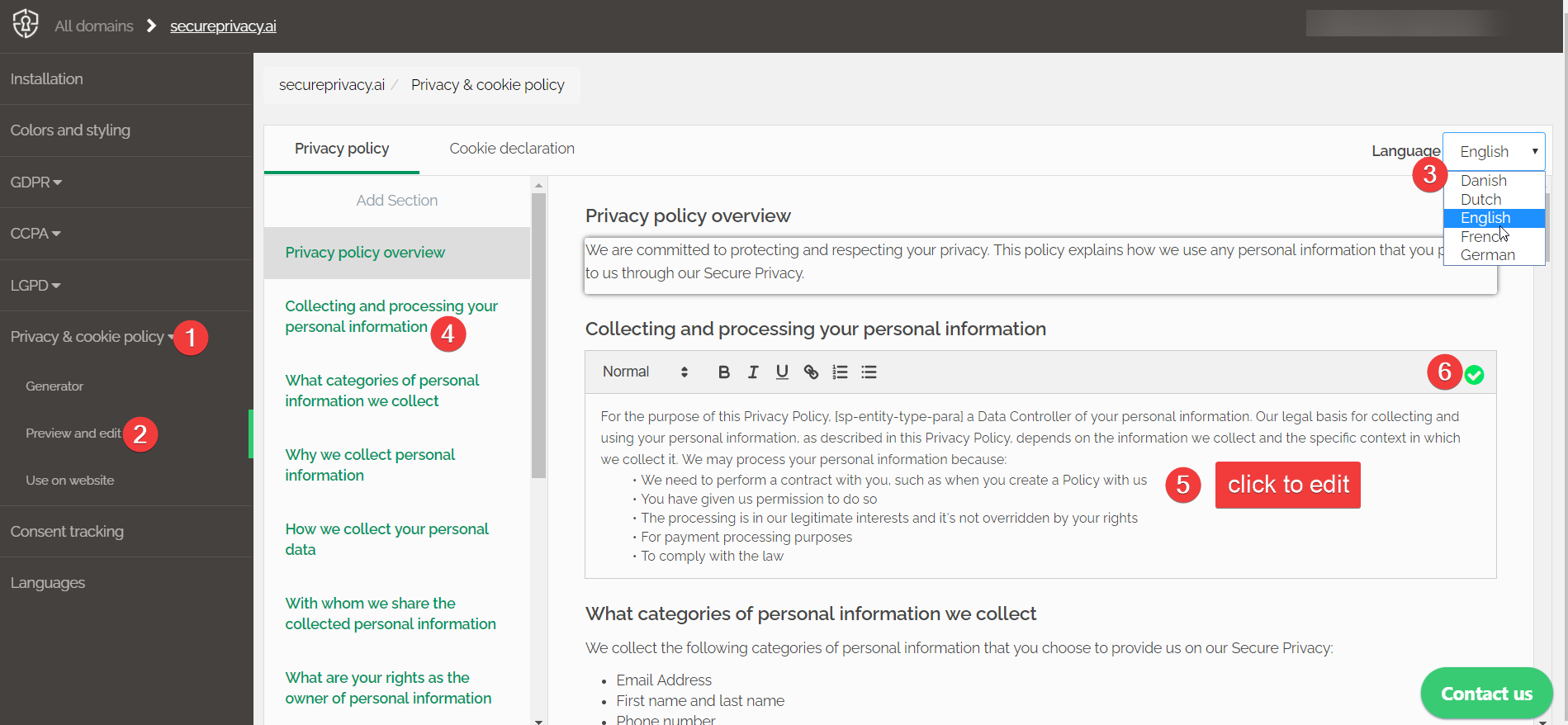
Note: System-generated sections — such as the cookie and plugin data under "With whom we share the collected personal information" — are populated automatically from scan results and cannot be edited manually.
How to Add a New Section to Your Privacy Policy
Log in to your Secure Privacy account.
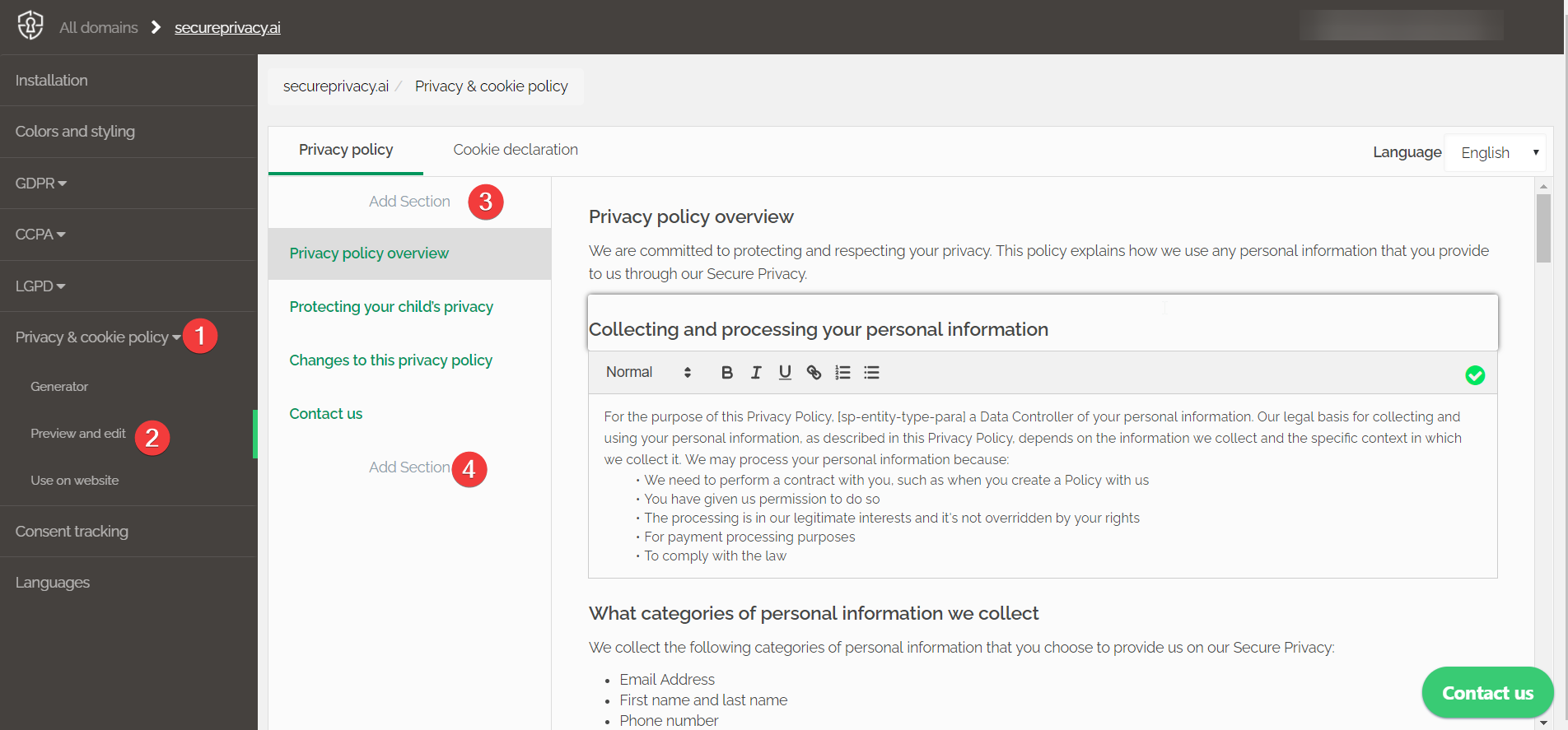
Click Privacy & Cookie Policy in the left sidebar, then click Preview and edit.
Click Add Section at the top of the editor to insert a new section at the beginning of the policy.
Alternatively, click Add Section at the bottom of the policy text to attach the new section at the end.
Note: Moving sections within the policy is not currently supported, but is planned for a future release.
How to Change Language or Add a New Language
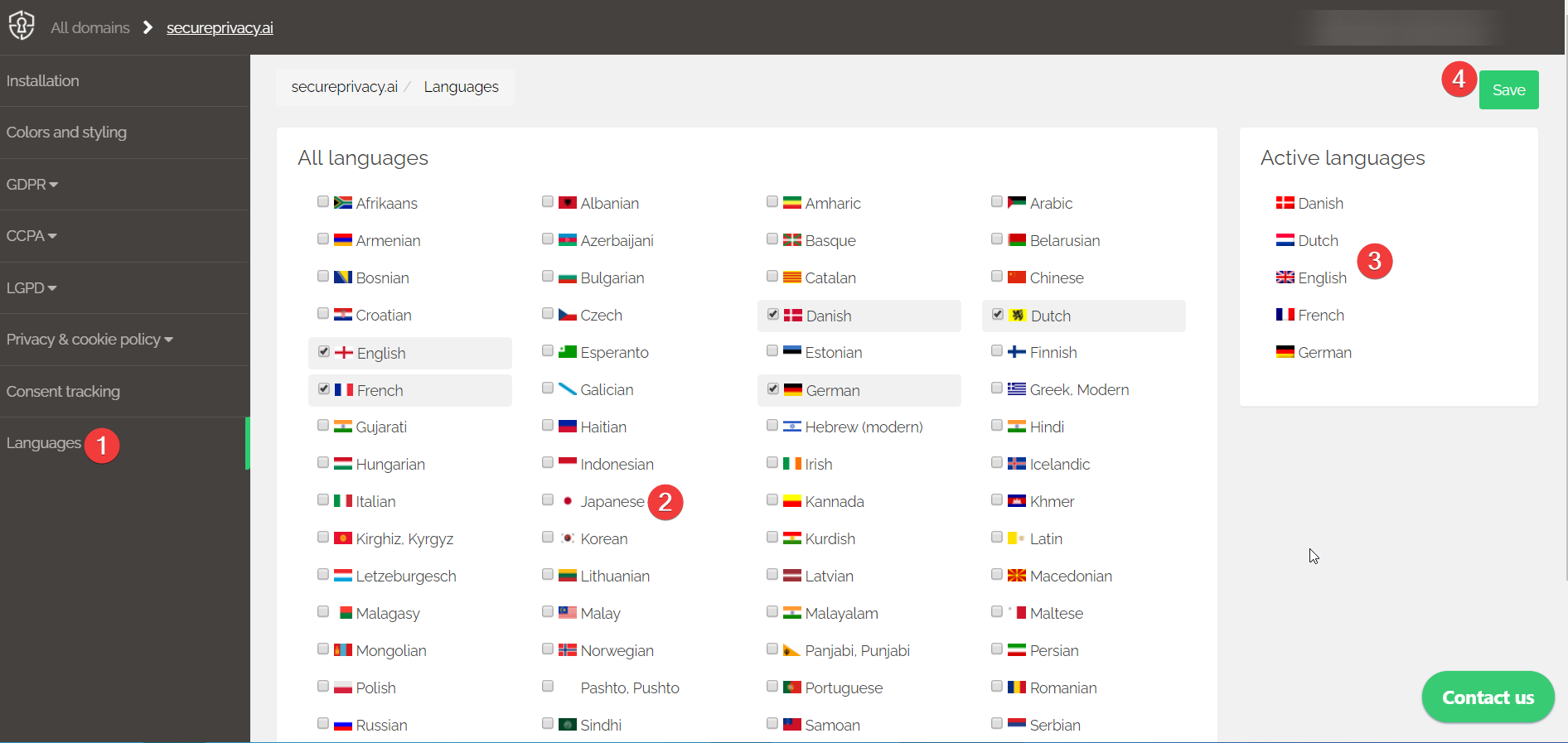
Log in to your Secure Privacy account and click Language in the left sidebar.
Select the languages you want to add to your account.
Check the Active languages list on the right to see which languages are already installed.
Click Save to apply your language settings.
How Visitors Access Your Privacy Policy on Your Website
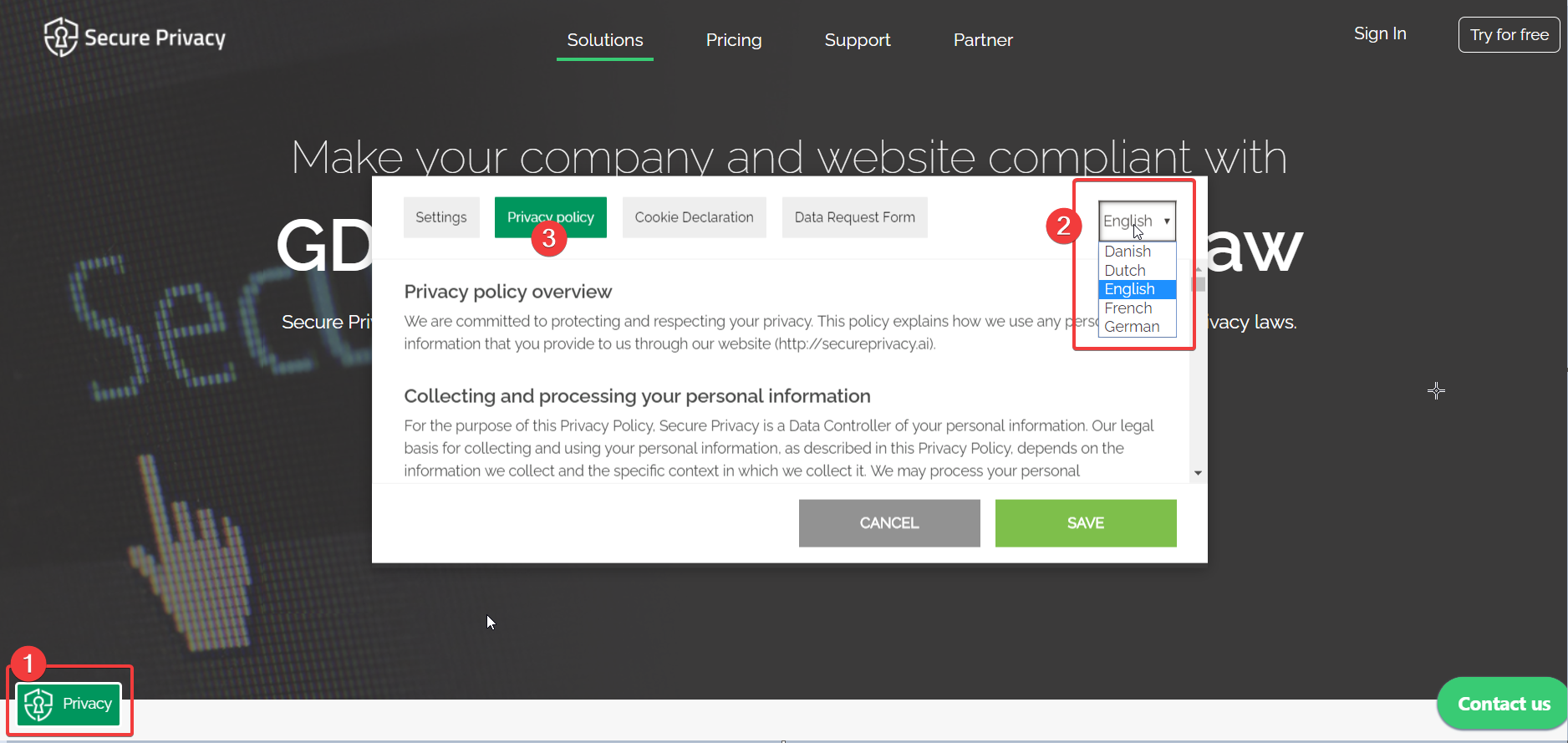
Visitors on your website will see the Privacy Center button in the bottom-left corner of every page. When clicked, it opens a pop-up where visitors can:
Change the Language of the Privacy Center and policy displayed
View your full Privacy Policy under the corresponding tab
Embed Options for Your Privacy Policy
Secure Privacy provides three ways to embed your privacy policy on your website. All embed options allow you to select the display language and preview how the element will appear before copying the code.
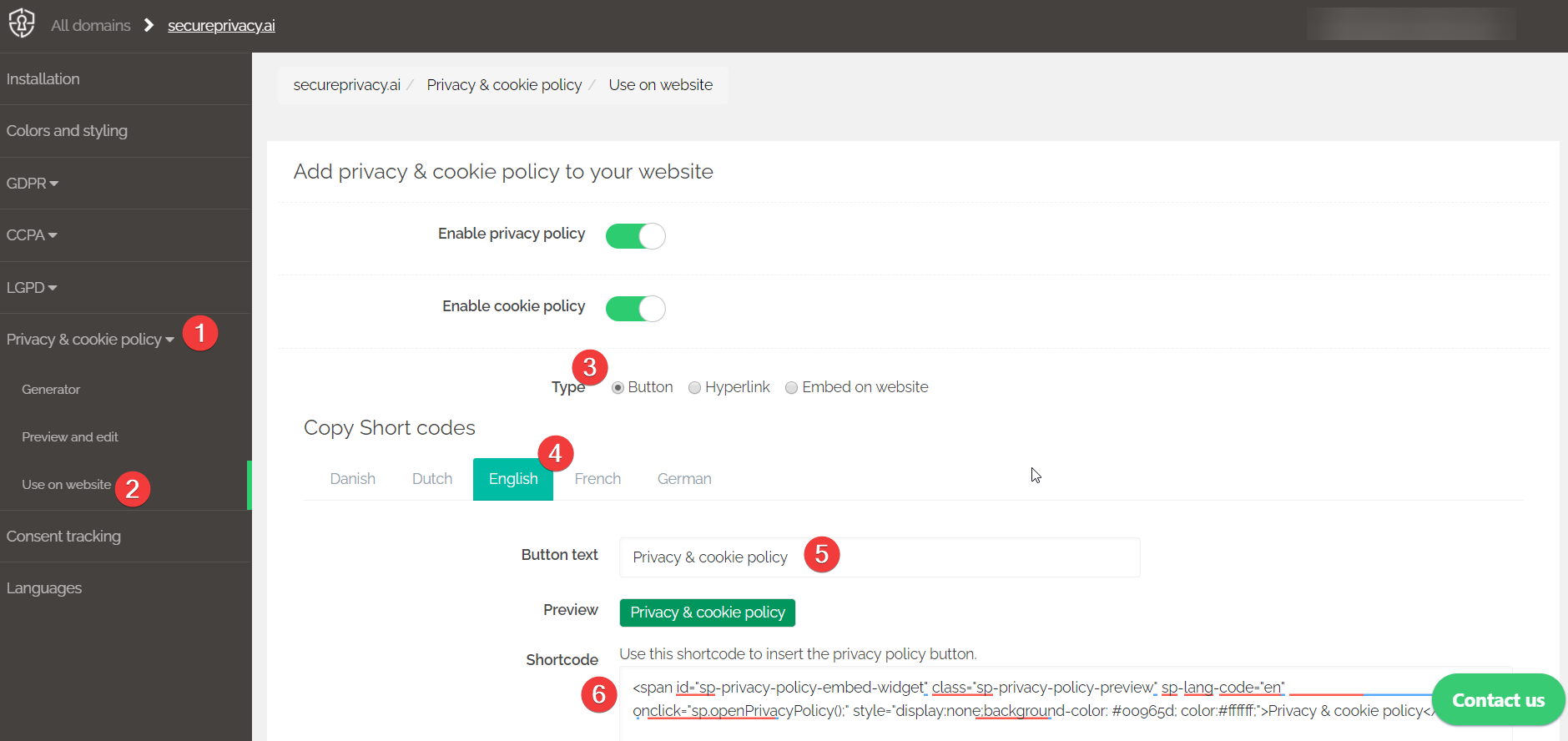
Option 1: Button embed
Displays a clickable button that opens your privacy policy. Configure the button text and copy the shortcode to paste into the HTML or source code of your page.
Option 2: Hyperlink embed
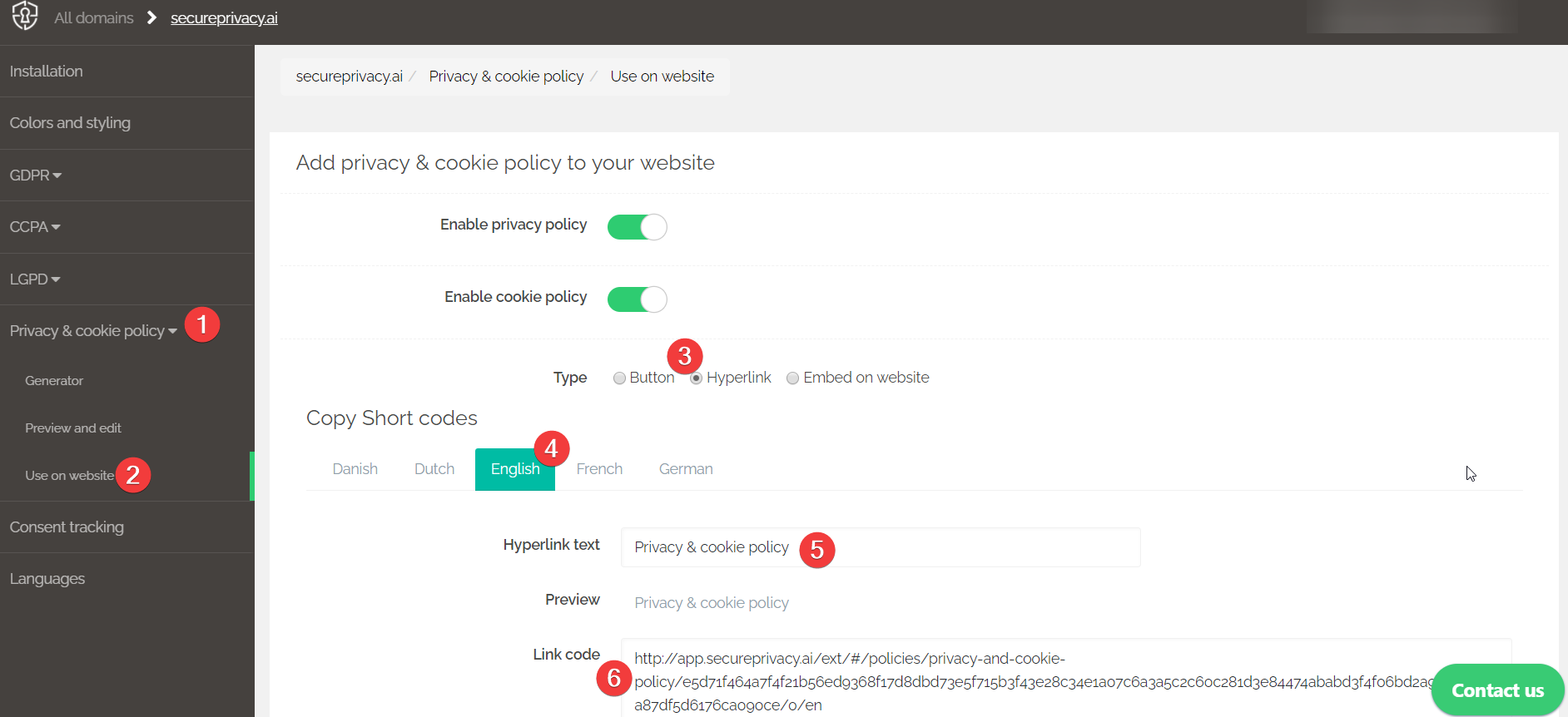
Displays a text hyperlink to your privacy policy. Configure the link text and copy the link code to paste into the HTML or source code of your page.
Option 3: Embed on website (full page)
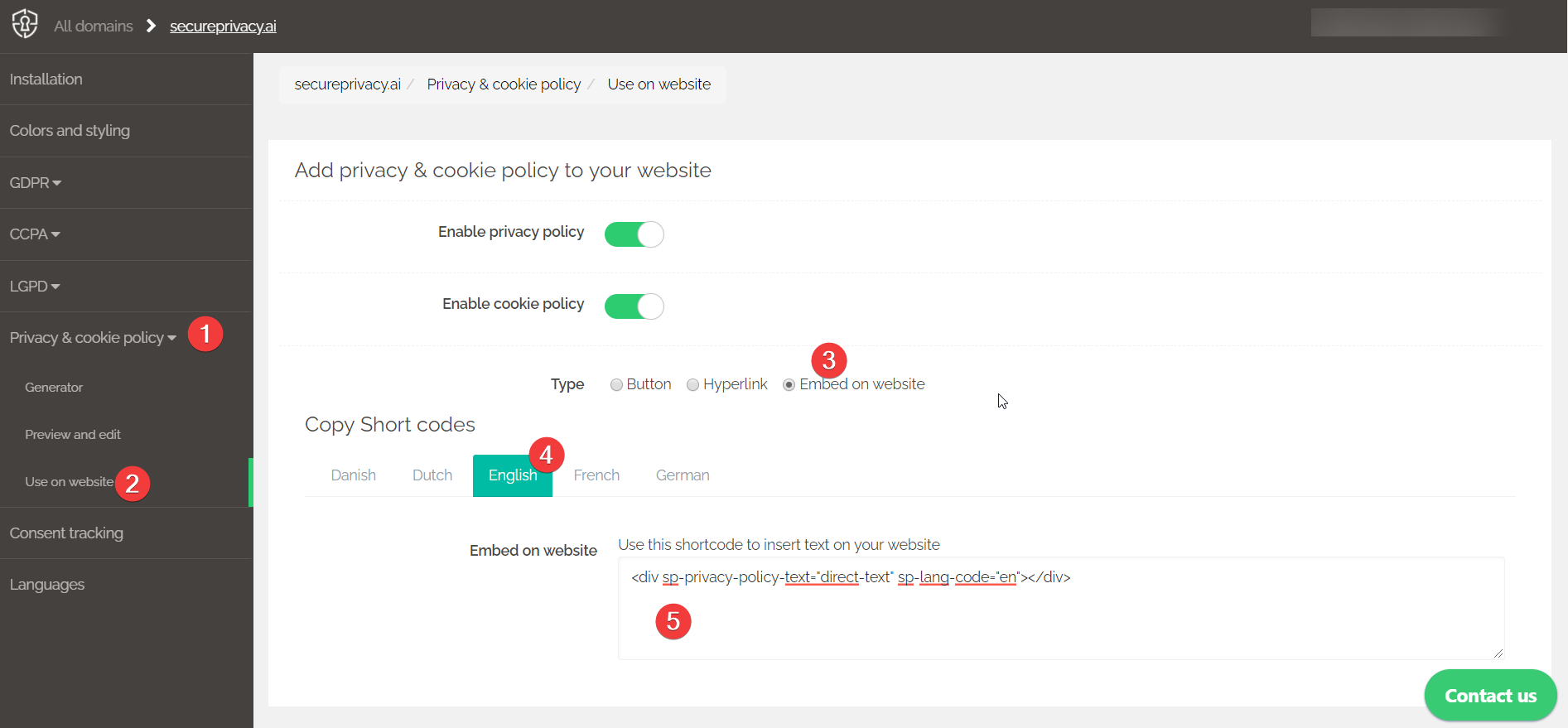
Embeds your complete privacy policy as a full-page element directly within a page on your website. Copy the embed code and paste it into the HTML or source code of your chosen page.
How to Enable or Disable Your Privacy Policy
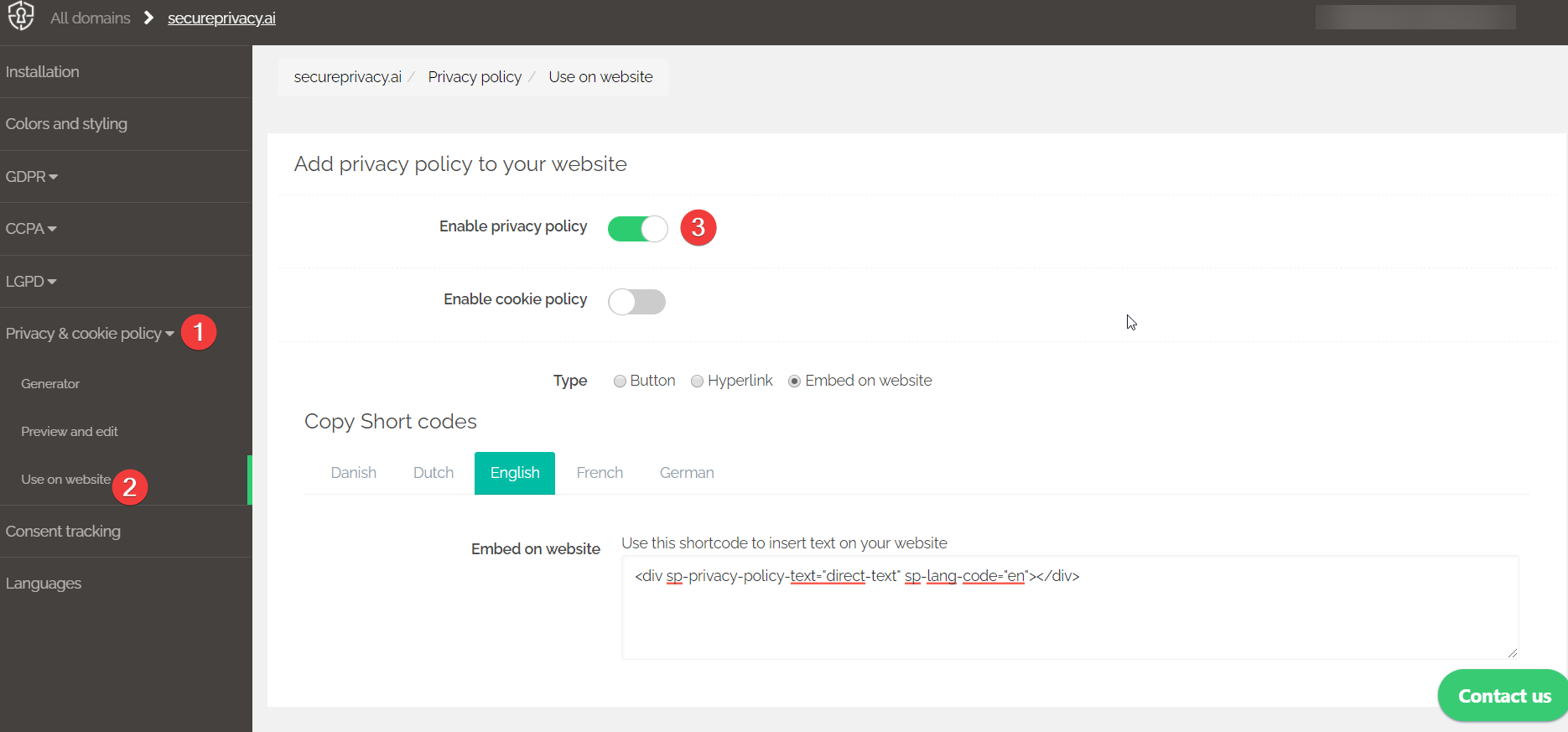
Log in to your Secure Privacy account and click Privacy & Cookie Policy in the left sidebar.
Click Use on website.
Toggle Enable privacy policy to enable or disable the privacy policy on your website or domain.
Frequently Asked Questions
Can I edit the cookie and plugin data sections of my privacy policy?
No. The sections populated with cookie and plugin data — such as "With whom we share the collected personal information" — are generated automatically from your scan results and cannot be edited manually. To update this data, trigger a new website rescan from the Scan Report page.
What happens to my privacy policy if I reset my choices?
Resetting reverts all your policy generator answers to their defaults. Your previously generated policy will be replaced when you complete the generator again. Any manual text edits made in Preview and edit will be lost — ensure you have saved any custom content before resetting.
Which plan do I need to use the Privacy Policy feature?
The Privacy Policy generator and embed features are available on Plus, Business, and Enterprise plans. See the full feature comparison on the Secure Privacy pricing page.