
Secure Privacy supports over 70 languages out of the box — with pre-translated cookie banners and privacy widgets that automatically display in the correct language based on each visitor's browser settings. You can enable multiple languages per domain in a few steps.
Who Is This For?
Website owners serving visitors from multiple countries who need multilingual cookie consent banners
Compliance teams ensuring cookie banners display in visitors' preferred language for GDPR transparency requirements
Administrators managing language settings across one or more domains in Secure Privacy
How to Add Languages to Your Cookie Banner
Log in to your Secure Privacy account.
Navigate to the Language tab in the left sidebar.
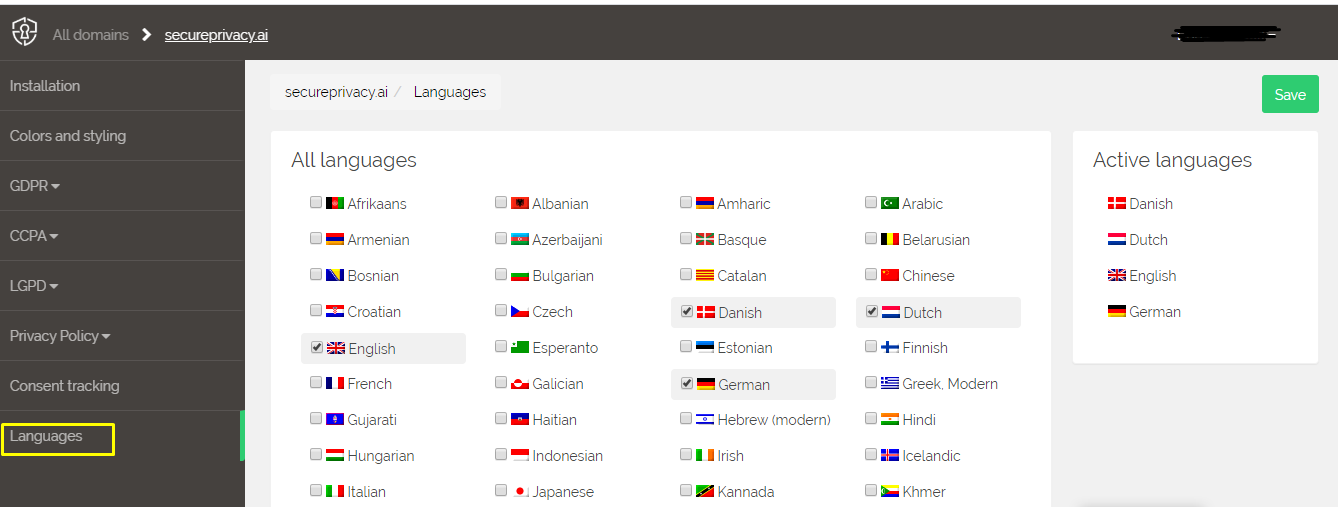
Select the languages you want to enable on your website and click Save. Your selected languages are now active for your domain.
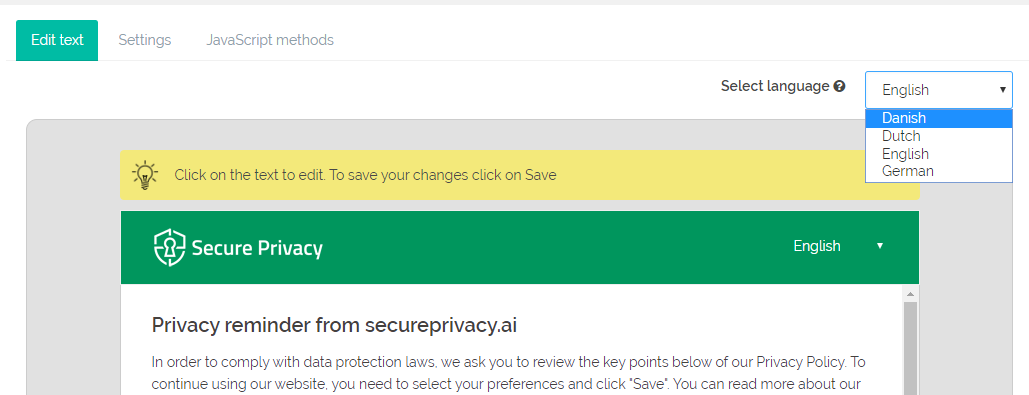
To verify your saved languages, click any tab under GDPR (or your active compliance module) in the left sidebar — your selected languages will appear in the language selector.
Frequently Asked Questions
How does Secure Privacy determine which language to show a visitor?
Secure Privacy detects the visitor's preferred language from their browser settings and displays the cookie banner and privacy widgets in the matching language — provided that language has been enabled for your domain. If the visitor's browser language is not in your active language list, the banner defaults to your primary language.
Can I enable different languages for different domains?
Yes. Language settings are configured per domain. Log in to the account for each domain separately and select the languages appropriate for that domain's audience.
Can I edit the translated text for a specific language?
Yes. Once a language is enabled, you can edit the banner text for that language version using the Edit Text section under your active compliance module. Select the language from the language dropdown before making edits to ensure you are updating the correct translation.