
This guide explains how to add a Privacy Policy button to your WordPress menu using Secure Privacy's embed code — so visitors can access your privacy policy from your site's navigation at any time.
Note: This guide assumes the Secure Privacy script is already installed on your website. If not, complete the installation before proceeding.
Who Is This For?
WordPress website owners adding a privacy policy button to their site navigation
Compliance teams ensuring a GDPR-compliant privacy policy link is always accessible to visitors
Website administrators embedding Secure Privacy policy buttons via WordPress menu shortcodes
How to Add a Privacy Policy Button to Your WordPress Website
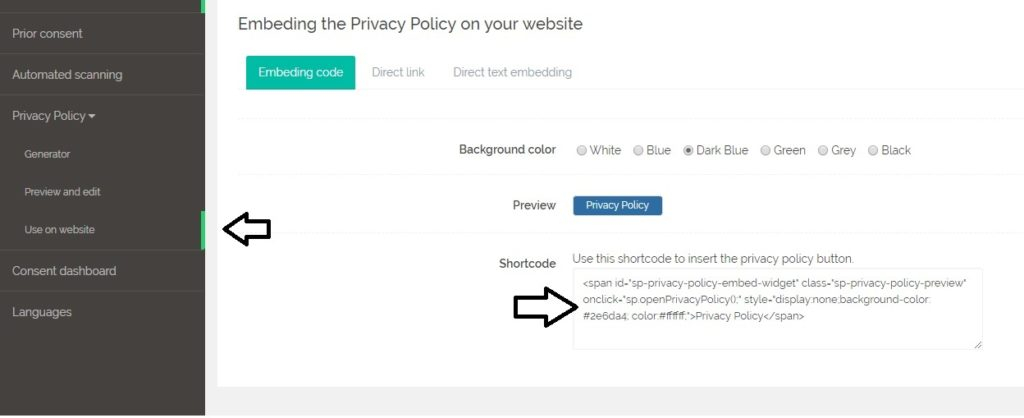
Log in to your Secure Privacy account and navigate to Privacy Policy > Use on Website > Embedding Code.
Select the background color you prefer for your privacy policy button.
Copy the embed shortcode shown.
Log in to your WordPress admin panel and go to Appearance > Menus.
Select the menu where you want the button to appear and open the Custom Links or Shortcode option.
Paste the HTML shortcode into the appropriate field.
Click Save Menu. Your Privacy Policy button will now appear in the selected menu on your website.

Frequently Asked Questions
Can I change the color of the privacy policy button after adding it?
Yes. Return to Privacy Policy > Use on Website > Embedding Code in your Secure Privacy account, select a new background color, copy the updated shortcode, and replace the existing shortcode in your WordPress menu.
Where will the privacy policy button appear on my website?
The button appears in whichever WordPress menu you add the shortcode to — typically the primary navigation menu, footer menu, or any custom menu displayed in your theme. Position it in the menu location most visible and accessible to your website visitors.
Can I add the privacy policy button to a widget area instead of a menu?
Yes. You can paste the embed shortcode into a Text or Custom HTML widget in any WordPress widget area — such as the sidebar or footer — using the same shortcode copied from your Secure Privacy account.