
This article provides a clear, step-by-step guide to setting up Single Sign-On (SSO) using the Okta platform. This integration helps administrators manage users and their access to multiple applications with a single login while ensuring secure data transfer. Okta SSO serves as an additional security barrier and only allows login for those Secure Privacy users who are members of the connected Okta enterprise.
Please note that if any Okta member is not a member of an existing Secure Privacy account (as can be confirmed on the "Users" page), such a member would not be able to log in.
1. Locate Your Okta Domain
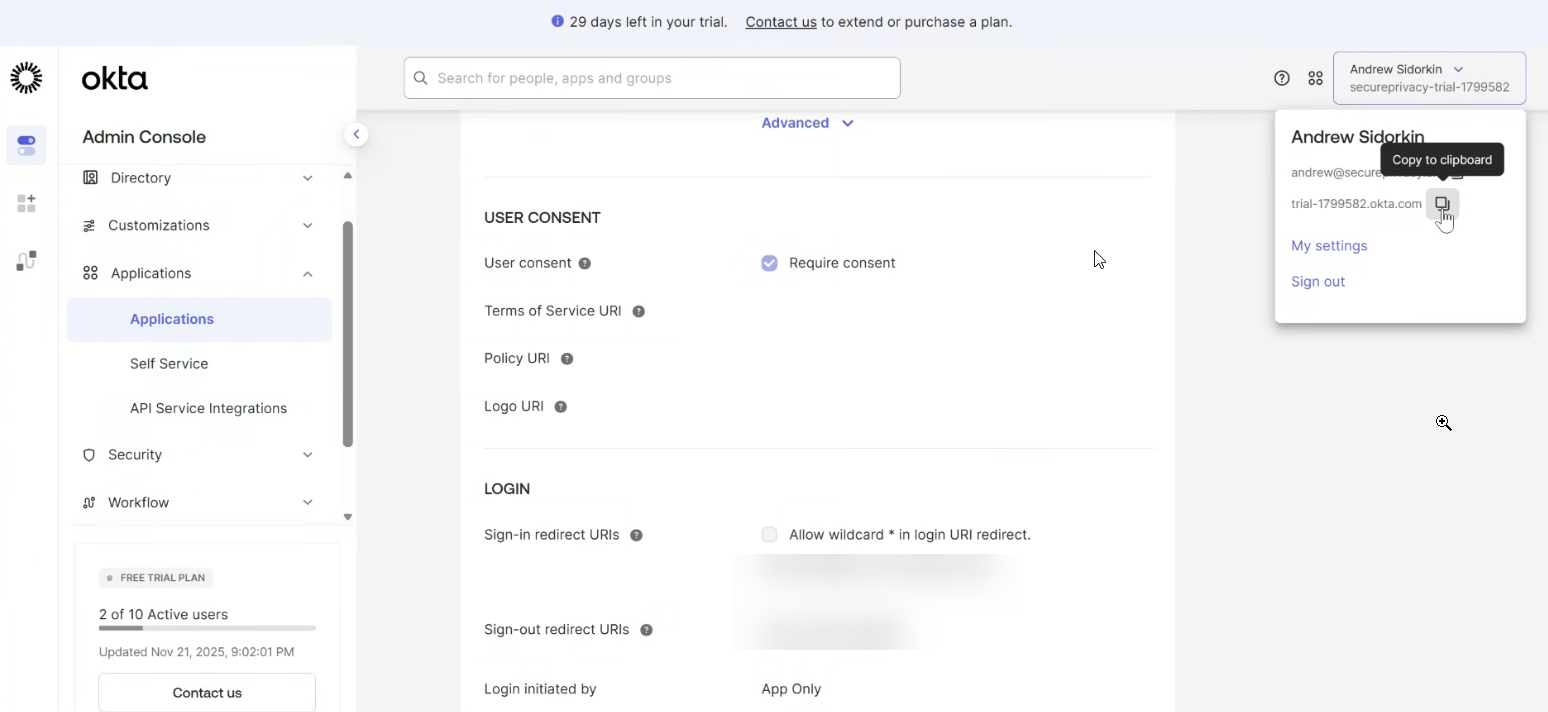
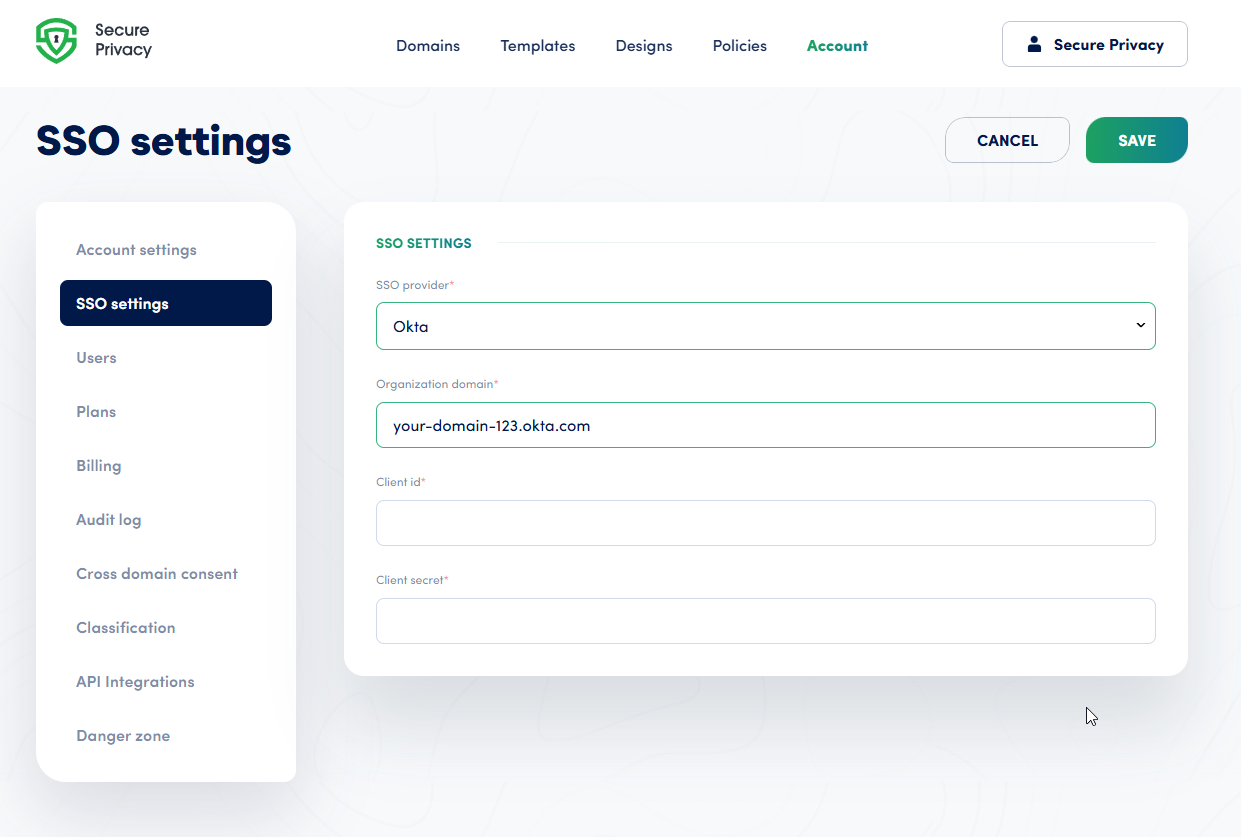
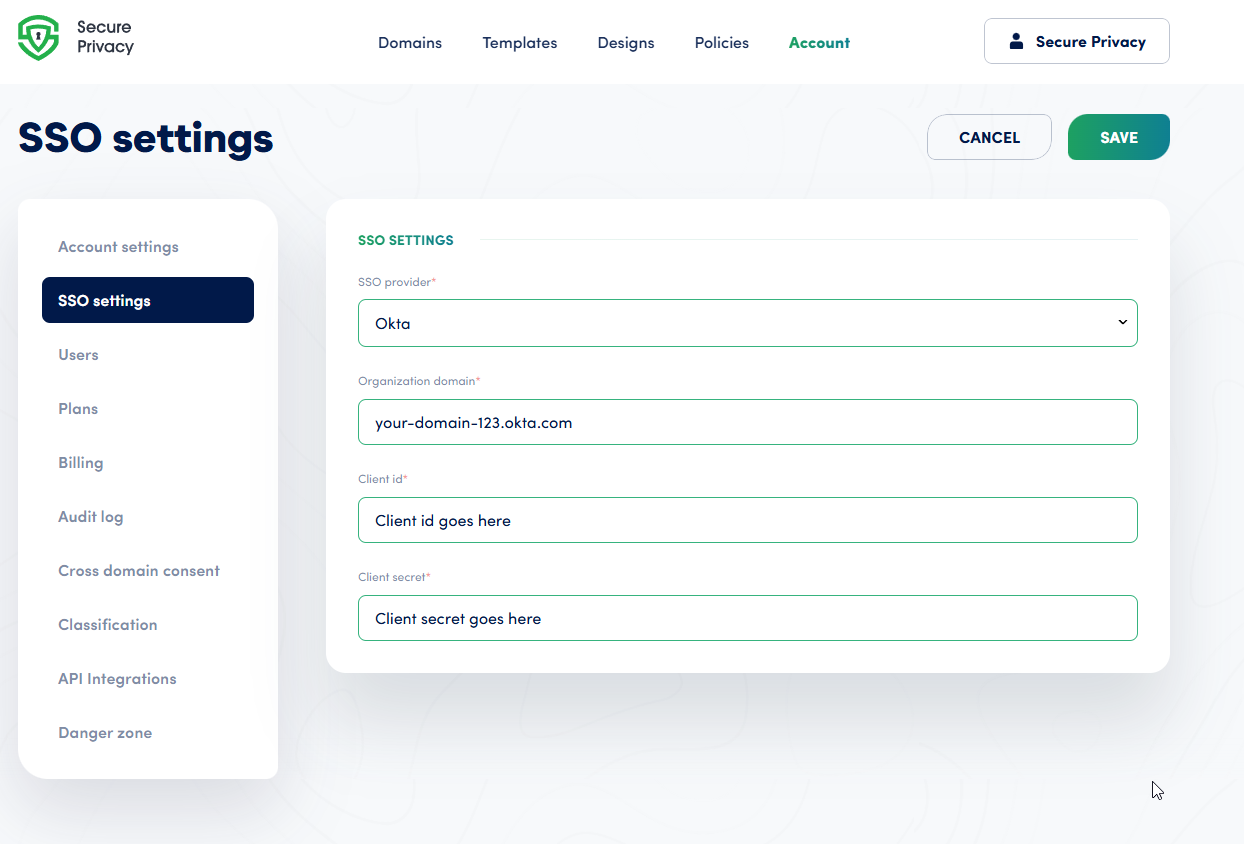
Find your Okta domain in the header dropdown within your Okta account and paste it into Secure Privacy as the “Organization domain.”
Paste it as shown here:
2. Create an Authorization Server in Okta
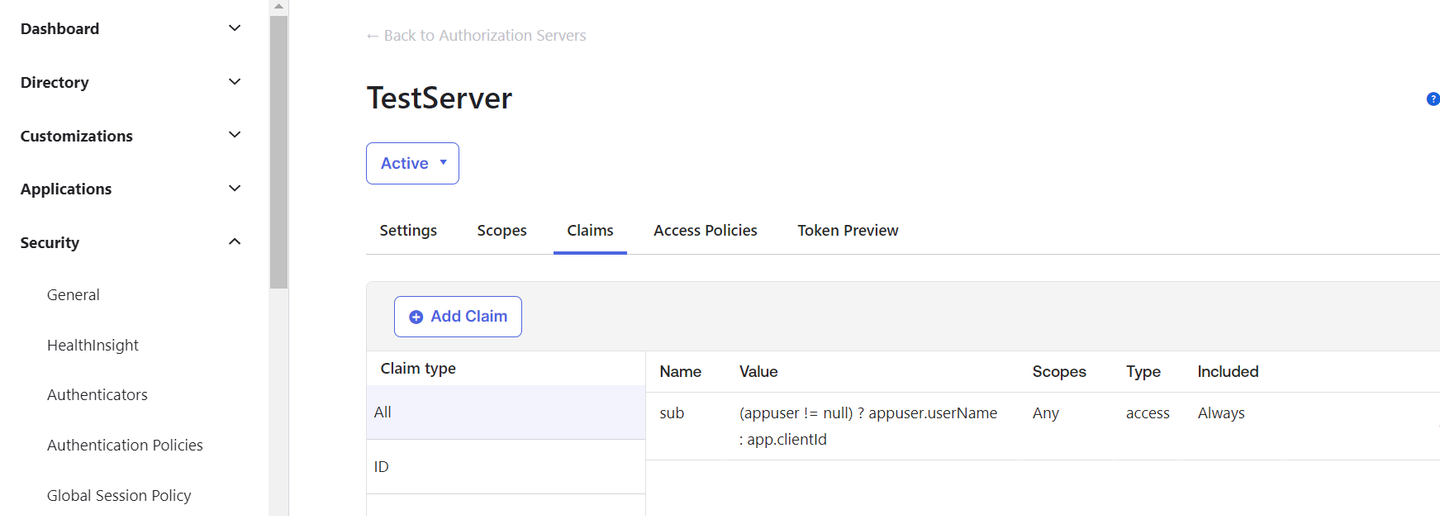
Navigate to Security → API → Authorization servers in Okta and create a new Authorization server.
Optional - This step can be skipped if the organization's authentication server is preferred, otherwise - a custom authorization server is a recommended approach.
3. Create and Configure OIDC Web Application in Okta
Under Applications, create a new app integration:
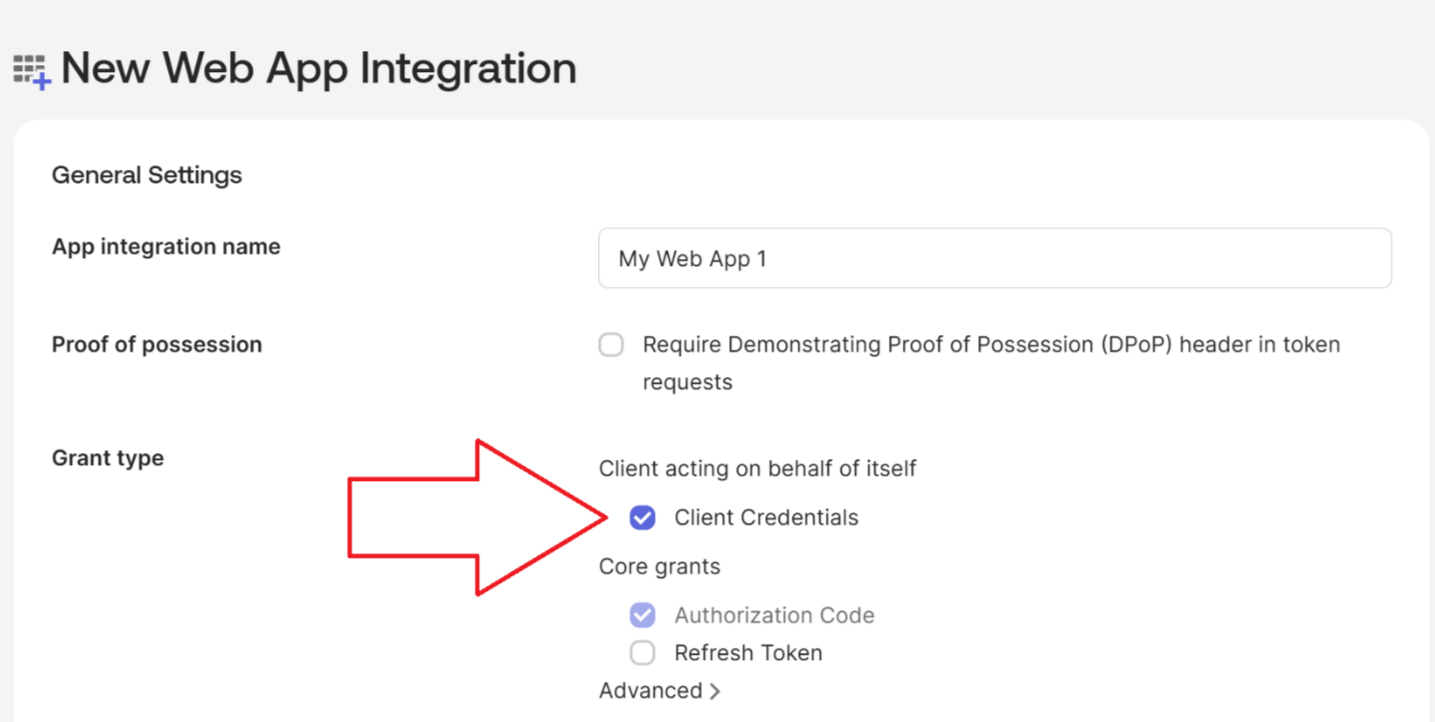
- Select OIDC and Web Application.
- Enable Client credentials (optional)
- Set the Sign-in redirect URL to https://cmp.secureprivacy.ai
(note: no trailing slash here)
Confirm the Sign on method is OpenID Connect -
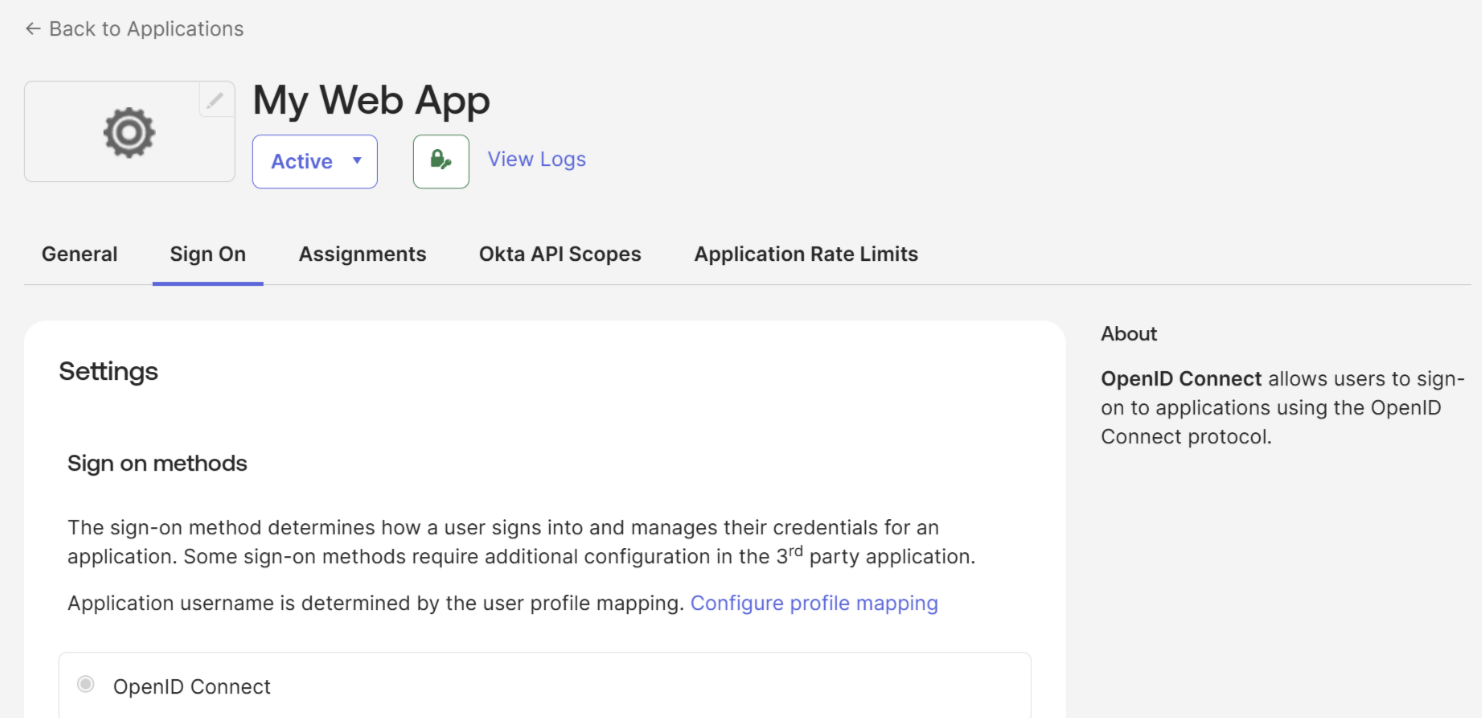
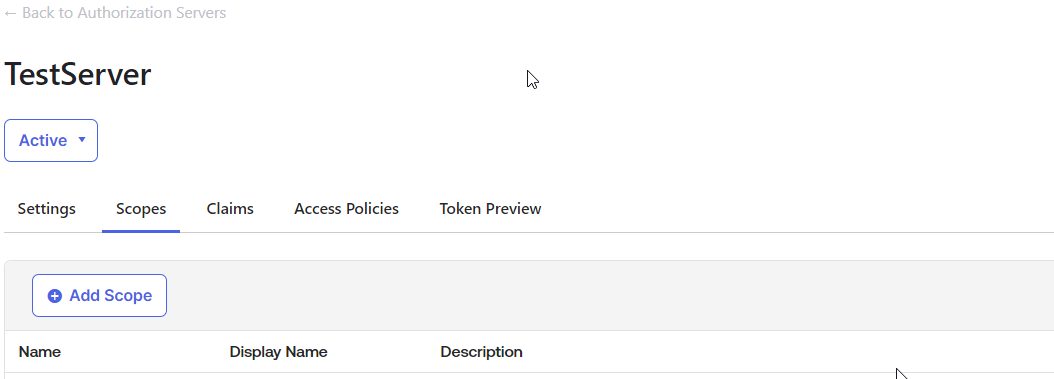
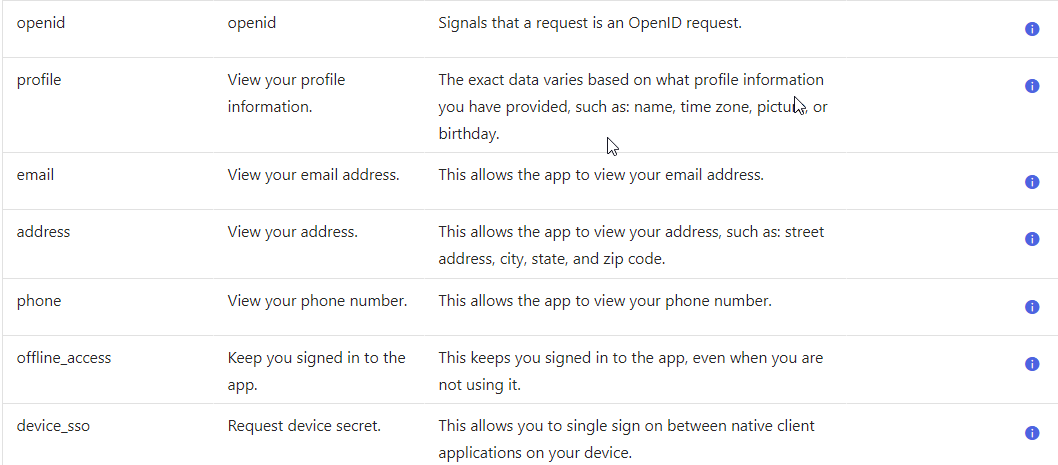
Additionally, ensure all required "Scopes" are present and enabled
(these are provided and already selected by default, unless you've reconfigured otherwise)
Paste the Client ID and Client Secret from the Okta app into the respective fields in Secure Privacy:
4. Complete Setup
Your Okta users can now log in to Secure Privacy using their Okta credentials.
Common Issues & Fixes
Authorization Server Configuration ErrorsDouble-check settings in Okta’s Authorization Server, including scopes and claims.Invalid Redirect URIEnsure the redirect URI in Okta matches exactly https://cmp.secureprivacy.aiUsers Unable to LoginConfirm users have been added and assigned roles in Okta.