
If you use Adobe Launch to manage your website scripts and tags, you can inject the Secure Privacy script directly through Adobe Launch. This enables cookie blocking and preference center functionality for visitors seamlessly.
Steps to Install the Secure Privacy Script via Adobe Launch
- Configure the event according to the provided example below.
Example event configuration:
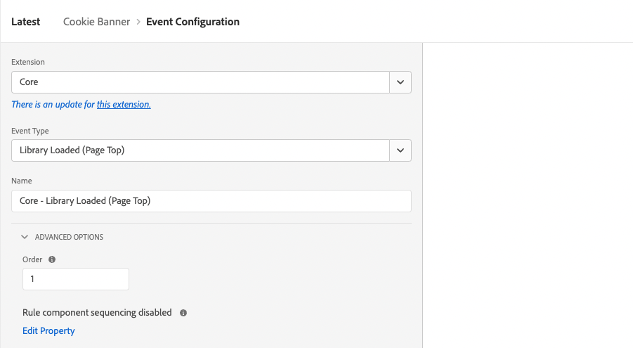
After configuring the event, click the Keep Changes button to save.
Next, add an action to the rule and configure it as shown below:
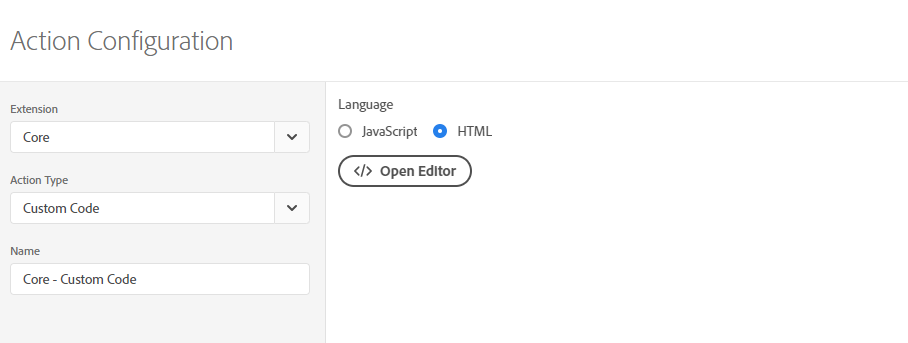
2285eeb021e53a10e8b2e93692869f539f4804dd 1708375794 19a9df143c27930f80c71516d4b680efe6fb1138
Click the Keep Changes button -> use the Open Editor button next.
Add your published Cookie Banner script and the Secure Privacy installation code to the HTML code:
2285eeb021e53a10e8b2e93692869f539f4804dd 1708375794 19a9df143c27930f80c71516d4b680efe6fb1138The final setup should look similar to the below
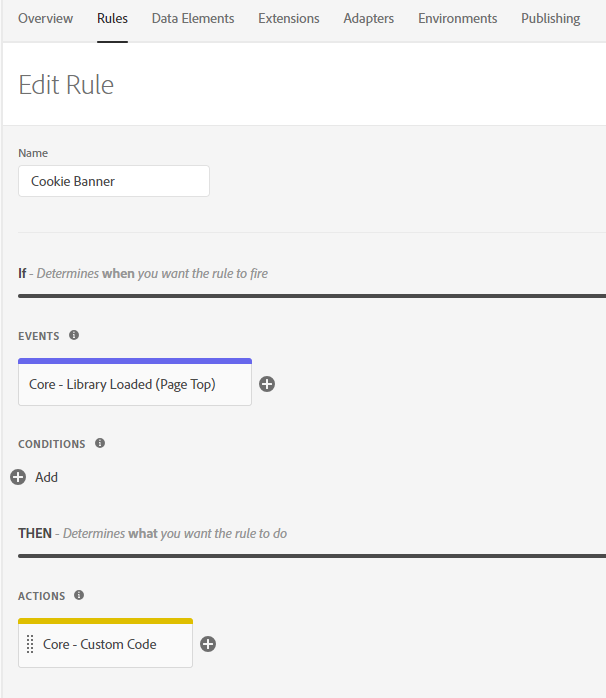
Common Issues & Fixes
Cookie Banner Not AppearingCheck that the rule is published and the event and action are configured correctly in Adobe Launch.Script Not Blocking CookiesVerify that the Secure Privacy script is correctly inserted and that there are no conflicting scripts on your site.