
If a cookie or third-party service is not automatically detected by Secure Privacy's scanner, you can add it manually via the Classification tab. This ensures all active cookies and services appear in your scan report, are correctly categorized, and are included in blocking rules and the preference center.
Who Is This For?
Website administrators managing cookie inventories and ensuring all active cookies are documented
Compliance teams adding known services that were not automatically detected during scanning
Developers integrating new third-party services that need to be classified and blocked before they appear in scan results
How to Add a Custom Service or Cookie in Secure Privacy
Log in to your Secure Privacy account and select the domain you want to work with.
Open the Classification tab in the left sidebar.
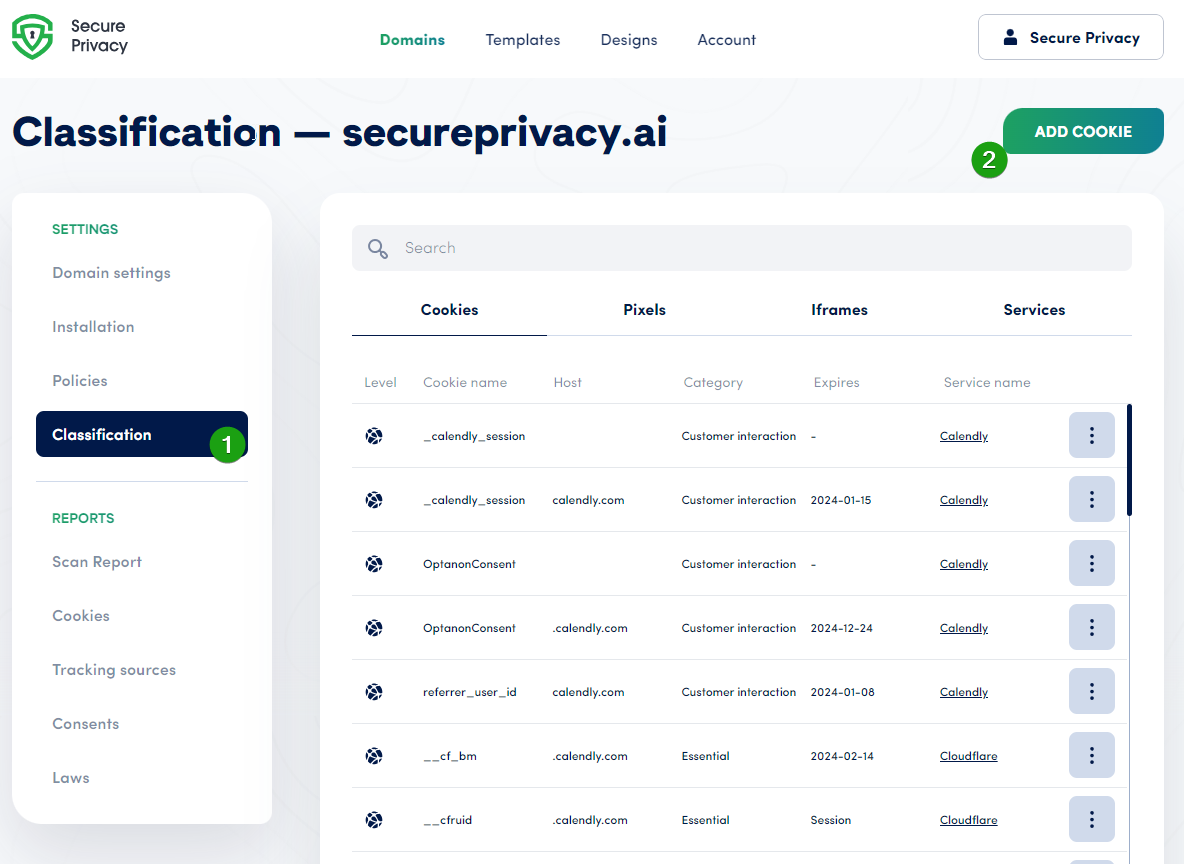
Click the Add Cookie button.
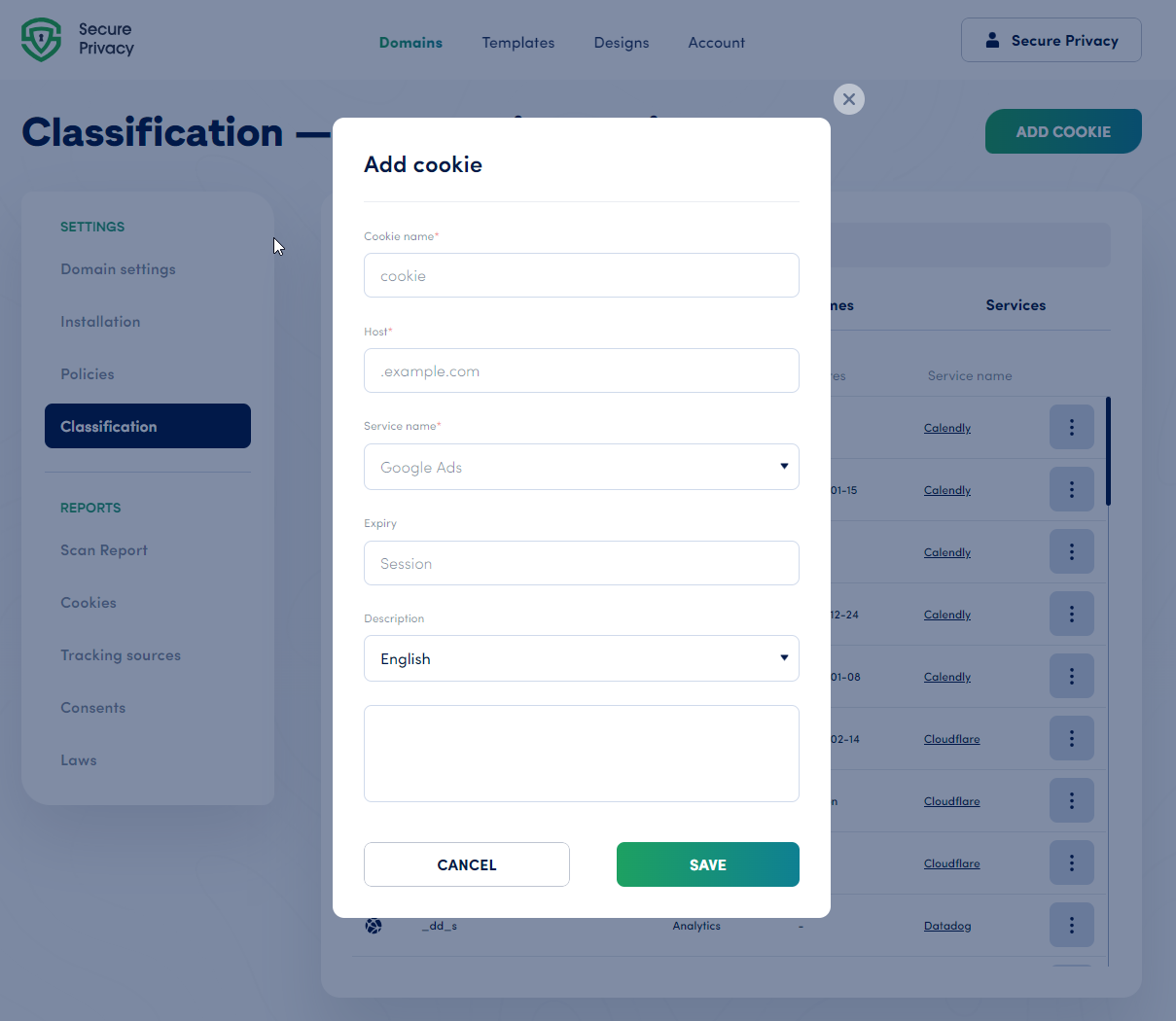
Complete the required fields for the cookie or service:
Cookie name — the exact name of the cookie
Host — the domain that sets the cookie
Service name — the third-party service associated with the cookie
Category — the consent category (e.g., Essential, Analytics, Marketing, Functional)
Expiry — how long the cookie persists
Description — a brief explanation of the cookie's purpose
Click Save to add the cookie to your classification list.
Navigate to Scan Report > Rescan Website to trigger a rescan and apply your changes — ensuring the new cookie appears in your scan report, blocking configuration, and preference center.
Frequently Asked Questions
Will the new cookie appear in the Preference Center after I add it?
Yes — but only after you trigger a website rescan. Once the rescan is complete, the manually added cookie will be included in the preference center under the category you assigned, giving visitors control over that cookie through the consent interface.
Can I edit or delete a custom cookie after adding it?
Yes. Return to the Classification tab at any time to update the cookie's details — such as its category, description, or expiry — or delete it entirely. After making changes, trigger a rescan to apply the updates to your live scan report and preference center.
Why would I need to add a cookie manually if Secure Privacy has automatic detection?
The automatic scanner detects cookies based on its known service database and live page crawl. Newly deployed services, custom-built tracking solutions, or cookies set through non-standard implementations may not be detected automatically. Adding them manually ensures they are correctly classified, blocked, and declared in your cookie policy.