
Secure Privacy allows you to trigger website scans from two geographic locations — the EU and the United States. Scanning from a US location detects cookies and services that are specifically served to US-based visitors, ensuring your cookie declaration and privacy policy accurately reflect the tracking technologies seen by that audience.
Who Is This For?
Website administrators managing regional cookie compliance for US and EU audiences
Developers and digital marketers verifying cookie detection differs between US and EU visitor locations
Compliance officers needing region-specific scan results for accurate cookie declarations
How to Trigger a Website Scan for a US Location
Log in to your Secure Privacy account and select the domain you want to work with.
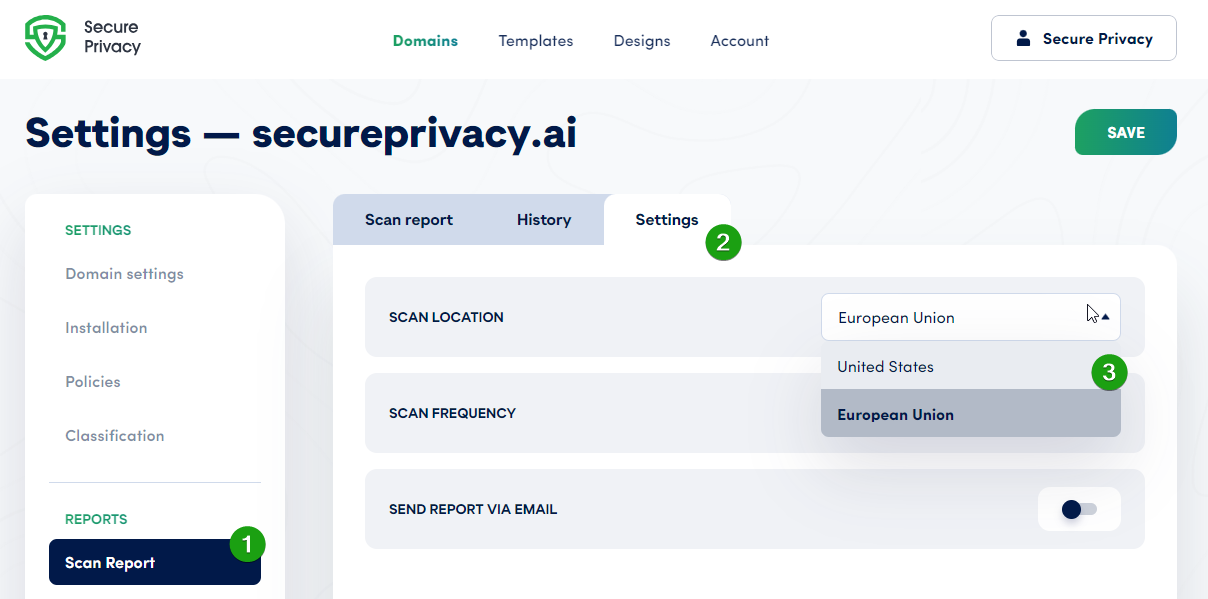
Navigate to the Scan Report section in the left sidebar.
Click the Settings tab.
From the Scan Location dropdown, select United States.
Click Save to apply the location setting.
Return to the Scan Report tab and click Rescan Website to start a new scan from the US location.
Note: Secure Privacy currently supports two scan locations: European Union and United States. Select the location that matches the audience you want to verify cookie detection for.
Common Issues and Fixes
Scan location does not update after saving
Confirm you clicked Save after selecting the new scan location from the dropdown. The location setting is not applied until saved — selecting it from the dropdown alone does not change the active scan location.
Rescan does not start after changing location
After saving the new location setting, you must manually navigate back to the Scan Report tab and click Rescan Website to trigger the scan. The rescan does not start automatically when the location is changed.