
If you have already linked or created your policy page and are ready to display it on your website, please refer to our dedicated guide to embedding policies.
Introducing the Policies feature, your control center for managing the key privacy and cookie policies governing your website. Clear communication regarding privacy builds customer trust and ensures compliance.
Our enhanced Policies interface provides complete control over your privacy-related documents. Customize, preview, and implement policies that are both compliant and transparent to your visitors.
Navigate to the Policies Section
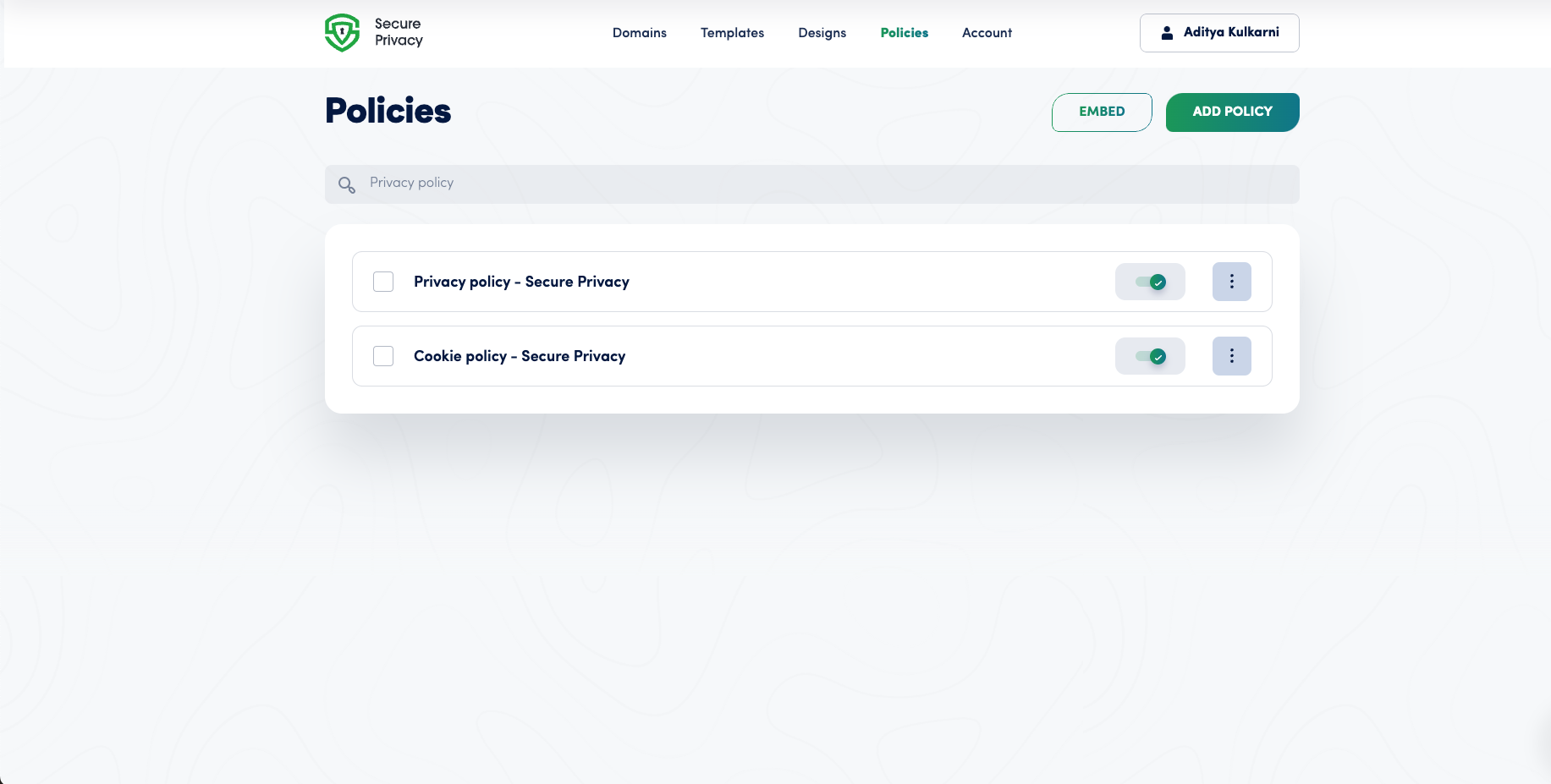
Login to your Secure Privacy account and open the Policies section in your dashboard. You will find two default policies pre-created for you: Privacy Policy and Cookie Policy, both customized with your business name.
This setup helps maintain transparency and compliance automatically from account creation.
How to Find and Edit Your Policy Settings
The Policies section enables you to:
- Enable or disable policies: Use toggle switches to activate or deactivate each policy.
- Edit policy details: Click the policy name or menu icon next to it and select Edit to modify settings.
In the Edit mode, you can:
- Edit the policy title.
- Assign the policy to specific domains in your account.
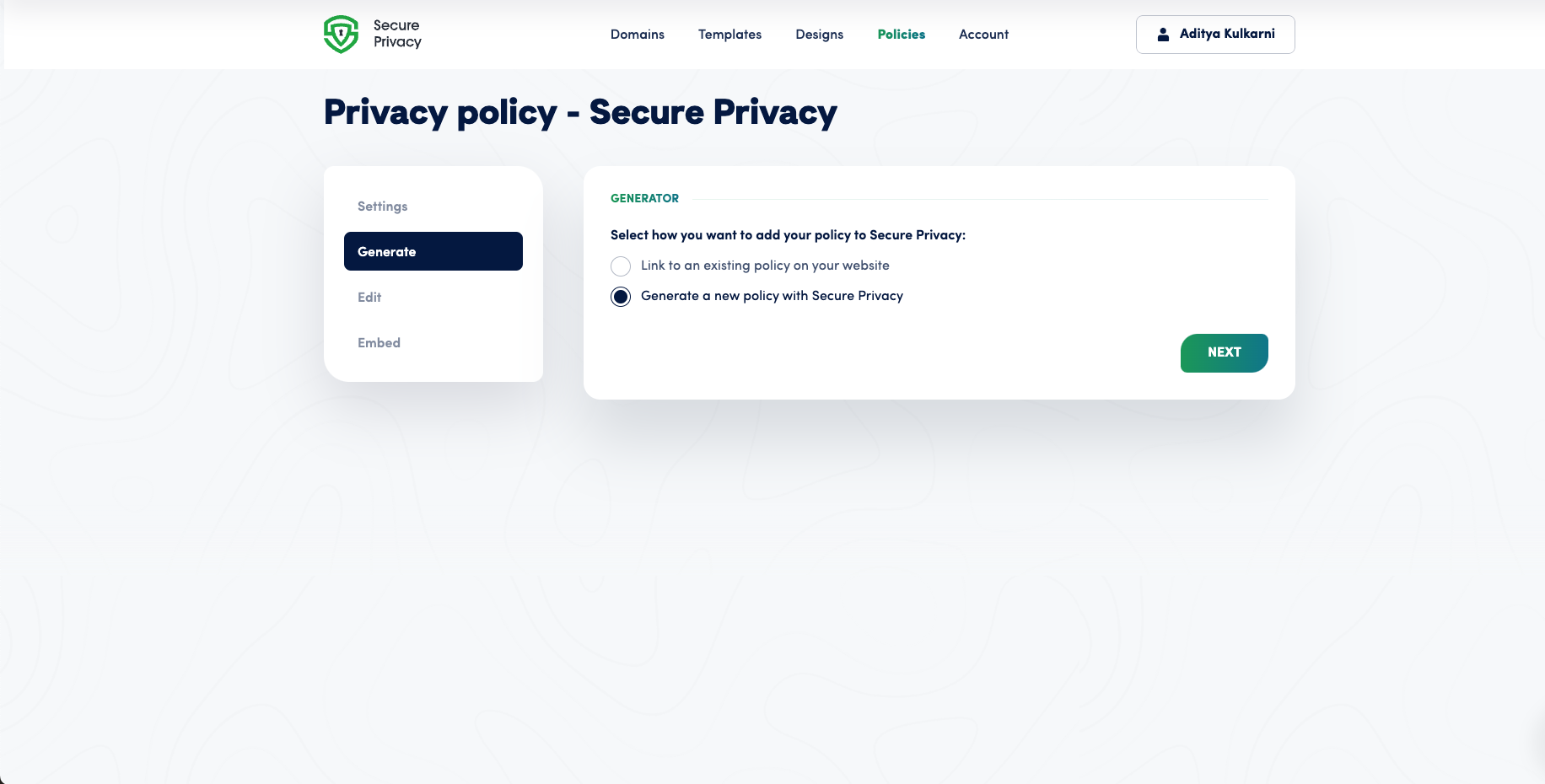
- Generate a new policy or link to an existing policy URL.
Generate Policy
You can generate a new legally compliant privacy policy using a guided four-step wizard. Provide essential information such as:
- Relevant laws the policy adheres to.
- Your entity type (business or individual).
- Data Protection Officer (DPO) details, if applicable.
- Contact information for users.
- Third-party service provider details (payment processors, analytics, ads, etc.).
- Security measures and data collection practices.
Edit Your Policy
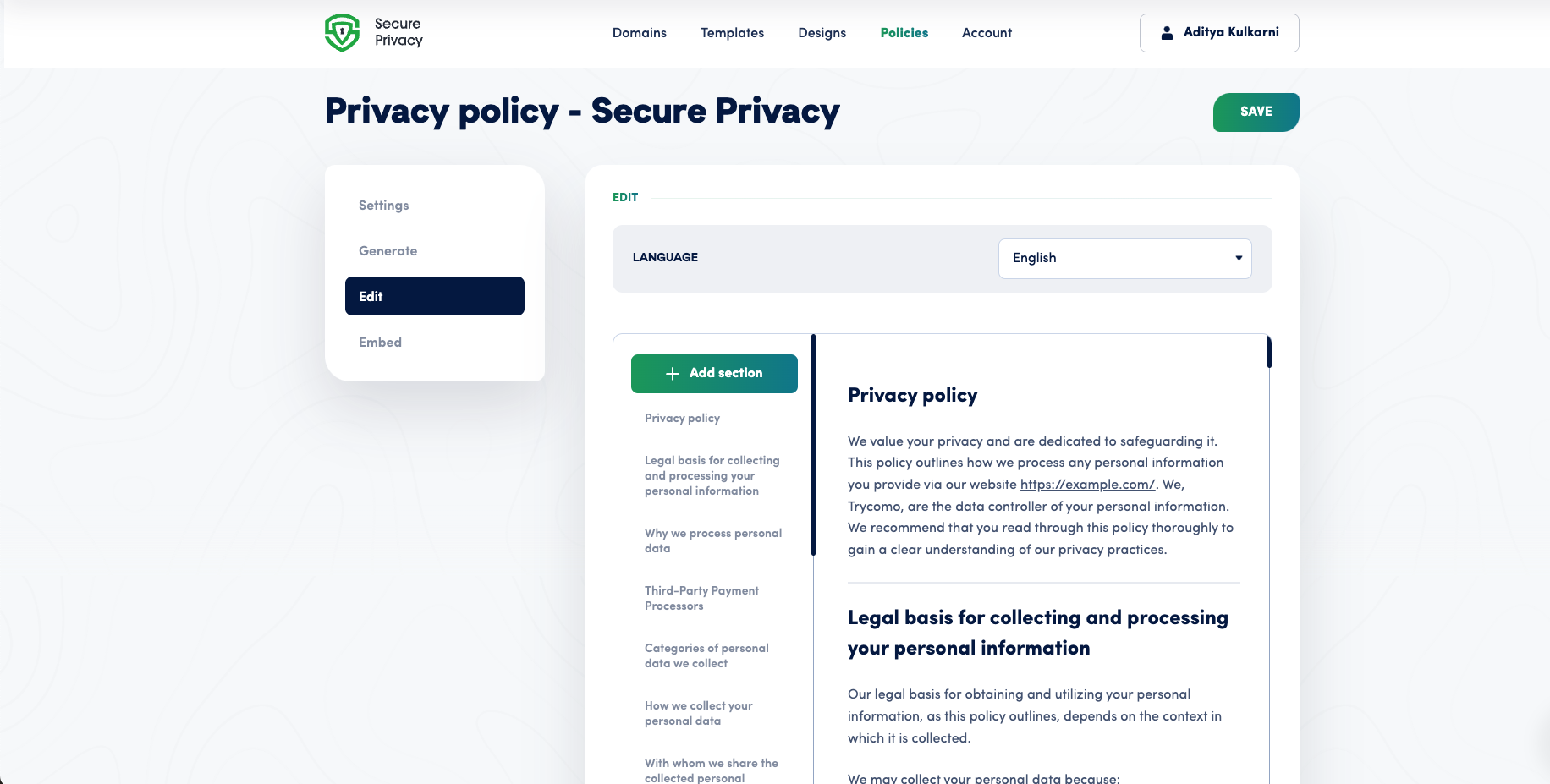
After generating your policy, fine-tune it with the block-based editor that allows you to format the content as needed.
Important: Replace all placeholders (e.g., text in square brackets like [sp-...]) with your specific business information such as website URL or DPO email.
Manage Multilingual Policies
If your website serves a multilingual audience, easily translate policies by selecting your preferred language from the dropdown in the top-right corner. The policy text will adjust automatically.
Common Issues & Fixes
Placeholders Not ReplacedEnsure you update all placeholders to reflect your actual business details to avoid incomplete or inaccurate policies.Policy Not Displaying on WebsiteVerify the policy is enabled and properly linked or embedded using our policy embedding guides.Translation Text Not UpdatingClear browser cache and refresh the policy editing page; make sure to save changes after selecting language.