
Contextual consent provides users with a fair option to comprehend, choose and consent to the specific usage of their personal data. A transparent and efficient consent process is integral for any user interaction platform. Today, we will take a step-by-step approach into how you can use our "Template" feature to customize and manage your very own "Contextual Consent" page.
To locate the feature, login into your Secure Privacy account, click on the "Templates" in the navigation bar, select the template you want to modify and then switch to the "Contextual Consent" tab:
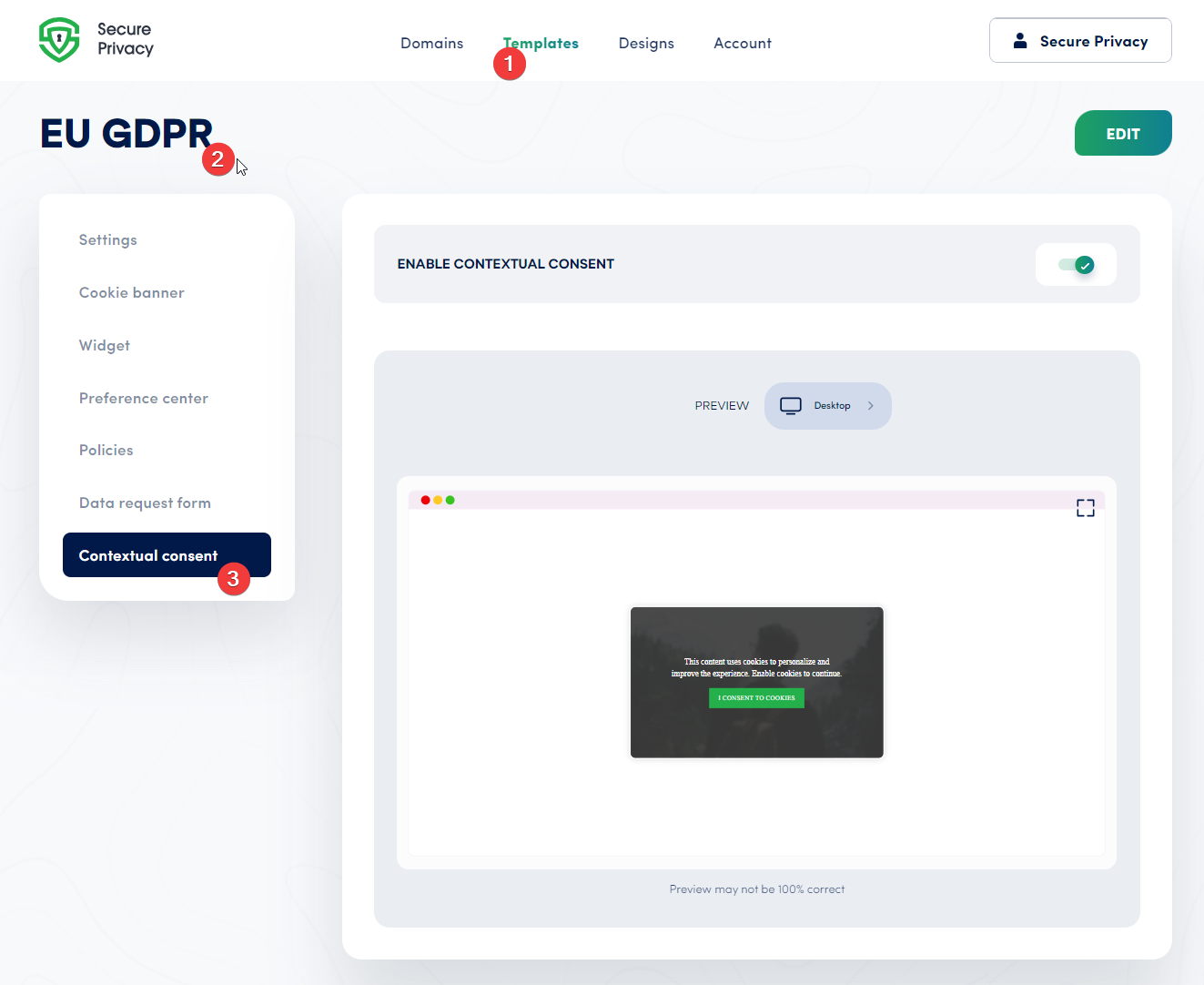
Enable Contextual Consent
Features
This actionable item allows you to switch on the contextual consent functionality on your desired template. By enabling this feature, you're granting access to interactive consent buttons and widgets that will be visible to your platform users over the pixel / iframe service.
Preview
Our three-way preview option simulates how your page appears on different platforms – desktop, tablet, and mobile. However, this preview may not be entirely accurate and should only be viewed as an indicator of your page appeal. For more precise results, switch to full-screen view. This gives you a complete glimpse of your webpage from the perspective of consumers.
Clicking the "EDIT" button will switch the interface to enable you to alter text and settings at any given time. This provides a flexibility tailored to your needs, ensuring your contextual consent page reflects your brand and its values accurately.
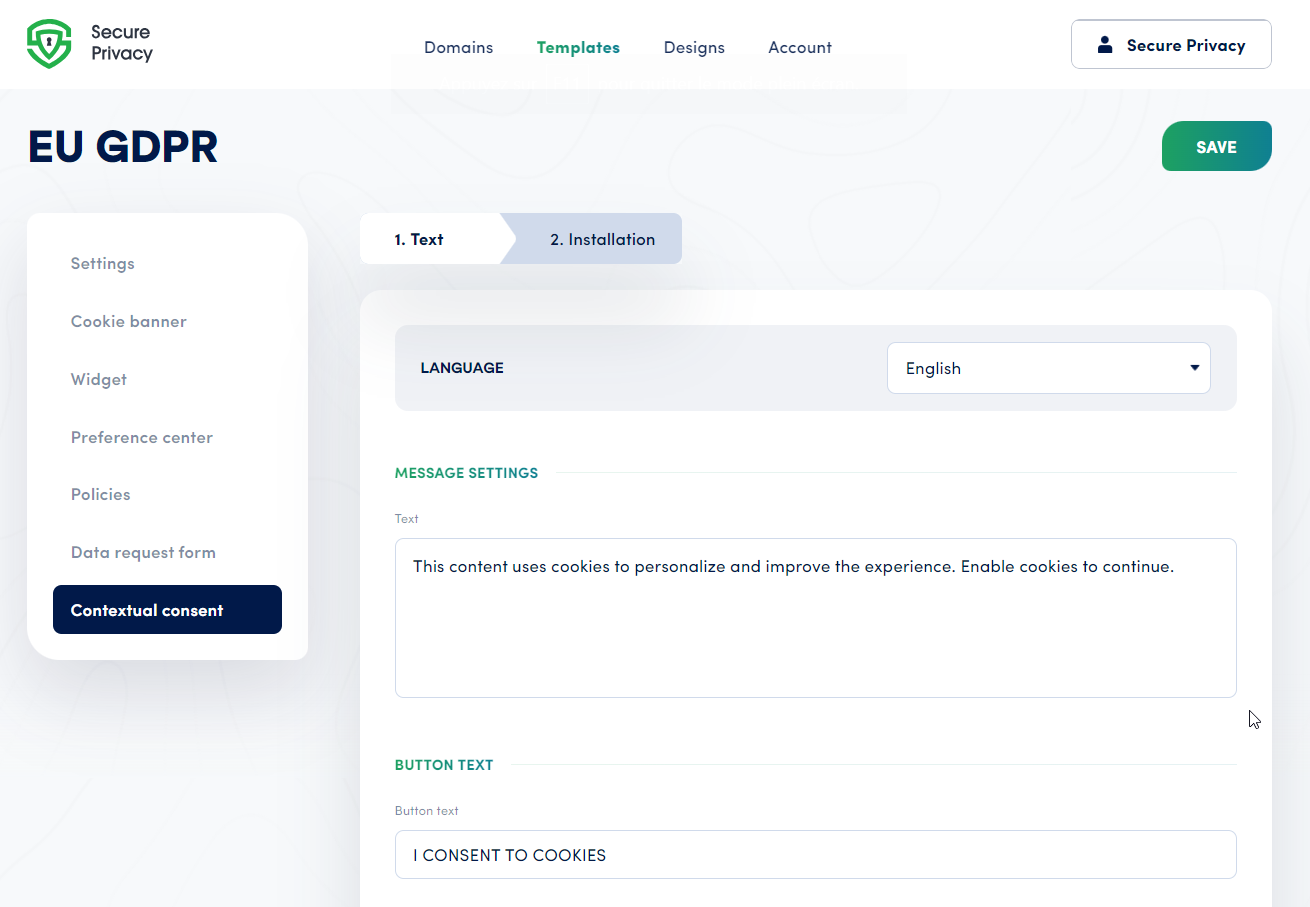
Language
Each of our templates is preconfigured and pre-translated, giving you an effortless localized user experience. Should you wish to add or remove a language, this can be easily done through the Template->Settings page.
Message Settings
Under "Text" in "Message Settings", you can customize the message content of your contextual consent page. Create clear, concise, and informative text that represents your brand’s message and its regard for privacy.
Button Text
"Button text" pertains to the text displayed on the customizable buttons or call-to-action tabs on your consent page. This text should drive user interaction and consent, reinforcing your commitment to data privacy.
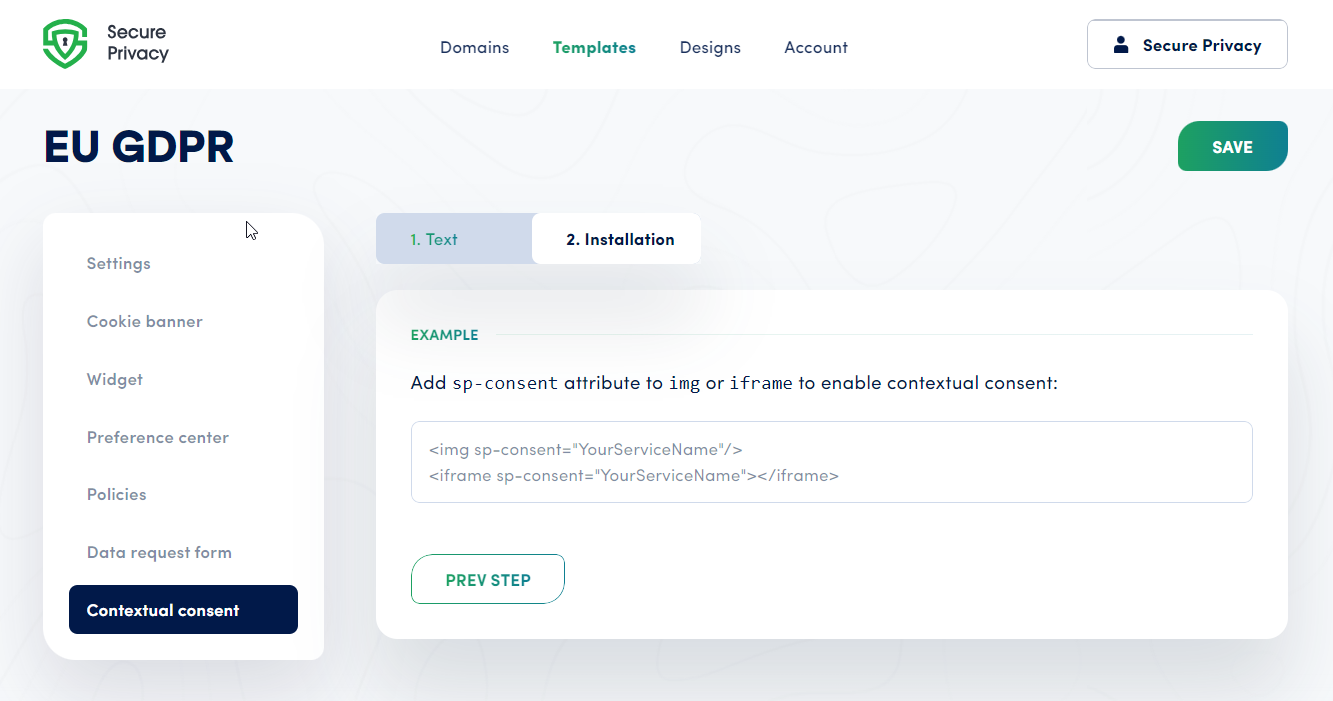
Installation
Steps
By adding 'sp-consent' attribute to the 'img' or 'iframe' tags, you can activate your customized contextual consent functionality. This step is critically important for implementation and should not be skipped.
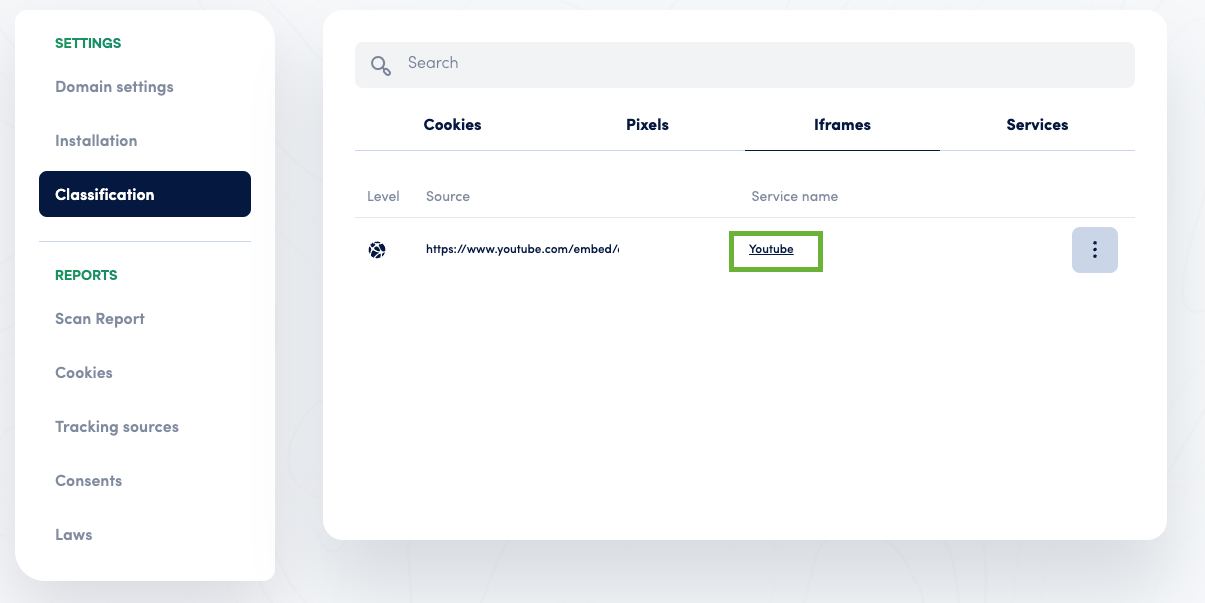
Update Cookie Classification
Please ensure that the 'img' or 'iframe' tags are categorised properly under Domain Settings -> Classification tab
In conclusion, utilizing 'Template' for creating a 'Contextual Consent' page is an efficient way of managing user consents. Our robust, customizable templates empower you to control how the user interaction and data privacy principles are displayed on your webpage. Ensure to make use of all the vital features in shaping your 'Contextual Consent' page that truly represents your brand, offers clear details, and maintains a high degree of data transparency.