Secure Privacy provides various tools to help you customize your banners and cookies. Create a step-by-step guide.
- Step 1: Create a new design.
- Step 2: Customize your Cookie Banner.
- Step 3: Customizing your widget.
- Step 4: Customize Preference Center.
Step 1: Create a new design.
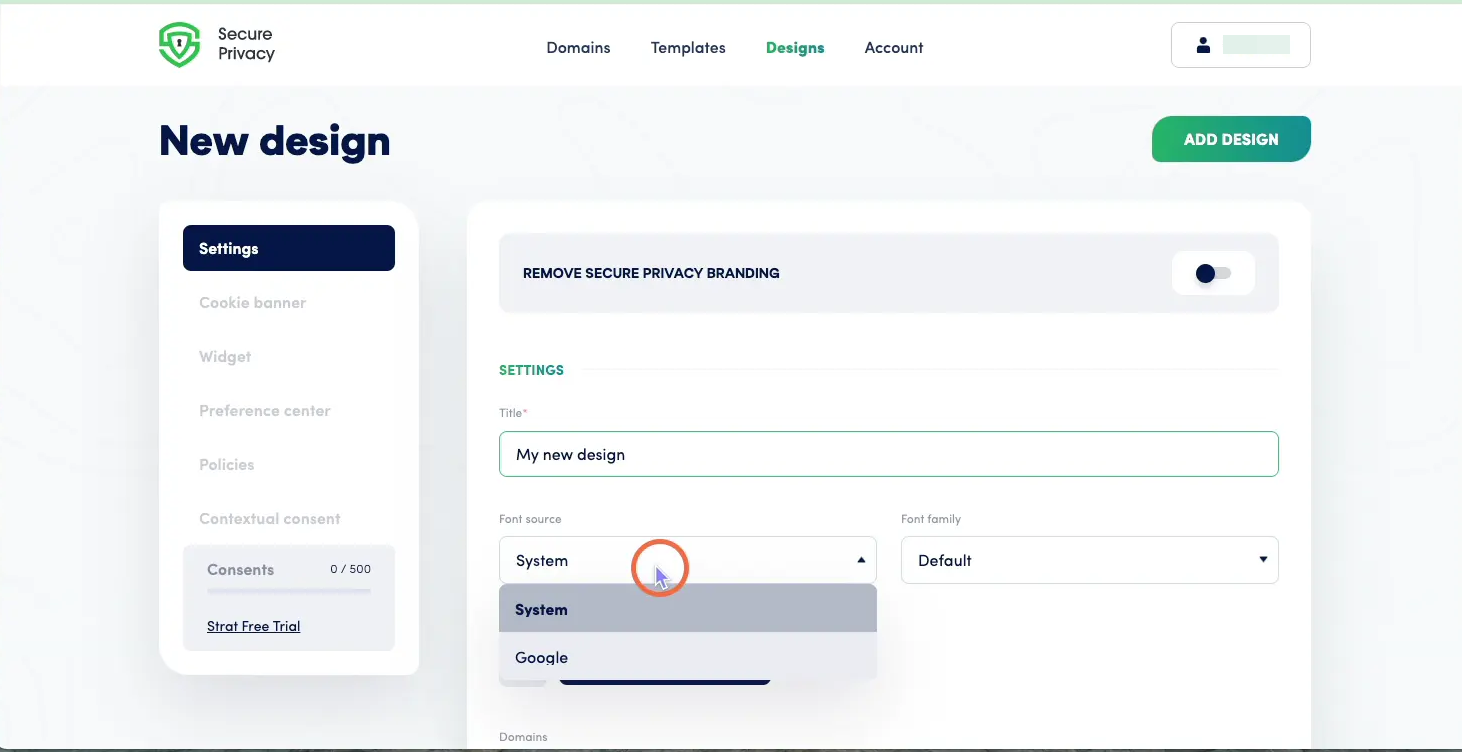
To add a new design to multiple domains, click the design link at the top of your page, then select "Add a new Design." You can name and assign the new design to your domains from here.
It's worth noting that within this window, you can also customize the font of your design by choosing from a range of Google fonts or selecting from the fonts we provide.
You can select the domains to which this design should apply for the domain you already added to your account.
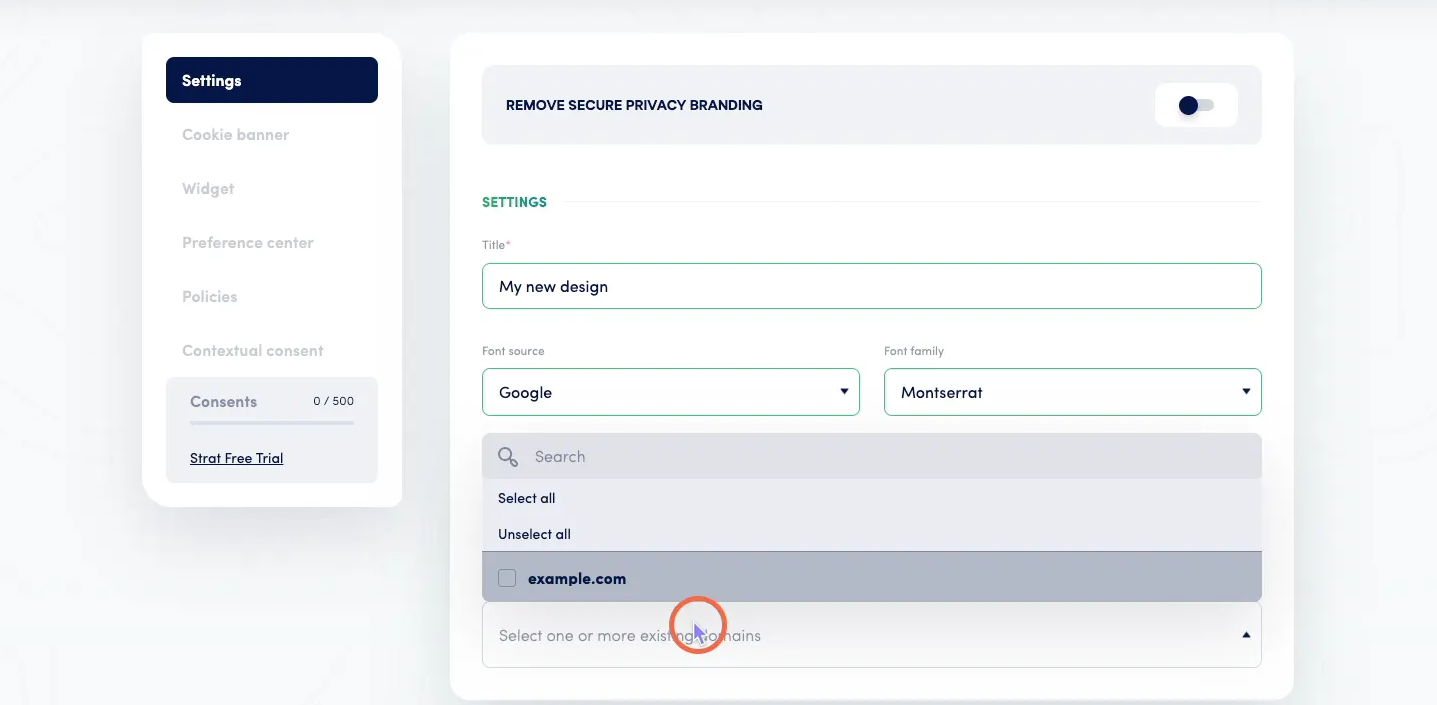
Step 2: Customize your Cookie Banner.
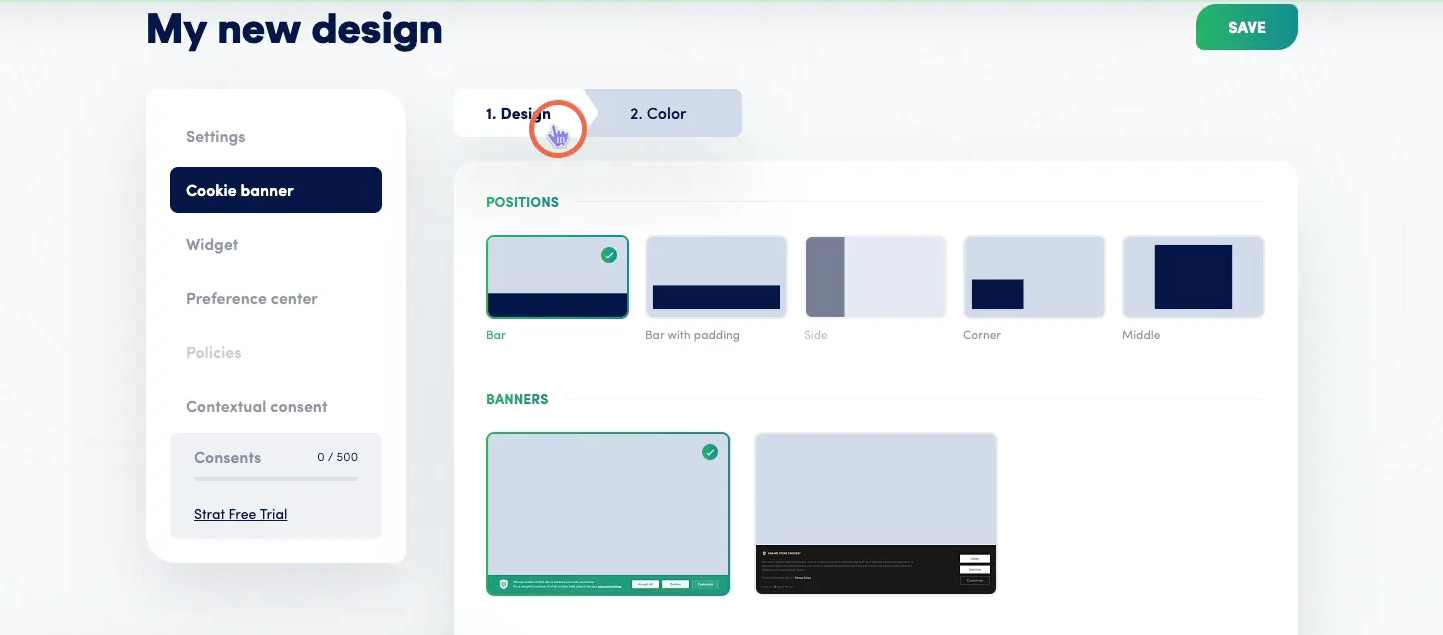
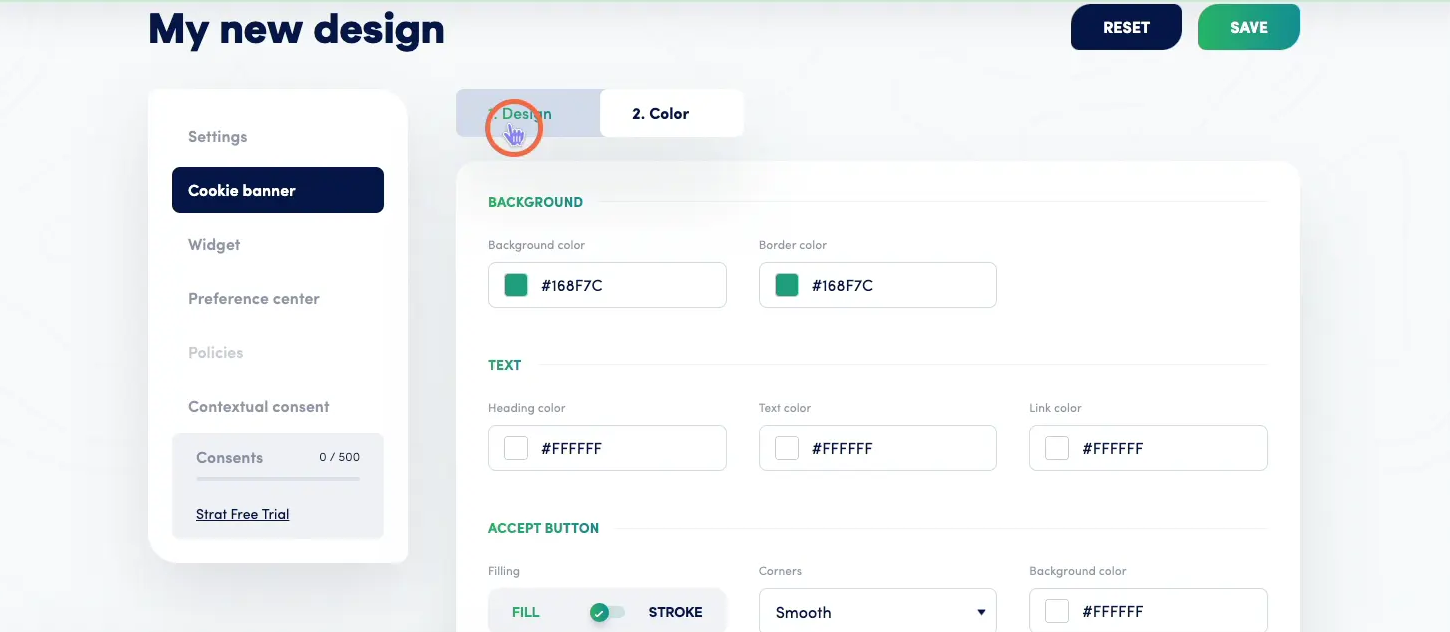
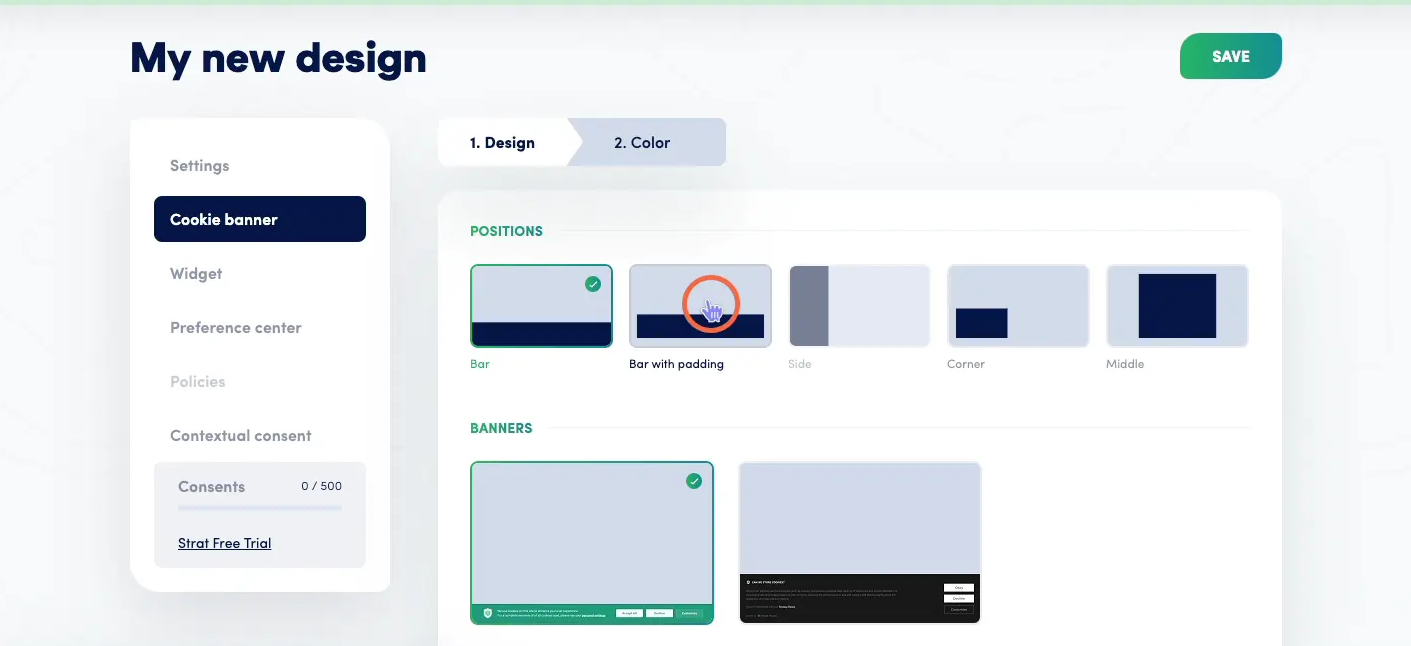
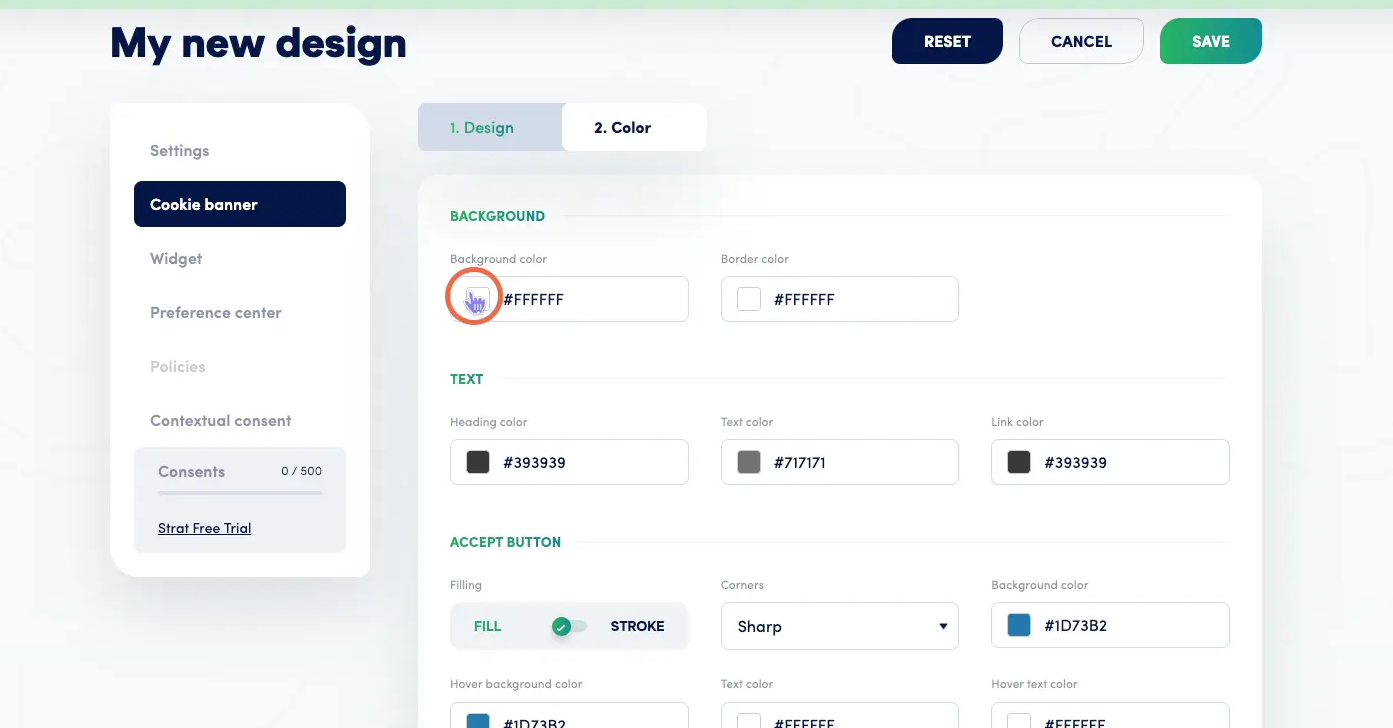
You'll find options to customize your cookie banners under the general settings on the left side of your page. Here, you'll find two options to modify the design or color of your cookie banner.
The design tab lets you control where and how the banner appears on your website. You even have the option to write your own CSS for further customization. Additionally, the color option allows you to select colors that best match your brand.
Step 3: Customizing your widget
This option lets you design your widget; it offers the option to change the following :
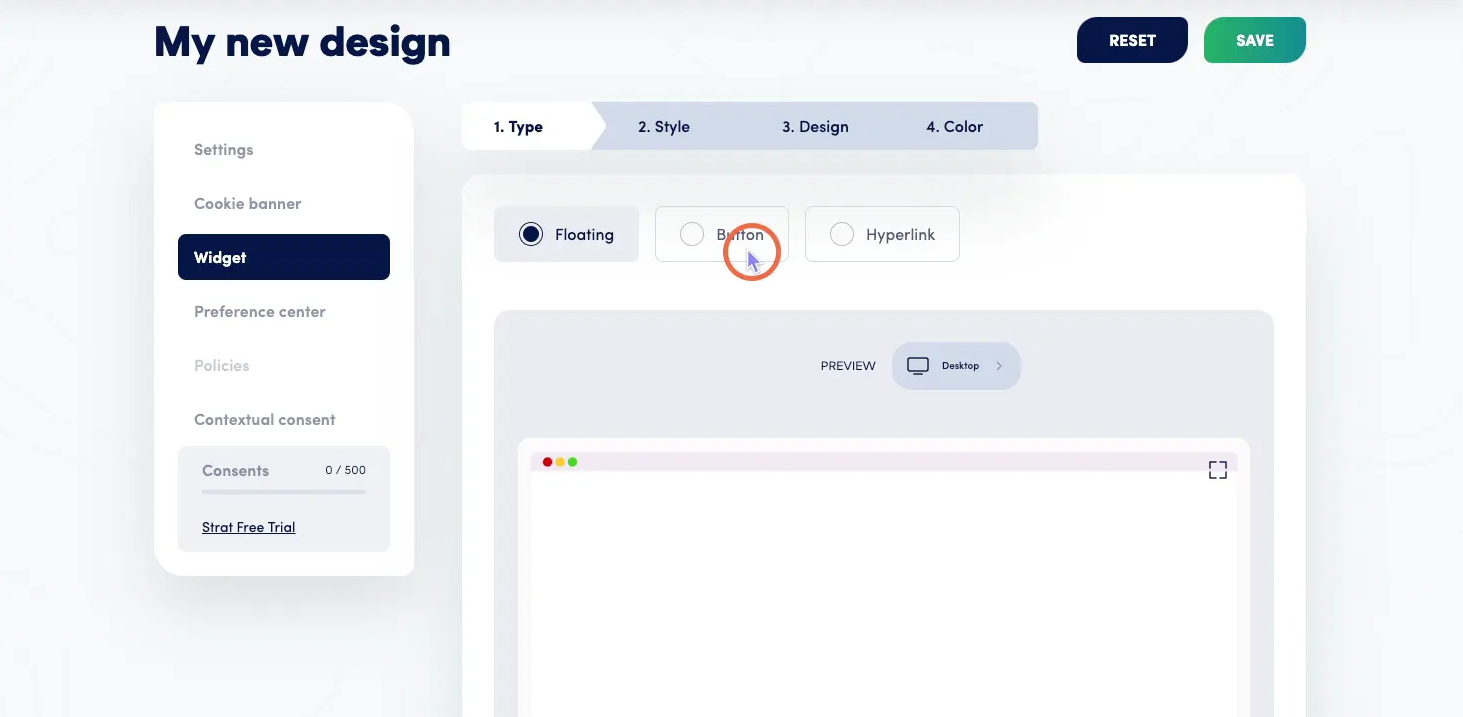
Please note that the floating let's you select among type, style, design and color.
LinkStep 4: Customize Your Preference Center.**