
Introduction
Managing cookie consent across multiple domains can frustrate users who must repeatedly grant permission. Secure Privacy’s cross-domain consent feature simplifies this by enabling a single consent banner across related websites. This guide explains how to activate and configure cross-domain consent to improve compliance and user experience.
Who Is This For?
- Website Administrators
- Privacy Compliance Officers
- Web Developers and IT Teams
- Digital Marketers managing multiple domains
Understanding Cross-Domain Consent
What is Cross-Domain Consent?
- Allows users to provide cookie consent once, which applies across multiple related domains or subdomains.
- Prevents users from seeing cookie banners on each site repeatedly.
- Enhances user experience, especially when navigating between related sites.
When to Use Cross-Domain Consent
- Use only if the domains share the same purpose or related content/functionality.
- Make sure data processing across domains aligns with legal privacy regulations.
- Avoid use if the domains serve different purposes to prevent compliance risks.
Example Use Case
Online hotel booking sites with multiple domains: location selection, hotel details, and booking. Users give consent once, instead of on each domain separately.
How to Enable Cross-Domain Consent in Secure Privacy
Step 1: Install the Secure Privacy Script
- Ensure the Secure Privacy script is installed on all domains involved.
- This script manages cookie consent across websites.
Step 2: Access the Settings Page
- Log into your Secure Privacy account.
- Click Account and navigate to the Domain Consent Consent tab.
- This is where you configure your consent groups.
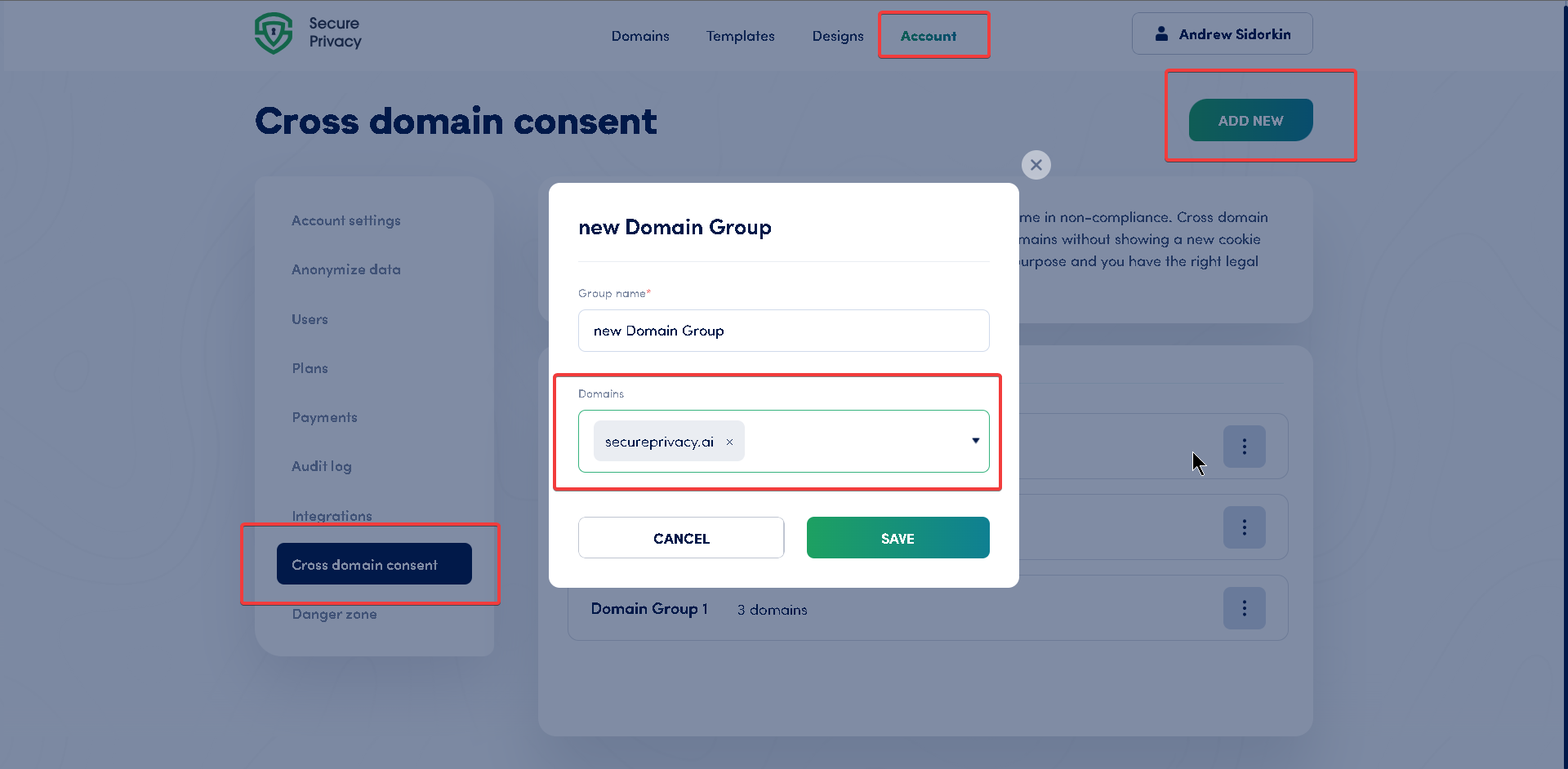
Step 3: Create a New Cross Domain Consent Group
- Click the ADD NEW button to create a new consent group.
- Enter a group name in the popup window.
- Open the Domains dropdown list. Use the search bar to find and select domains you want to link for cross-domain consent.
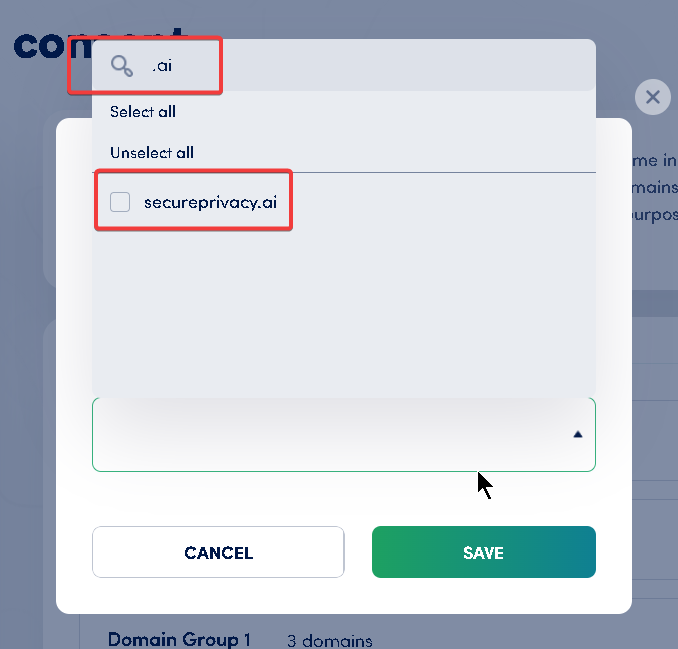
Step 4: Save and Apply Changes
- Click Save to confirm the new consent group settings.
- This will enable cross-domain consent for the selected domains.
- Assigning the same consent group name to multiple domains ensures users only need to consent once.
Important Compliance Notice
Enabling cross-domain consent can lead to non-compliance if domains differ significantly in purpose.
Use only for related domains with the proper legal basis for shared data processing.
Cross-domain consent shares one consent cookie, reducing multiple banners but requiring careful legal consideration.
Common Issues & Fixes
| Issue | Fix |
|---|---|
| Consent not syncing across domains | Verify Secure Privacy script is installed on all domains. Ensure domains are correctly added to the same consent group. |
| Domains flagged for non-compliance | Check that all domains serve the same purpose and comply with privacy laws for cross-domain data use. |
| Unable to find domain in list | Confirm domains are added in domain management and onboarding is complete. |
See Also
- [Navigate and Utilize Your Consent Dashboard
](https://support.secureprivacy.ai/articles/235165-navigate-and-utilize-your-consent-dashboard-an-indepth-guide)